How to join two videos into one
Combine two or more video clips into a single file, without uploading anything.
Here is how to join two videos into one easily, privately (no uploading!) and for free. Edit Videos is the free online tool our team maintains so you can join videos and much more. Follow the steps below.
Steps
- Open Edit Videos, select Choose a video or audio file and pick the first video.

- Under Clips, select Add video or audio and pick the second. It lands in the timeline after the first.

- Each video is a bar in the timeline, the strip under the preview. Drag a bar by its middle to move it earlier or later.
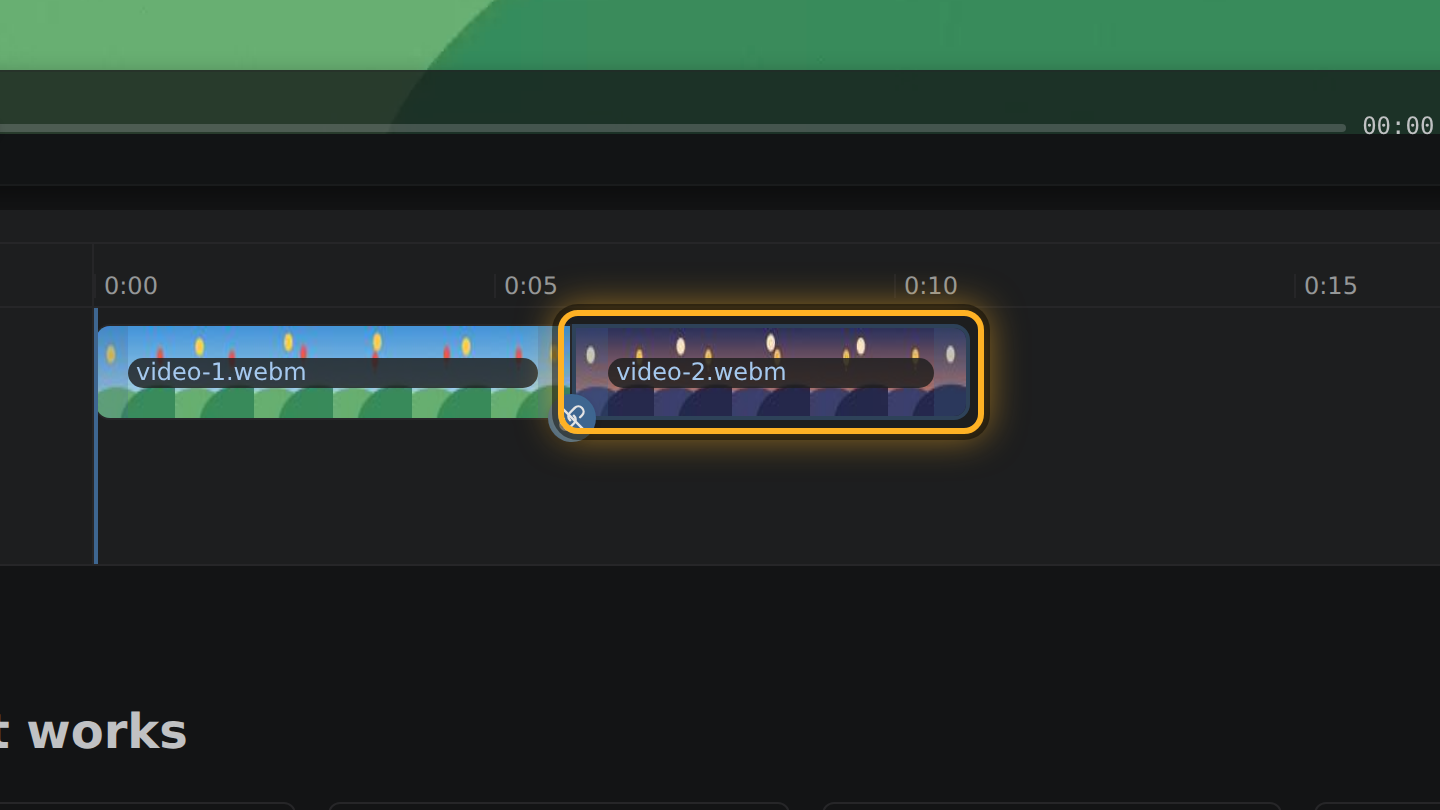
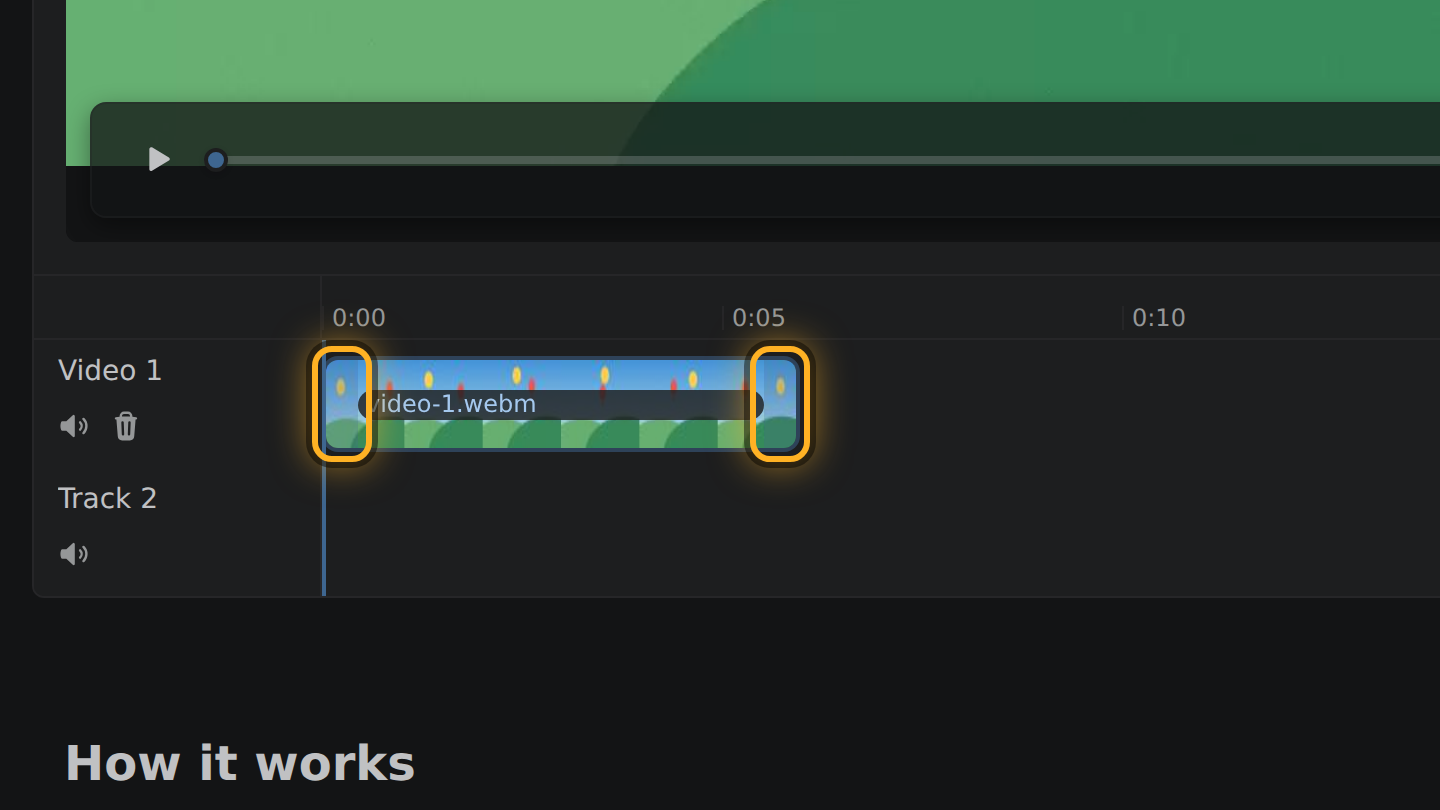
- To cut the start or the end off a video, drag that end of its bar inward.
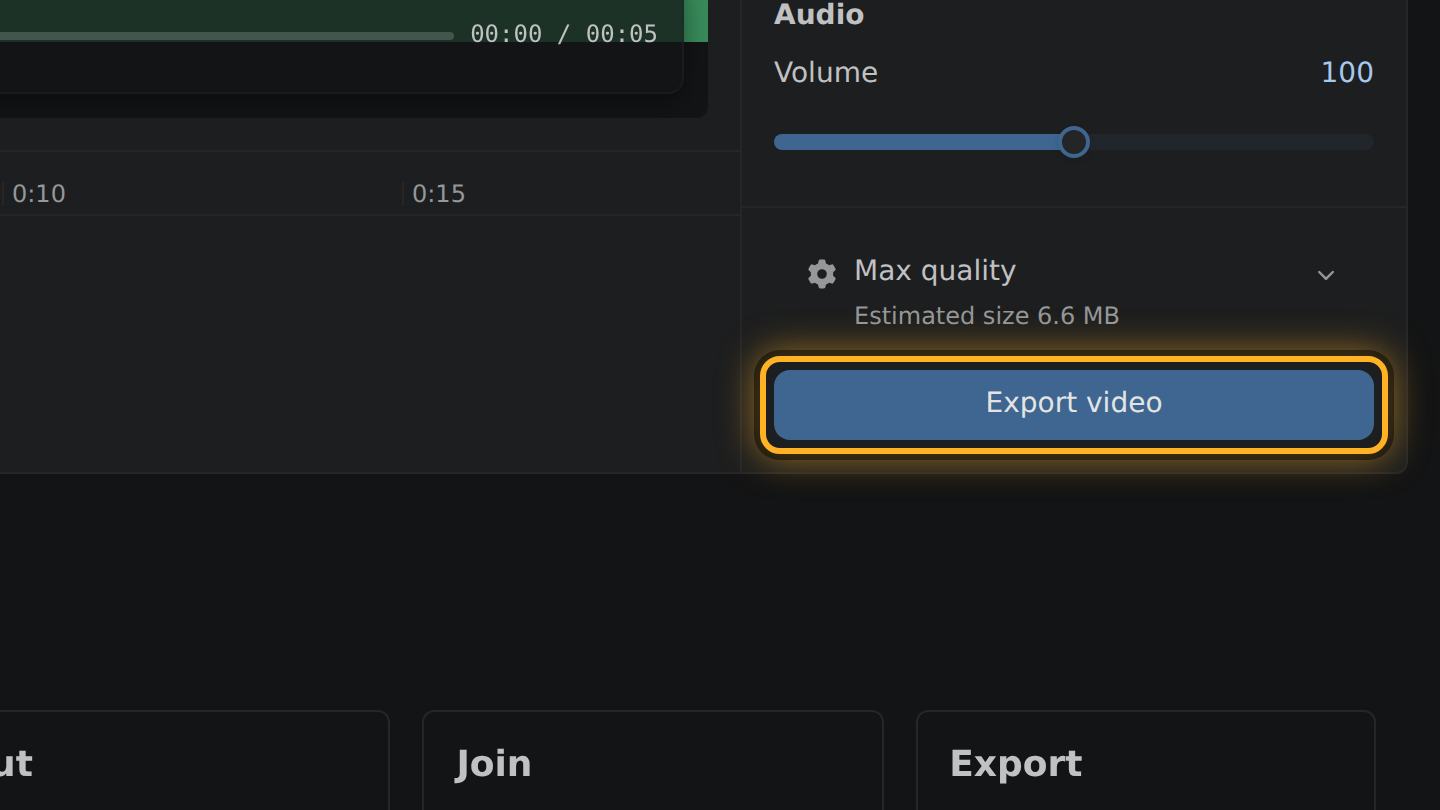
- Select Export video, then Save video.
What to know
- The videos do not need to match. The joined video takes the largest picture among them, and a smaller clip is scaled up to fit inside it.
- Joining encodes every clip once more, each at the bitrate it came with. The joined file weighs about as much as its parts together.
- The result is one MP4 file, with H.264 video and Opus sound.
- Nothing is uploaded, and no watermark is added.
Questions
Can I join more than two videos?
Yes. Add the files one after another; they play in order.
Do the videos need the same size or format?
No. Files your browser can play, such as MP4, MOV and WebM, can be mixed. Each clip is brought to one picture size and frame rate.
How big will the joined file be?
About the sum of the files you joined, less what you trimmed. The editor shows the estimate above the Export button before you export.

Thiago Vitorino leads the Edit Videos Team. His articles draw on 22 years of building for the web, with TypeScript, Rust and front-end performance.
More guides
Cut a video down to the part you want, entirely in your browser. No upload, no install.
Take the sound out of a video file in your browser. The picture stays as it is.
Trim an MP4 file to the part you want, without uploading it or installing software.