How to remove audio from a video
Take the sound out of a video file in your browser. The picture stays as it is.
Here is how to remove the audio from a video easily, privately (no uploading!) and for free. Edit Videos is the free online tool our team maintains so you can mute videos and much more. Follow the steps below.
Steps
- Open Edit Videos, select Choose a video or audio file and pick the video you want without its sound.

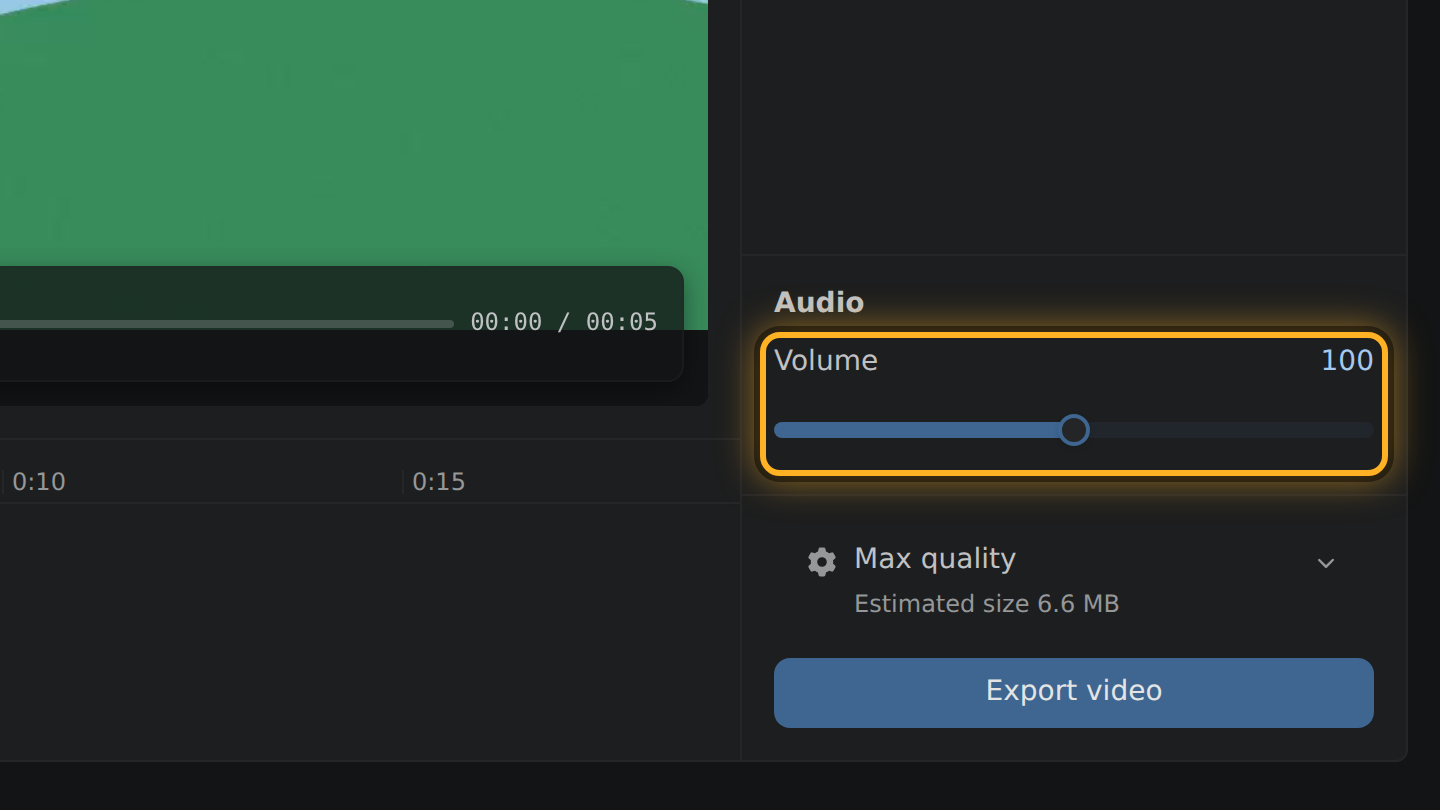
- Under Audio, drag the Volume slider all the way down to zero.
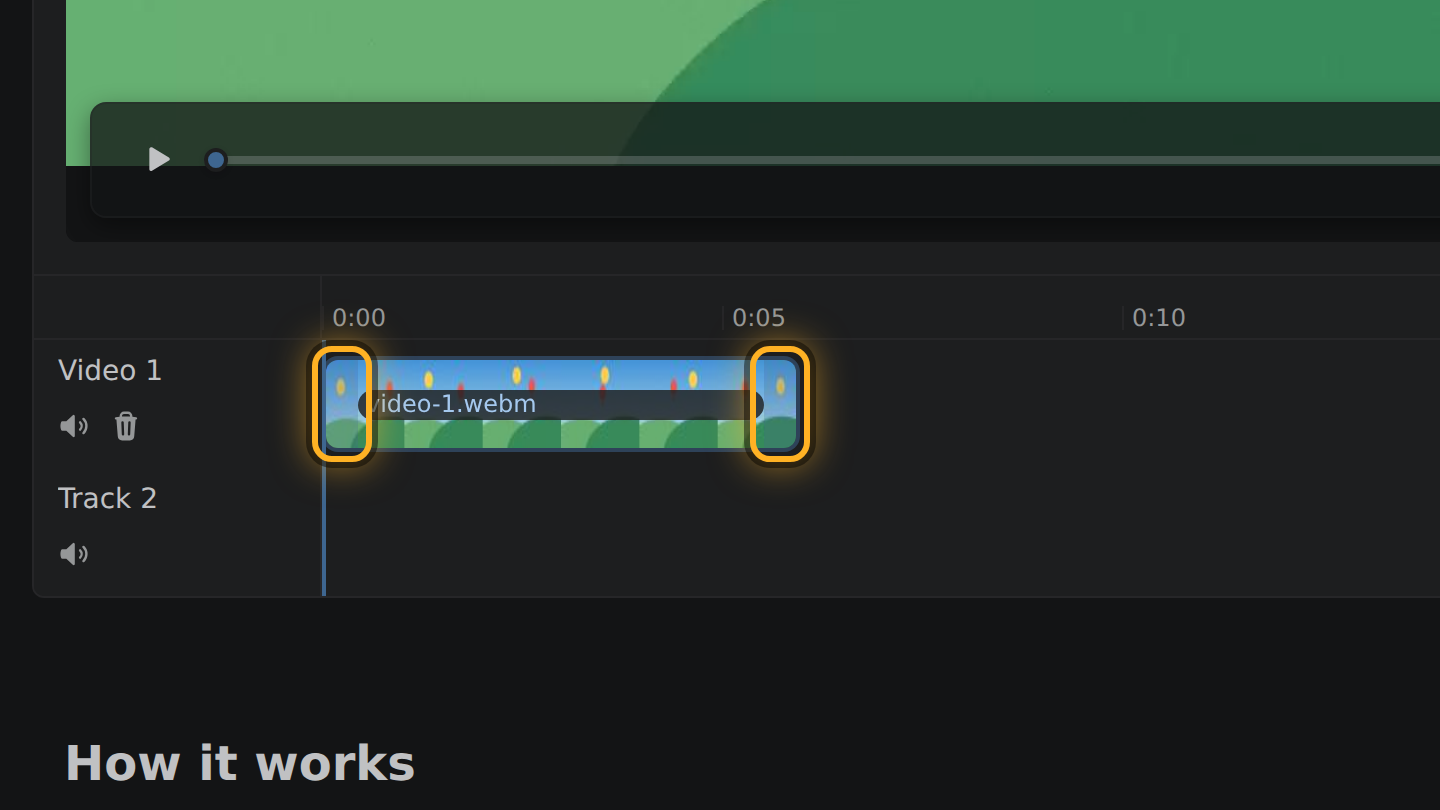
- To make the video shorter too, find its bar in the timeline, the strip under the video, and drag the bar's ends inward.
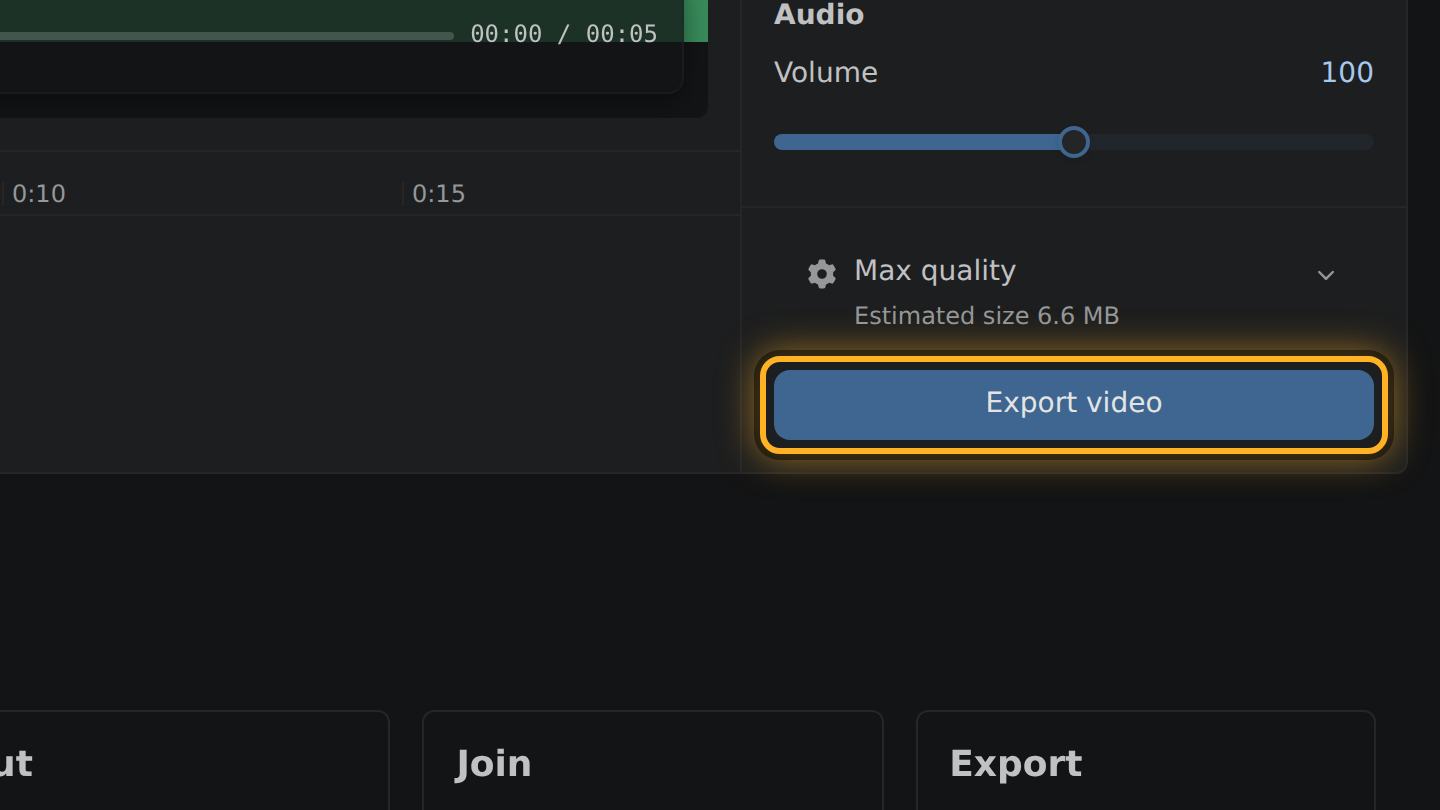
- Select Export video, then Save video.
What to know
- At zero, the sound is taken out of the file. The MP4 you save has no sound in it, not a silent track.
- Taking the sound out does not, by itself, encode the picture again.
- Zero removes every sound in the project, audio files you added included.
- To silence one track and keep the others, use the mute button on that track in the timeline.
Questions
Can I replace the sound with my own?
Yes. Mute the video's track in the timeline, then select Add video or audio and choose your audio file. Only the sound you added is heard in the result, and any of it that runs past the end of the picture is left out.
Does removing the sound make the file smaller?
Yes, by what the sound weighed. The screen after the export shows the real size before you save.
Can I make the video quieter instead of silent?
Yes. Volume goes from 0% to 200%. At 100% the sound is left as it is.

Thiago Vitorino leads the Edit Videos Team. His articles draw on 22 years of building for the web, with TypeScript, Rust and front-end performance.
More guides
Cut a video down to the part you want, entirely in your browser. No upload, no install.
Combine two or more video clips into a single file, without uploading anything.
Trim an MP4 file to the part you want, without uploading it or installing software.