How to cut a MOV video
Trim a .mov file in your browser and save the part you want as an MP4.
Here is how to cut a MOV video easily, privately (no uploading!) and for free. Edit Videos is the free online tool our team maintains so you can cut MOV files and much more. Follow the steps below.
Steps
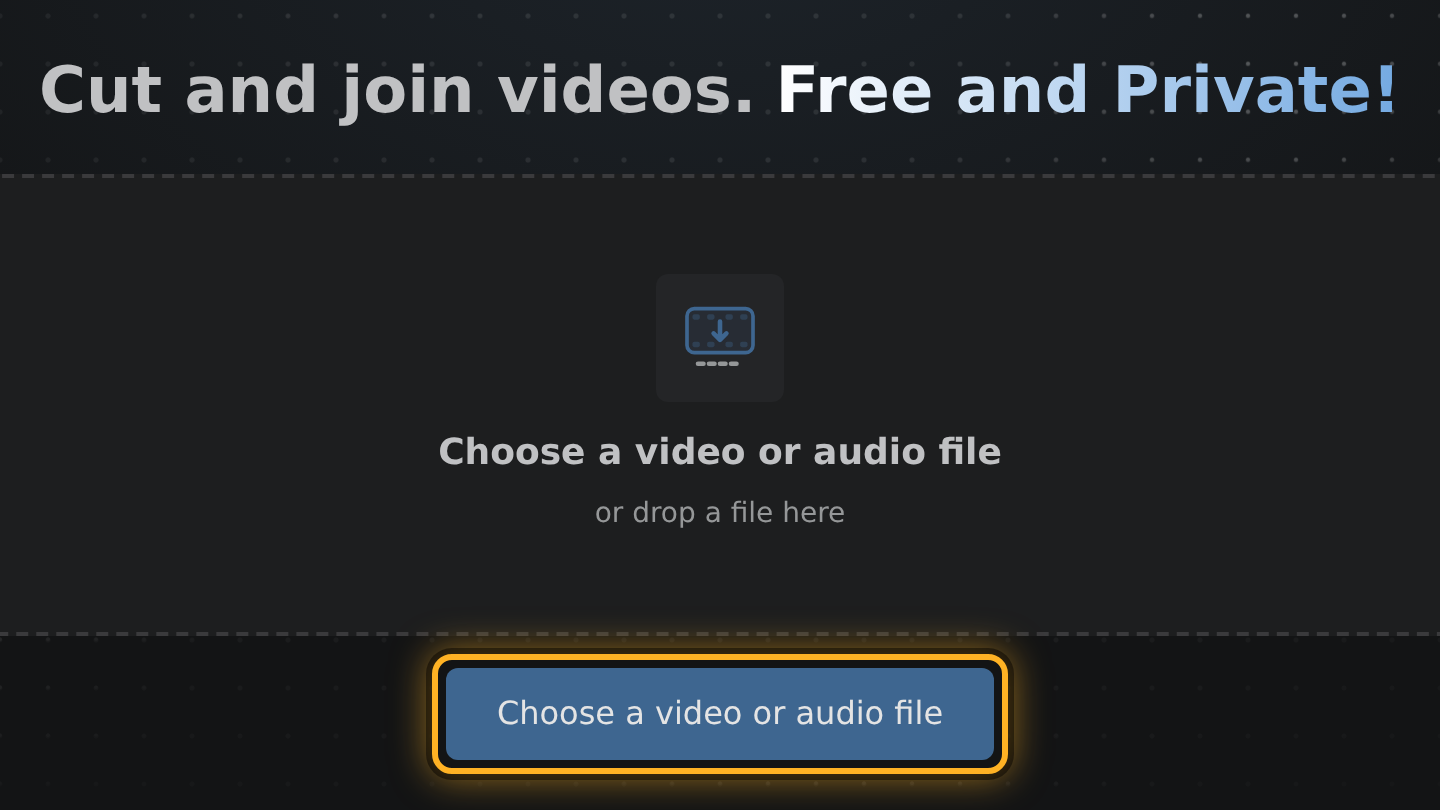
- Open Edit Videos, select Choose a video or audio file and pick your .mov file.
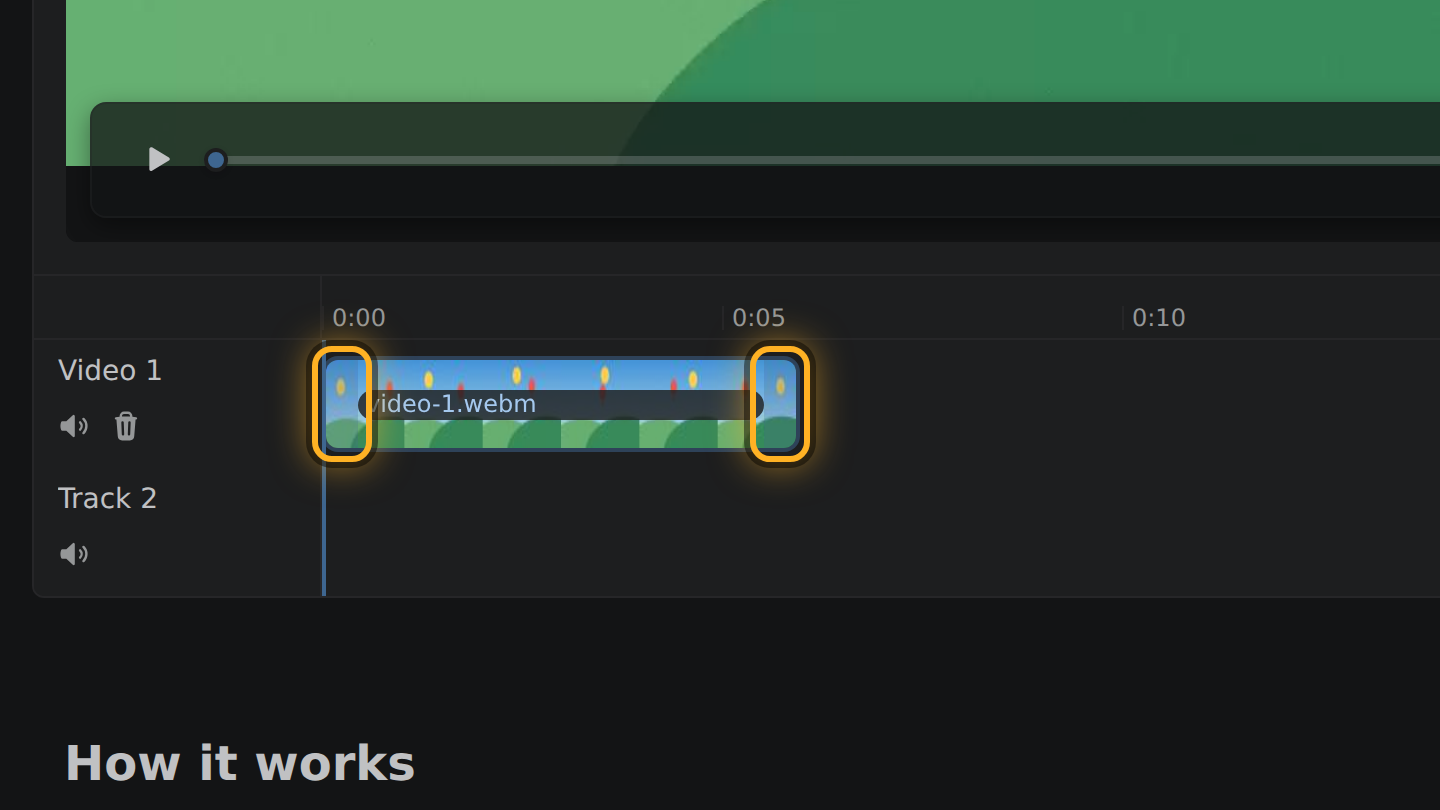
- Under the video is the timeline, with your MOV as a bar in it. Drag the left end of the bar to the new start and the right end to the new end.
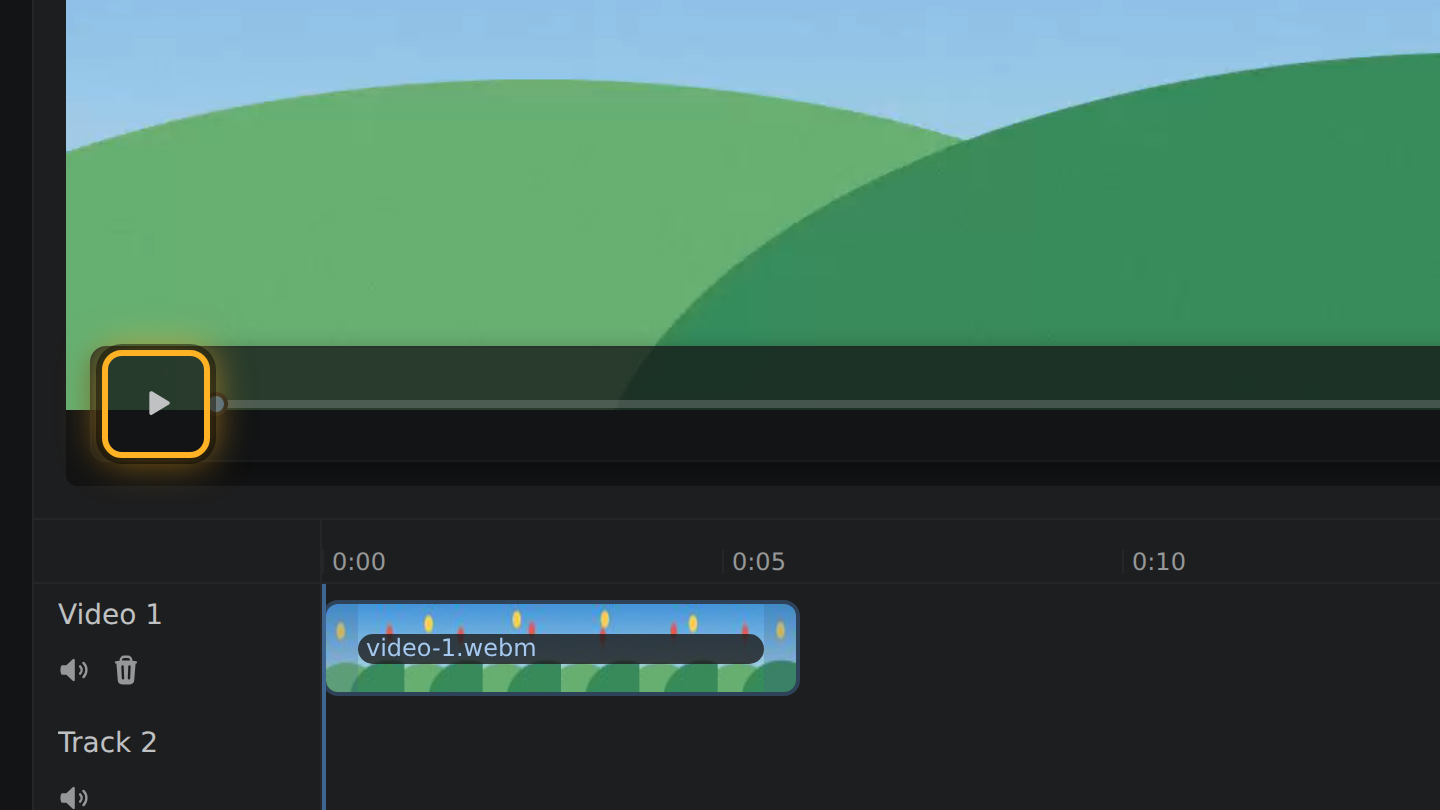
- Select Play under the video to see the cut once.
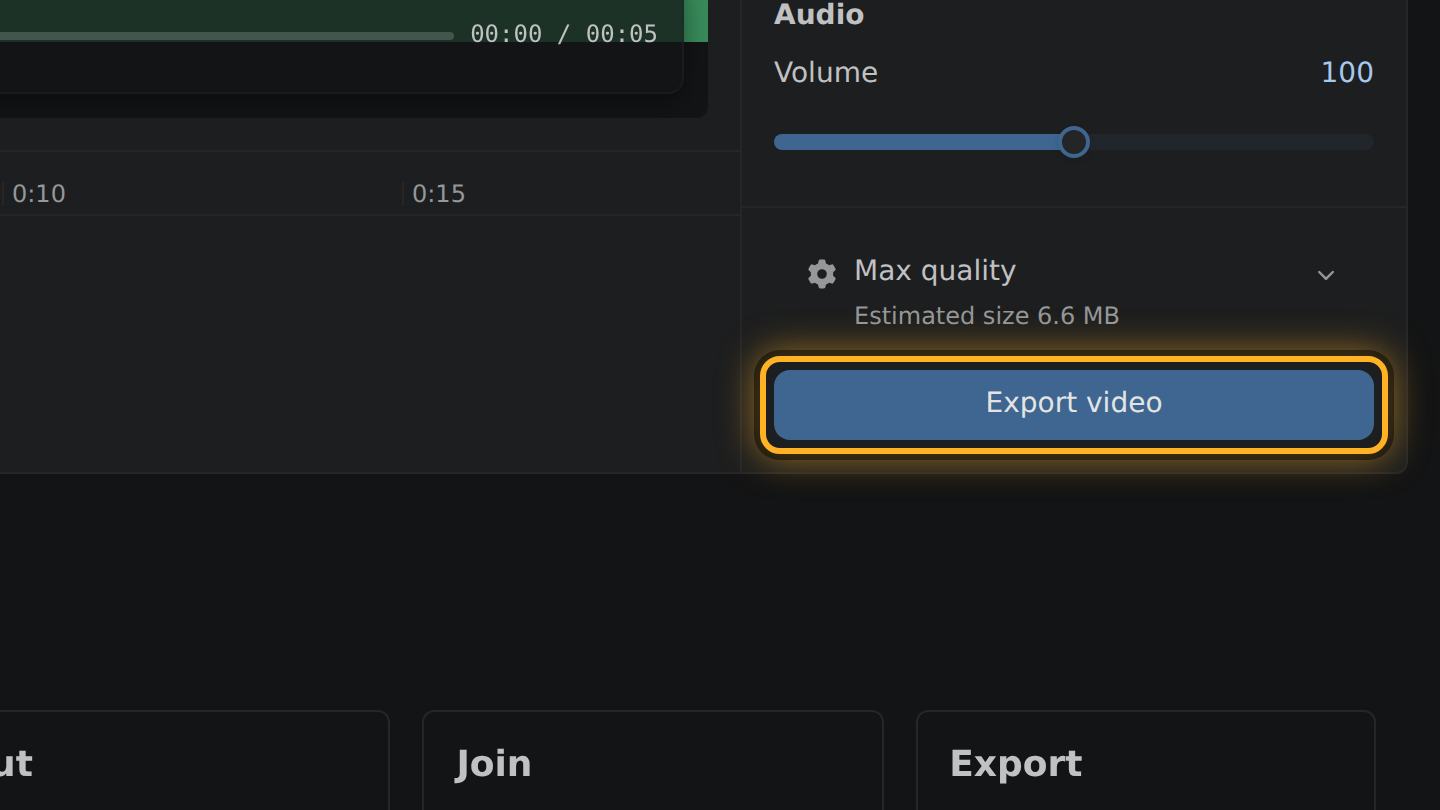
- Select Export video, then Save video.
What to know
- The result is an MP4, not a MOV. Edit Videos writes MP4 for every video it exports.
- A video shot upright stays upright. The file's rotation is kept when it is cut.
- Edit Videos opens MOV files that hold H.264 or HEVC video, when your browser can decode them.
- If you move only the end, the picture is copied into the MP4 as it is. Moving the start encodes it once more, at the bitrate the MOV had.
Questions
Can I get a MOV file back?
No. Edit Videos exports MP4 only.
Will my upright or sideways video be turned?
No. It plays the same way up as the original.
My MOV does not open. Why?
Your browser may have no decoder for the video inside it; HEVC is opened only where the browser can decode it. Try a recent version of Chrome, Edge or Firefox.

Thiago Vitorino leads the Edit Videos Team. His articles draw on 22 years of building for the web, with TypeScript, Rust and front-end performance.
More guides
Trim an MP4 file to the part you want, without uploading it or installing software.
Trim a .webm file in your browser. The part you keep is saved as an MP4.
Cut a video down to the part you want, entirely in your browser. No upload, no install.