How to cut a WebM video
Trim a .webm file in your browser. The part you keep is saved as an MP4.
Here is how to cut a WebM video easily, privately (no uploading!) and for free. Edit Videos is the free online tool our team maintains so you can cut WebM files and much more. Follow the steps below.
Steps
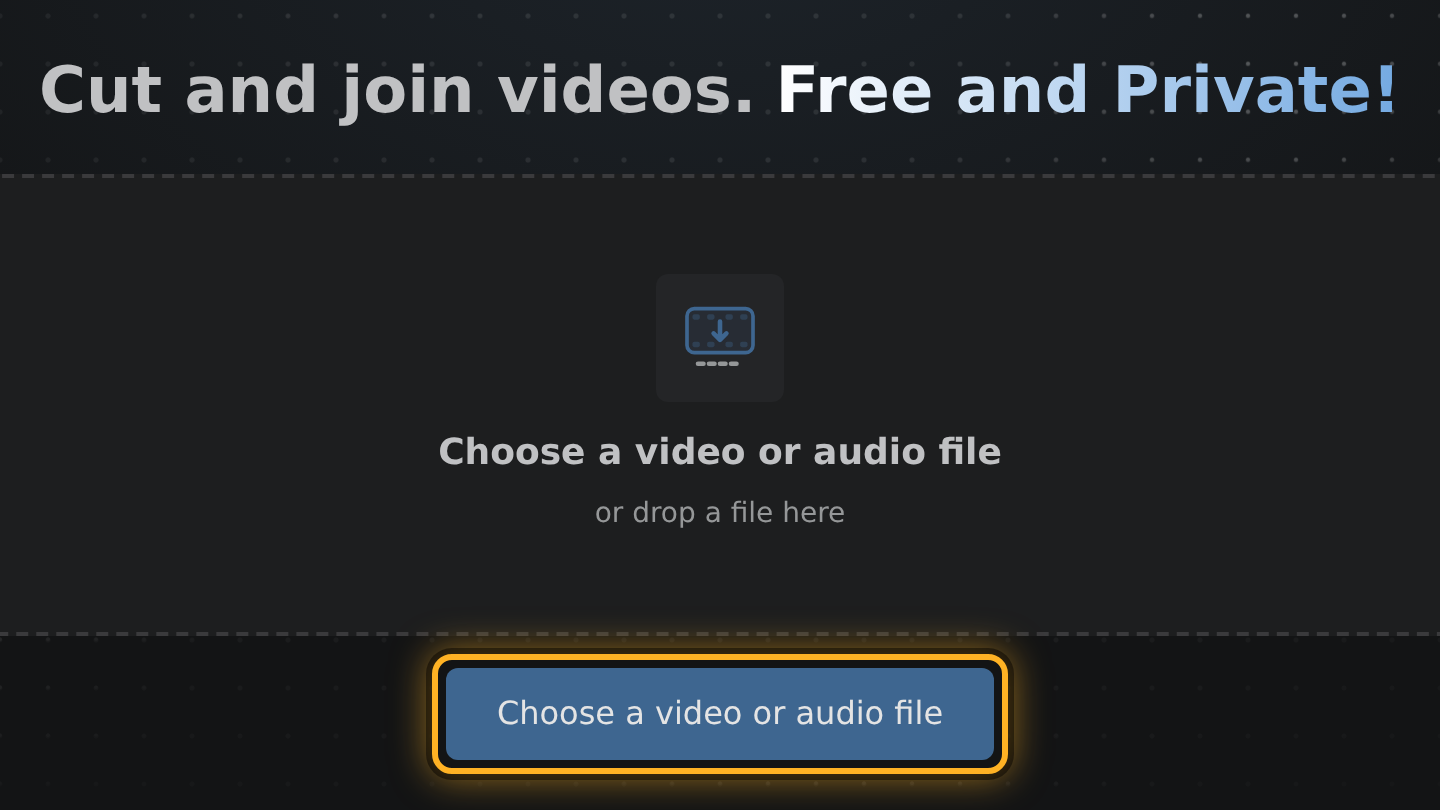
- Open Edit Videos and drop your .webm file on the page, or select Choose a video or audio file and pick it.
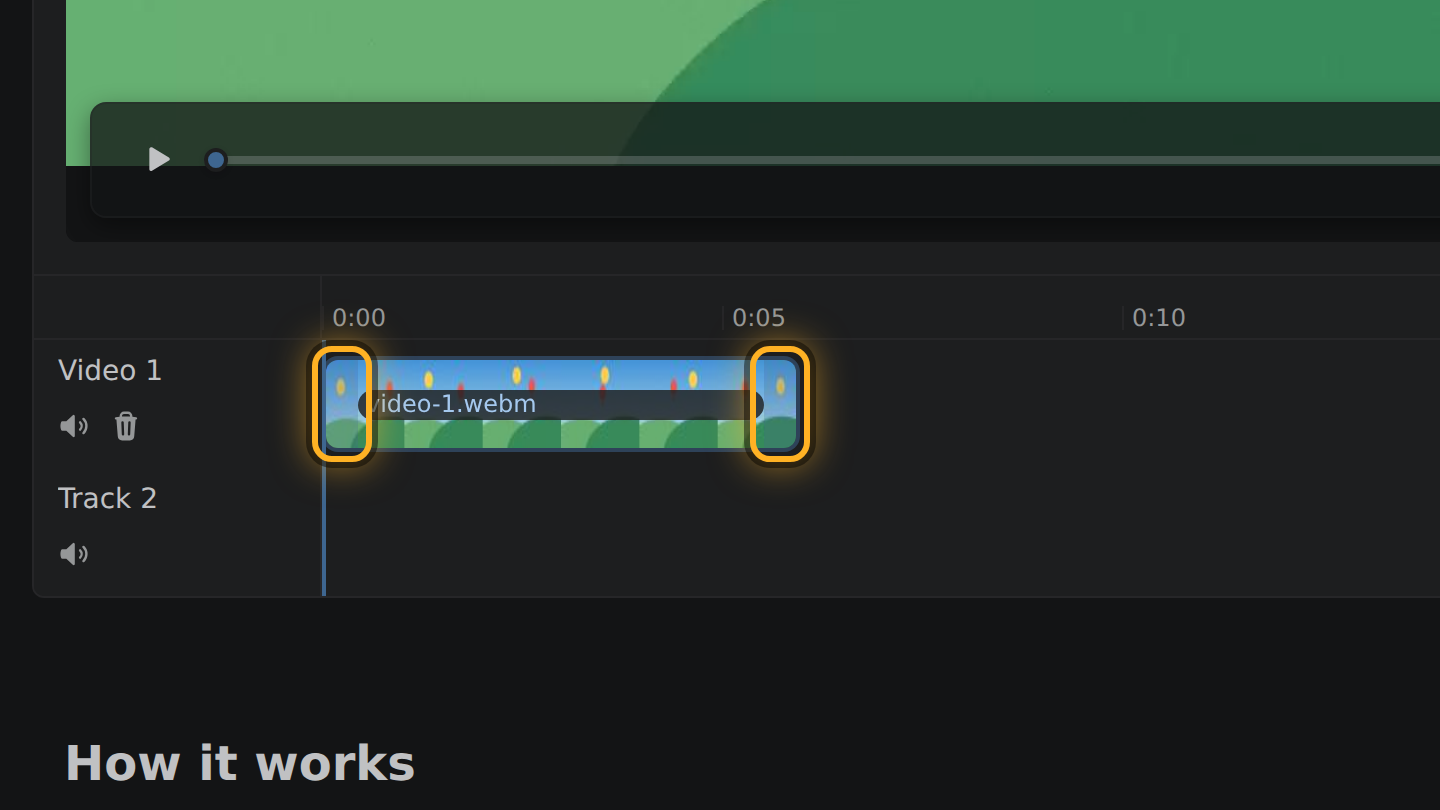
- The bar in the timeline, the strip under the video, is your WebM. Set the start by dragging the bar's left end, and the end by dragging its right end.
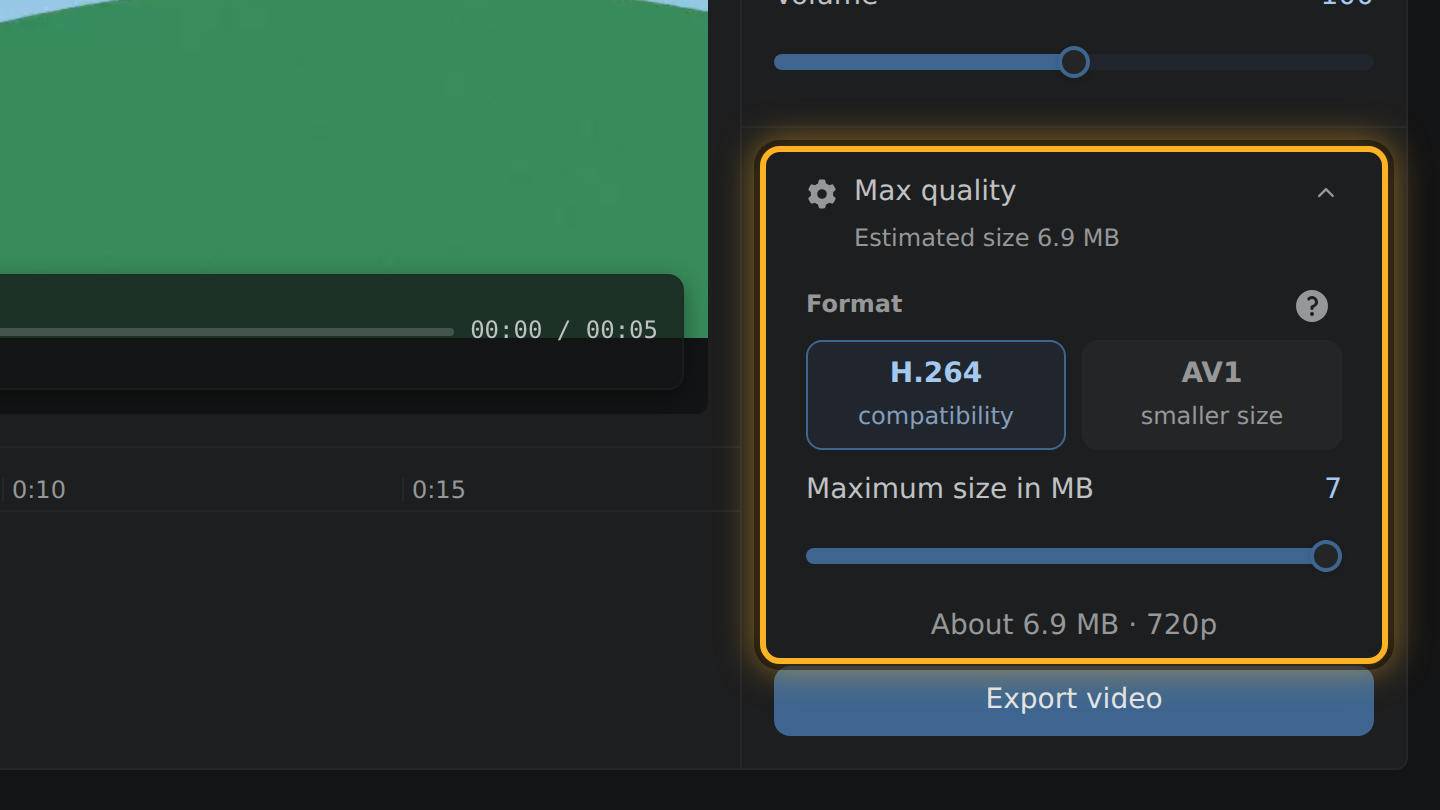
- Check the estimated size on the line above the Export video button.
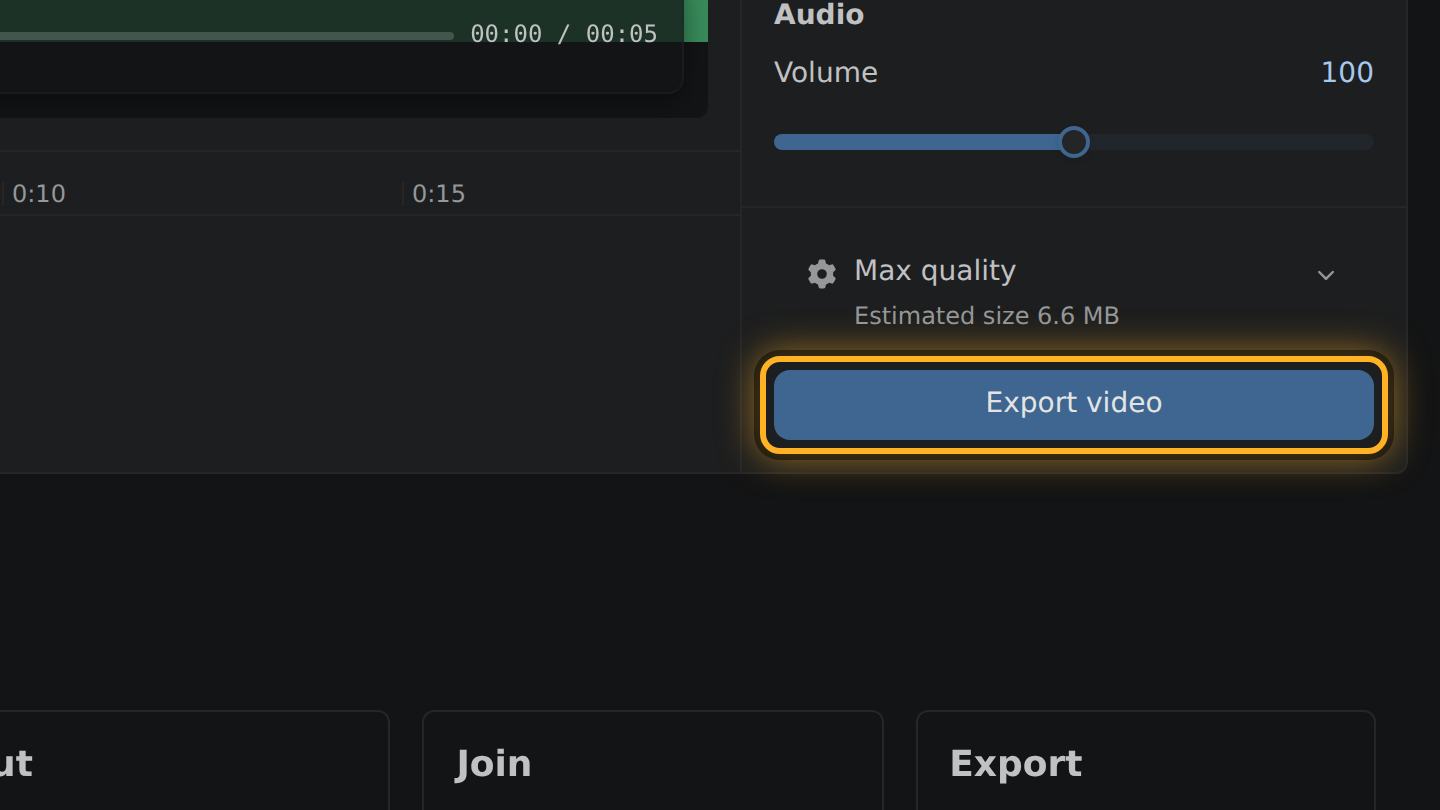
- Select Export video, then Save video.
What to know
- The result is an MP4, not a WebM.
- Edit Videos opens WebM files with VP8, VP9 or AV1 video, when your browser can decode them.
- If you move only the end, the picture is copied. The MP4 then holds the same VP8, VP9 or AV1 video the WebM had.
- Joining clips or setting a maximum size encodes the picture as H.264.
Questions
Can I export a WebM?
No. Every video export is an MP4.
Is the video converted when I cut it?
Not when you move only the end: the picture moves into the MP4 untouched. Moving the start encodes it once more, at the bitrate the WebM had.
Can I join a WebM with an MP4?
Yes. Add both files; the joined video is one MP4 with H.264 video and Opus sound.

Thiago Vitorino leads the Edit Videos Team. His articles draw on 22 years of building for the web, with TypeScript, Rust and front-end performance.
More guides
Trim an MP4 file to the part you want, without uploading it or installing software.
Trim a .mov file in your browser and save the part you want as an MP4.
Cut a video down to the part you want, entirely in your browser. No upload, no install.