How to cut out a part of a video
Remove a section from the middle of a video in your browser, with no upload and no software to install.
To cut a part out of the middle of a video, split its bar in the timeline where that part begins and where it ends, then remove the piece between the two splits. The pieces on either side are joined in the export. Edit Videos does all of it in your browser, so the video is not uploaded, and it costs nothing.
Steps
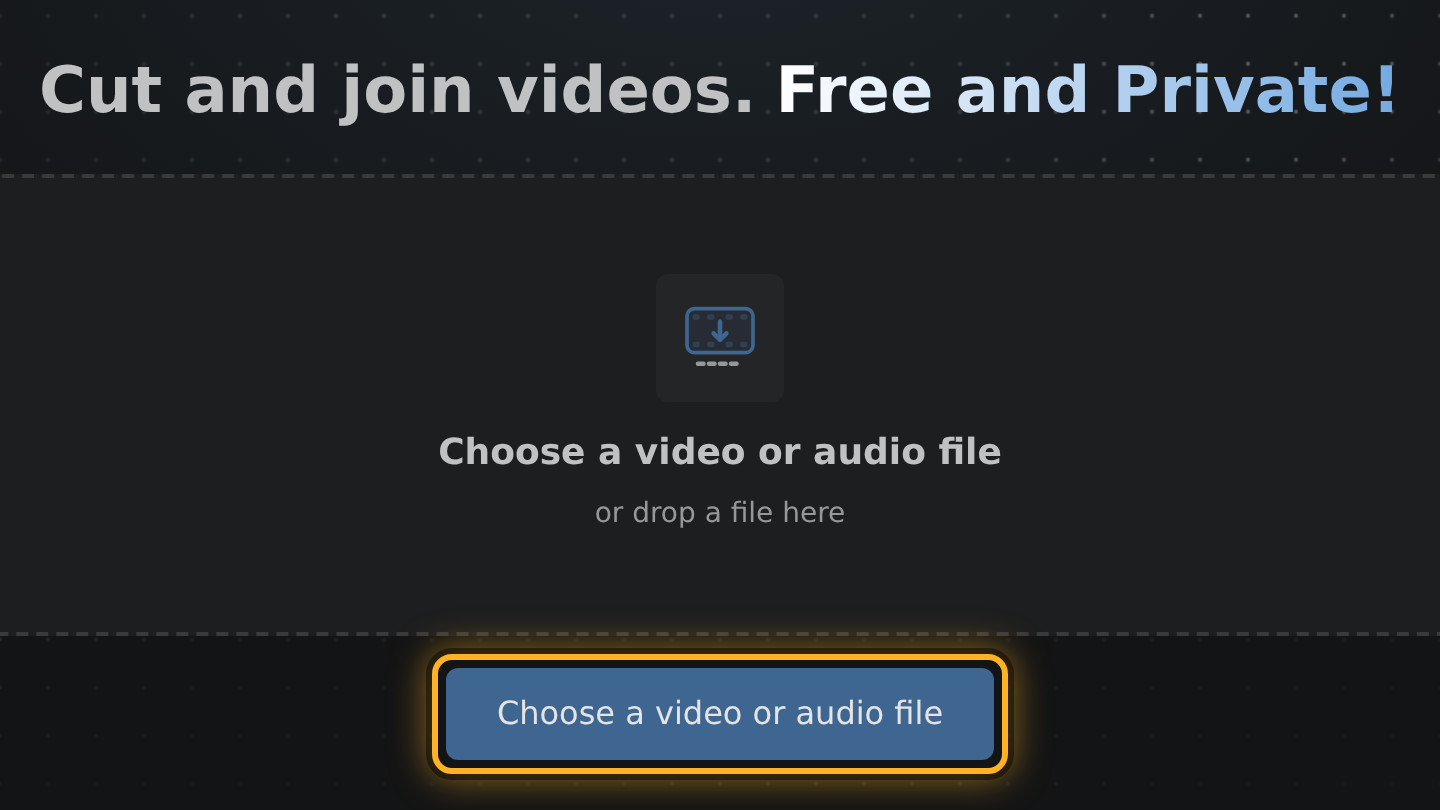
- Open Edit Videos, select Choose a video, audio or picture and pick the video.
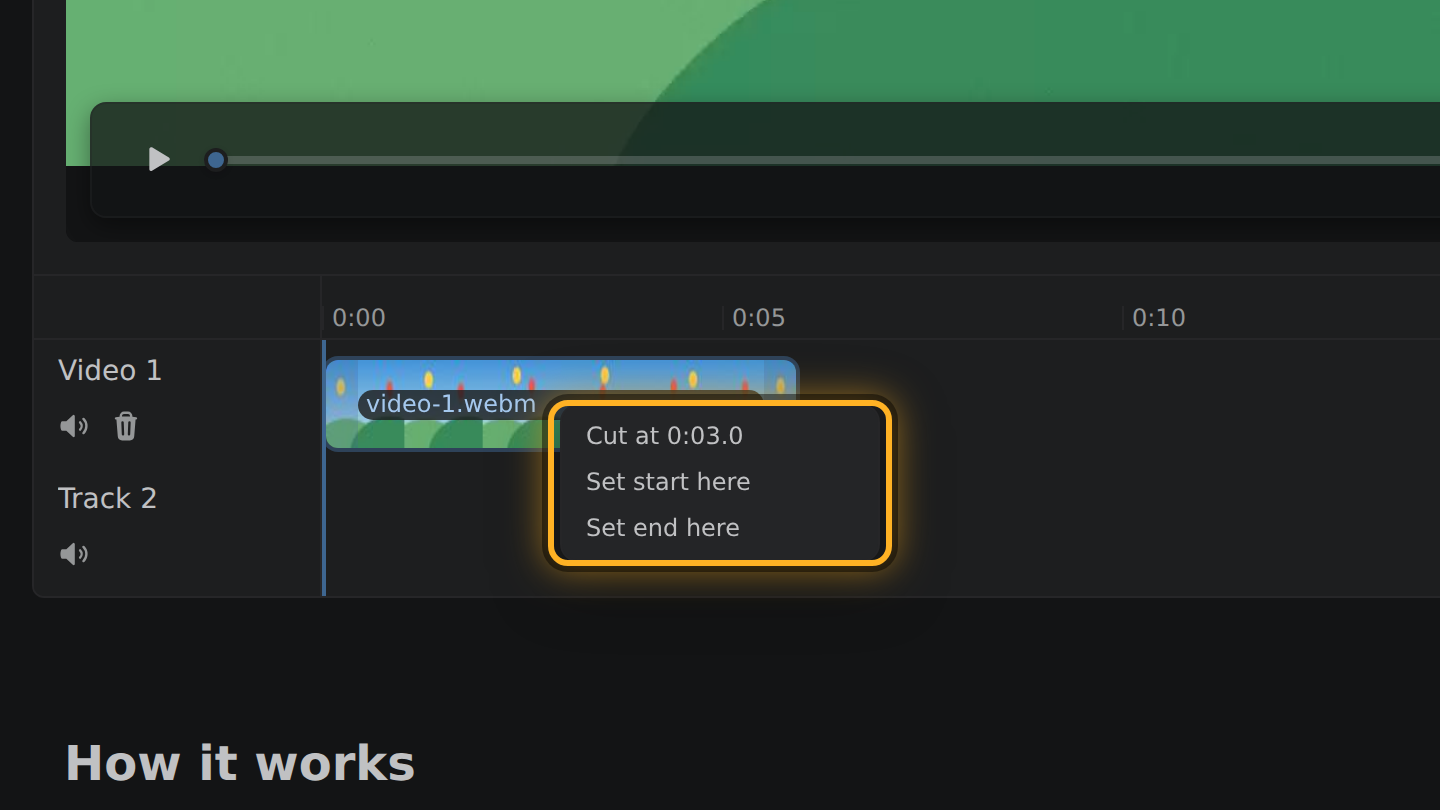
- The video is a bar in the timeline, the strip under it. Right-click the bar where the part you want gone begins and select Cut at, the first line of the menu.
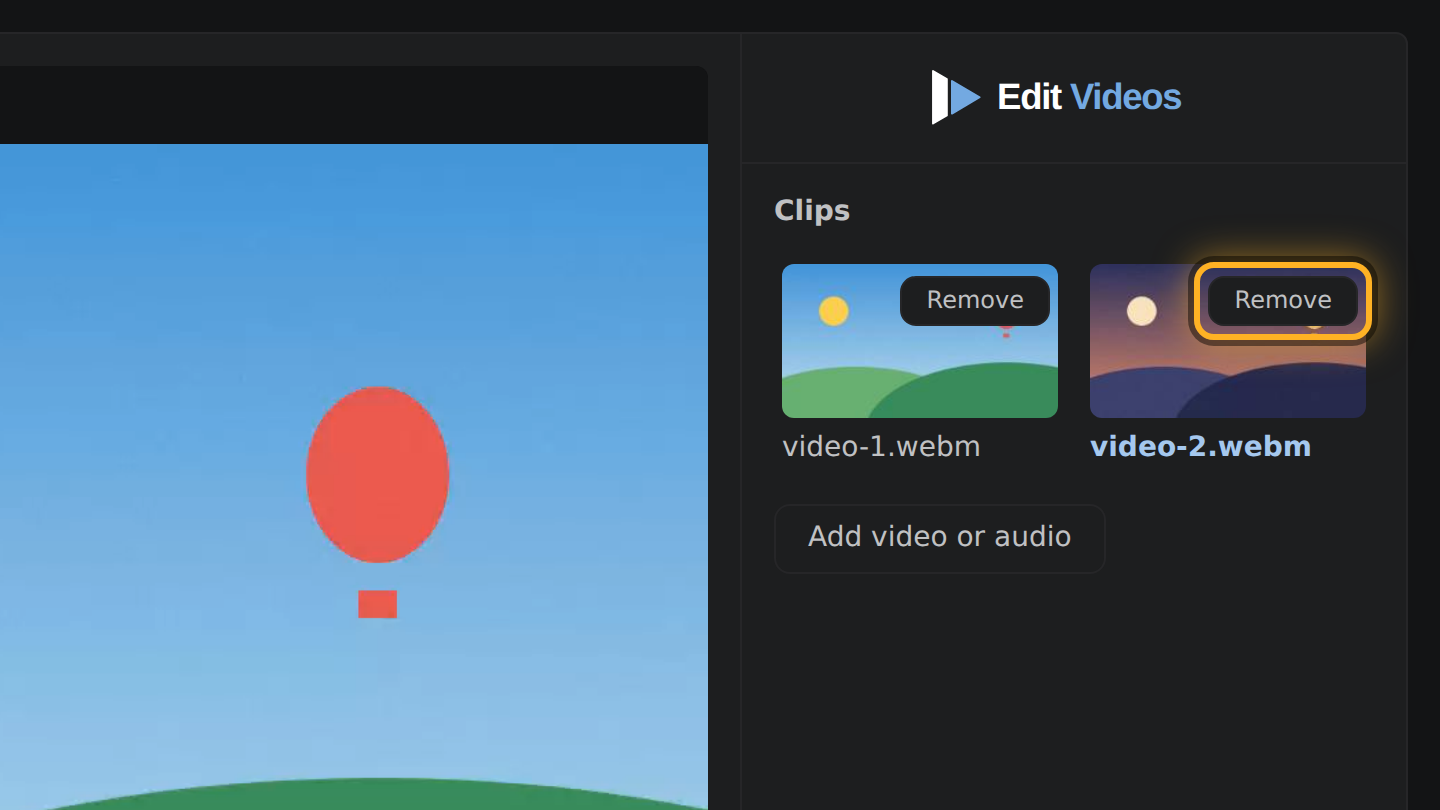
- Right-click where that part ends and select Cut at again. The bar is now three pieces. Select the middle one and select Remove, or press Delete.
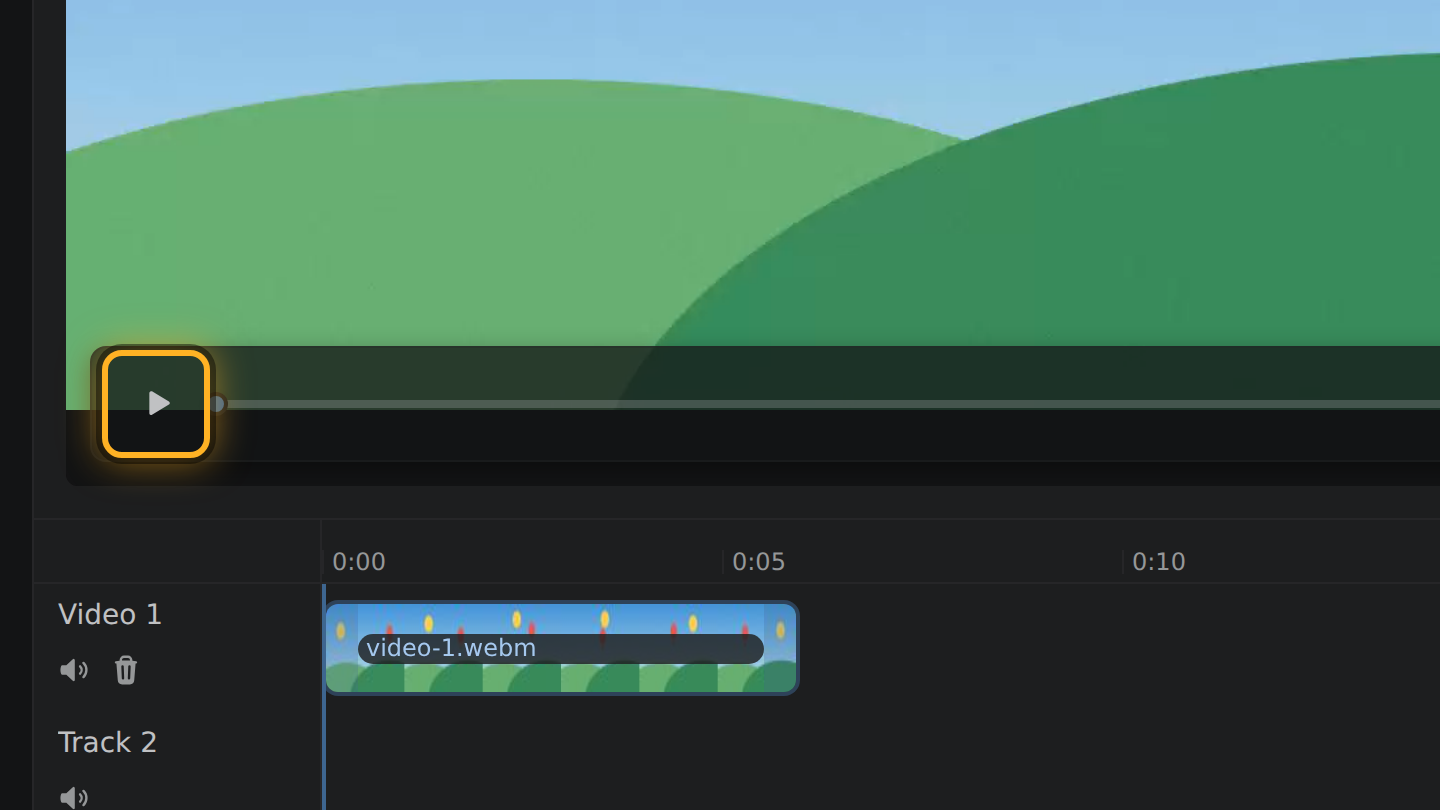
- Select Play, or press Space, to watch it. The gap is skipped, so the pieces on either side play one after another.
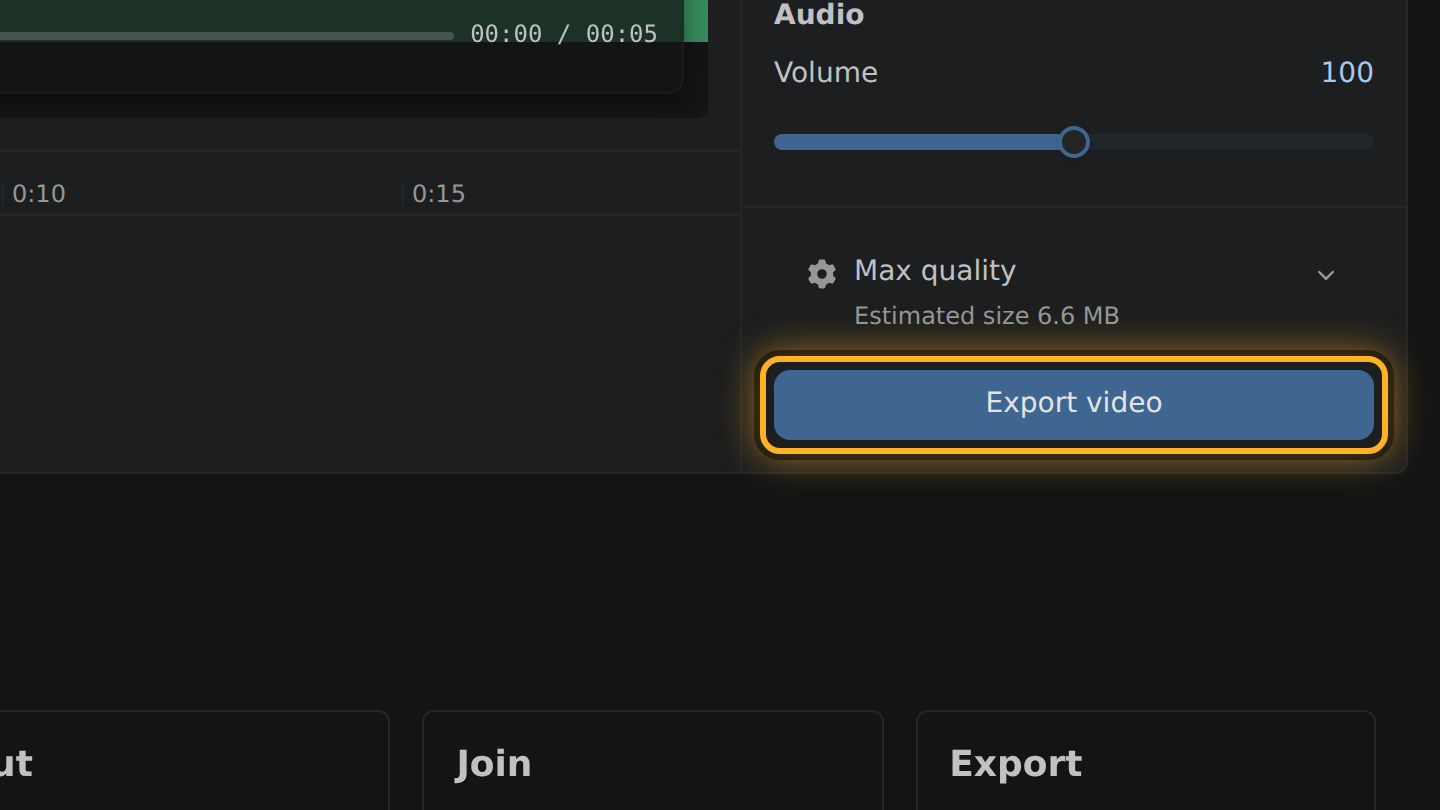
- Select Export video, then Save video.
Finding the exact place to cut
A cut lands where you right-click, so find the moment first. Play the video and pause just before the part you want gone. On a keyboard, Left and Right step the playhead one second back or forward, and Space plays and pauses. Then right-click the bar on the playhead line.
Each piece must be at least a tenth of a second long, so two cuts cannot sit closer than that. If a cut lands a little early or late, drag the end of a piece inward to take off a little more.
Taking out more than one part
Repeat the two cuts for every part you want gone. A long recording with three bad moments becomes seven pieces: remove those three, and the four that are left play in order. Select a piece first, so you can see which one Remove will take.
Removing a piece leaves a gap in the timeline, and you do not need to close it. Playback and the saved file both jump over empty time, so the result has no black frames where the part used to be.
What a cut does to the file
A cut divides the clip's place on the timeline, not the file. The pieces all read from the same video on your disk, and nothing is copied while you work, which is why a cut is instant even on a long video.
The work happens at export. The pieces you kept are encoded once more into one H.264 video, at the bitrate they came with. We measured how closely the encoder keeps to a bitrate: within about 3%. So cutting two minutes out of ten leaves a file of about four fifths the size.
What to know
- A cut splits the bar in two without changing the video. Nothing is removed until you remove a piece.
- You can cut as many times as you like and remove any piece. A gap left in the timeline is skipped in the preview and in the export.
- The result is one video, not several files.
- The video stays on your device. Your browser does the cutting; nothing is uploaded.
Questions
Can I undo a removed piece?
No. If you removed the wrong piece, reload the page and open the video again; nothing is saved between visits.
How do I remove the start or the end instead?
Drag that end of the bar inward, or right-click and select Set start here or Set end here. No piece is left to remove.
Is there a way to blur the part instead?
No. Edit Videos trims, joins and sets the volume, and has no filters or blur.
Can I take out only the sound of one part?
Yes. Select Cut at where the part begins and again where it ends, then right-click the middle piece and set its Volume to 0%. The picture stays and that part plays silent.
Will anyone notice where the part was?
The two pieces meet without a pause, so the jump shows only if the picture changes a lot between them. Cut at a moment when little moves, such as a pause in speech or a still shot, and the join is easy to miss.

Thiago Vitorino leads the Edit Videos Team. His articles draw on 22 years of building for the web, with TypeScript, Rust and front-end performance.
More guides
Cut a video down to the part you want, entirely in your browser. No upload, no install.
Combine two or more video clips into a single file, without uploading anything.
Take the sound out of a video file in your browser. The picture stays as it is.