How to cut a screen recording
Trim the start and end of a screen recording, or take a pause out of the middle, before you share it.
Here is how to cut a screen recording easily, privately (no uploading!) and for free. Edit Videos is the free online tool our team maintains so you can cut screen recordings and much more. Follow the steps below.
Steps
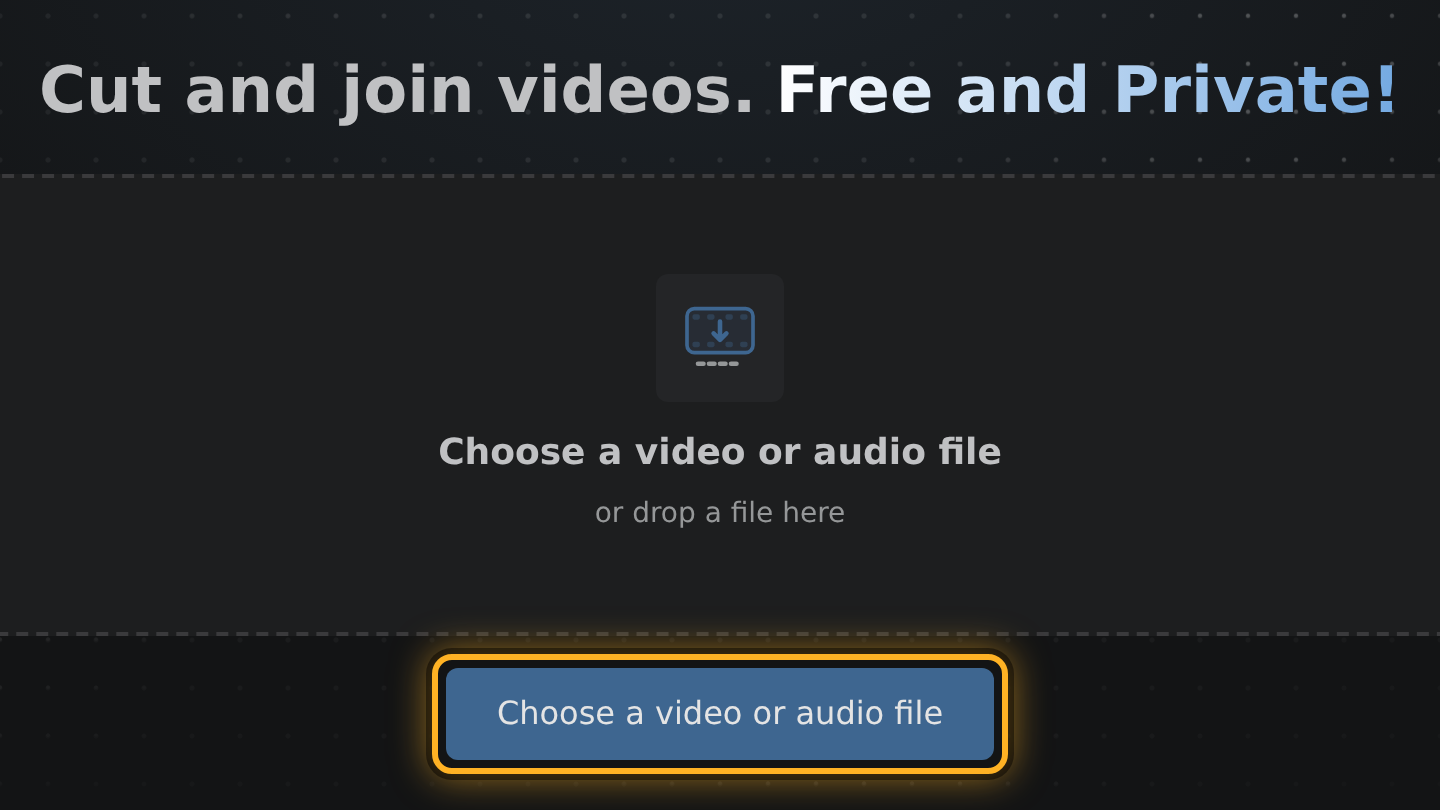
- Open Edit Videos, select Choose a video or audio file and pick your screen recording.
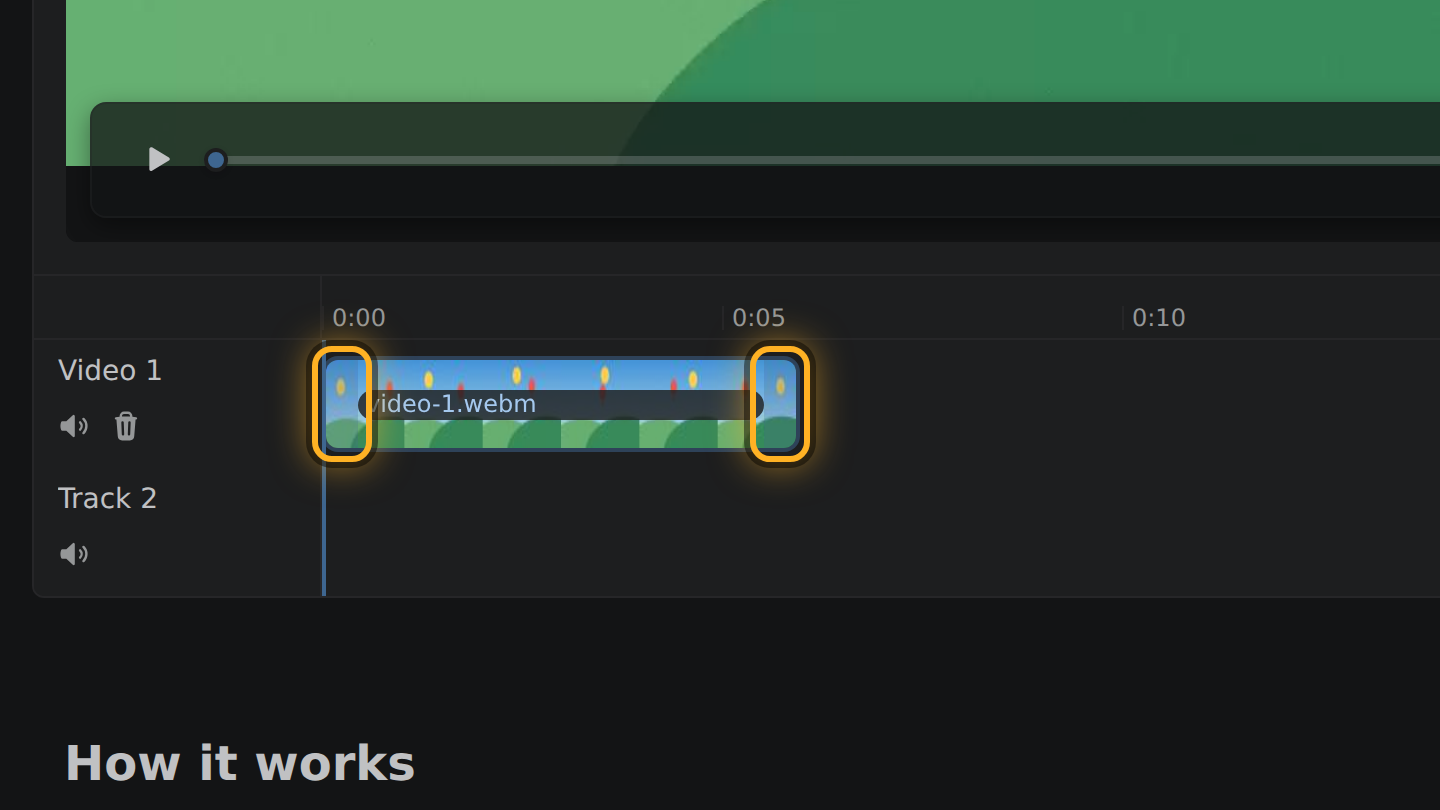
- The recording is the bar in the timeline, the strip under the video. Drag the bar's left end past the seconds before you began, and its right end back from where you stopped.
- For a pause in the middle, right-click the bar where the pause begins and select Cut at, the first line of the menu.
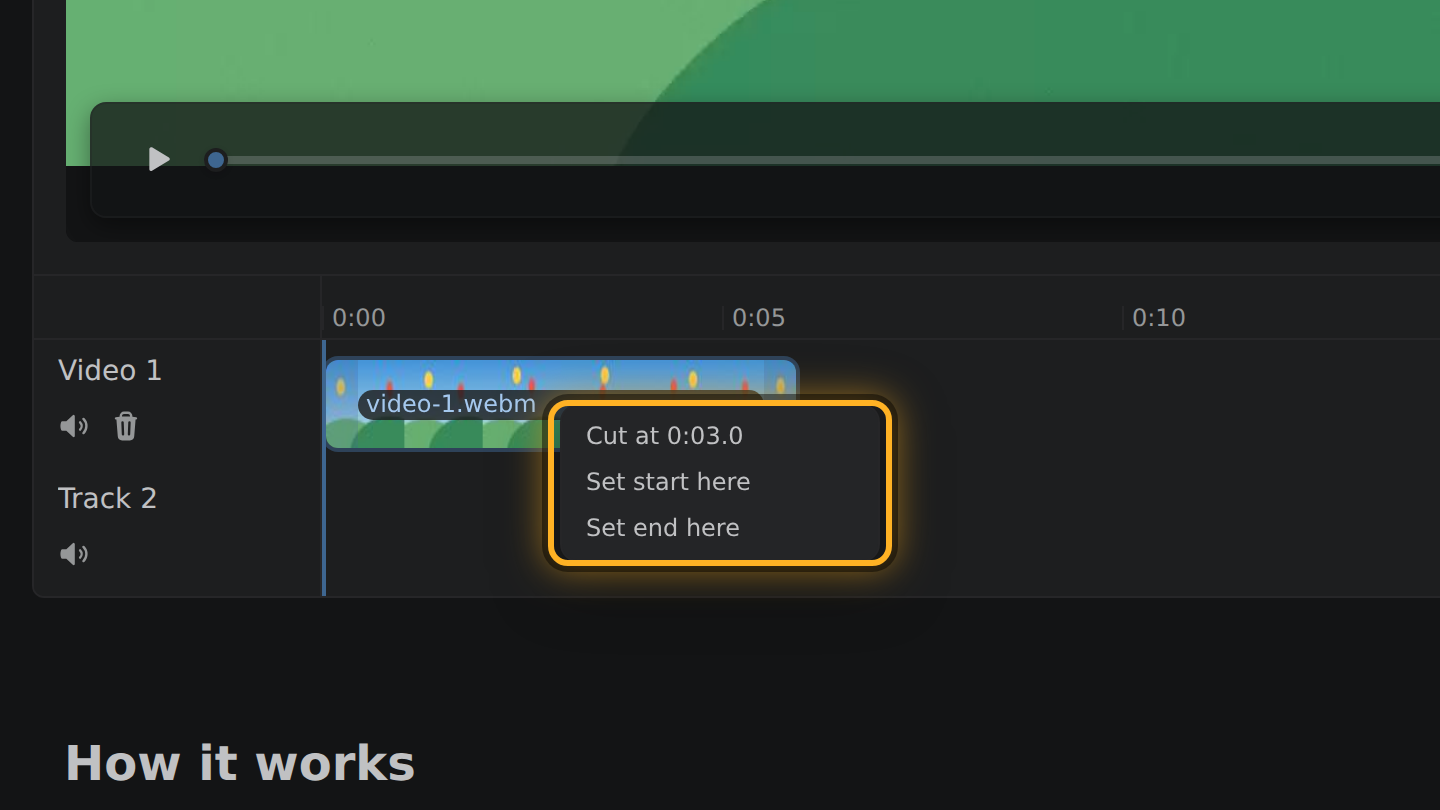
- Right-click where the pause ends and cut again. The bar is now three pieces: select the middle one and press Delete.
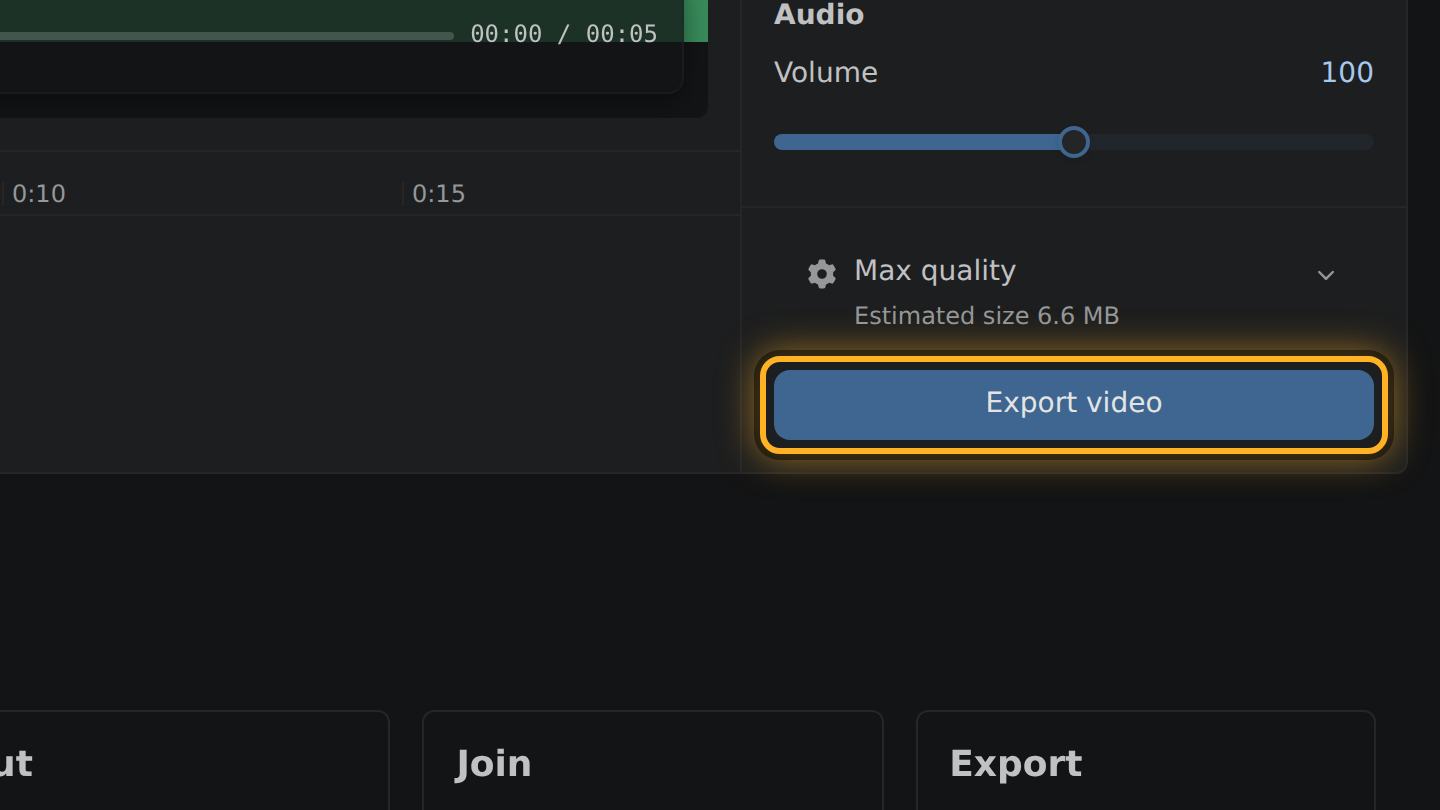
- Select Export video, then Save video.
What to know
- Trimming keeps every frame at the moment it was recorded. No frame rate is forced on the video, so a recording with an uneven one keeps its timing.
- A still screen takes very few bits. When the start moves and the picture is encoded again, such a recording can come out heavier than the share you kept.
- Moving only the end avoids that: the picture is copied, not encoded.
- Removing a middle piece joins what is left, and joining encodes the picture as H.264 at one frame rate.
Questions
Can I remove the sound, such as a microphone I left on?
Yes. Drag Volume to zero in the Audio card; the export has no sound in it.
Can I blur or crop part of the screen?
No. Edit Videos trims, joins and sets the sound. It has no effects or filters.
Which recordings can it open?
MP4, MOV and WebM files, when your browser can decode the video inside.

Thiago Vitorino leads the Edit Videos Team. His articles draw on 22 years of building for the web, with TypeScript, Rust and front-end performance.
More guides
Cut the best moment out of a long game recording, in your browser, without uploading the footage.
Cut a video down, or set its size in megabytes, so it is small enough to send.
Join several short phone recordings into a single video, in your browser.