How to cut a video on Android
Trim a video on an Android phone, right in the browser you already have open.
Here is how to cut a video on Android easily, privately (no uploading!) and for free. Edit Videos is the free online tool our team maintains so you can cut videos on your phone and much more. Follow the steps below.
Steps
- Open Edit Videos in the browser on your phone.
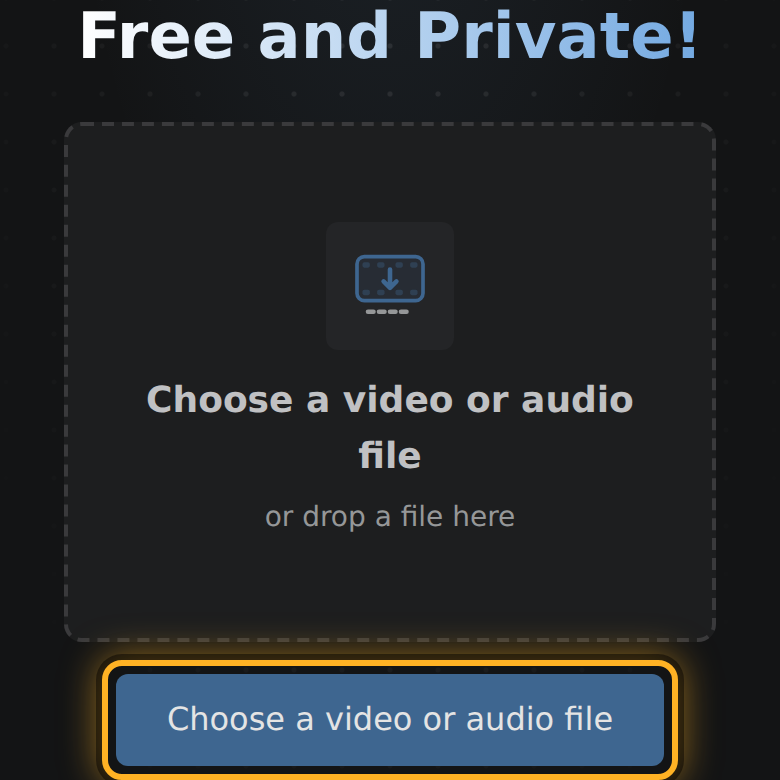
- Select Choose a video or audio file and pick the video from your phone.
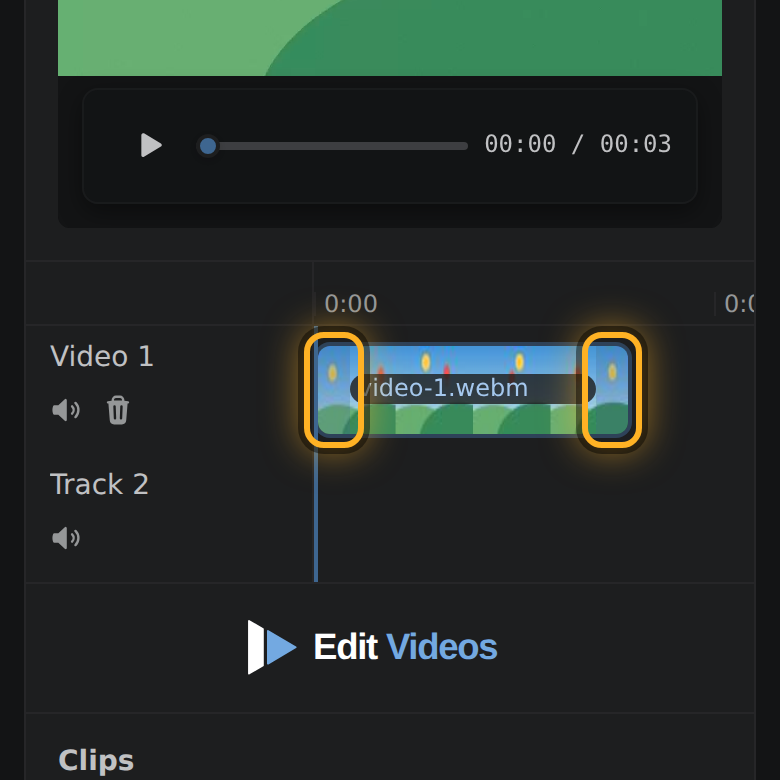
- The bar under the preview is your video. With your finger, drag the bar's left end to the new start and its right end to the new end.
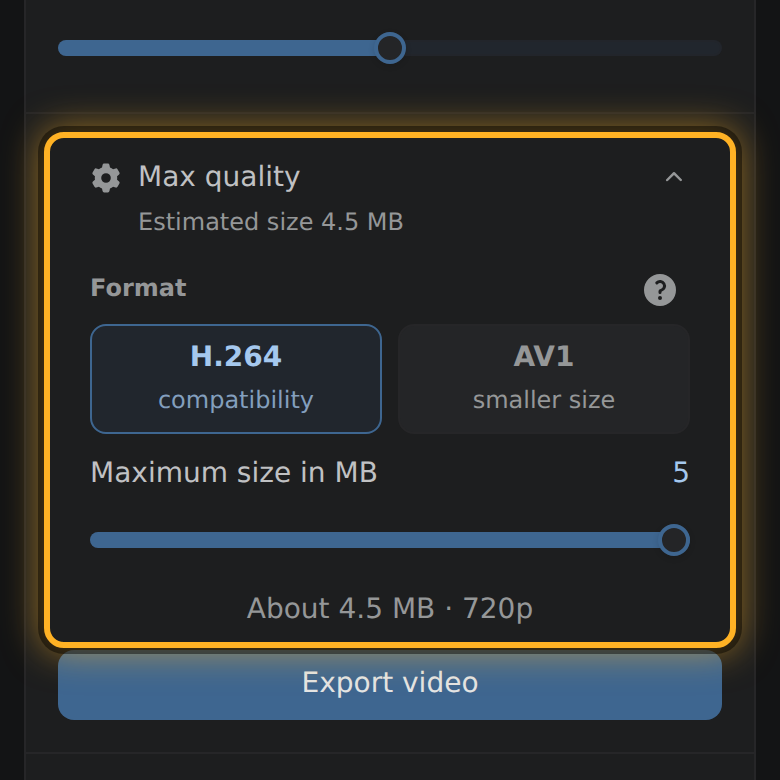
- Look at the size shown above Export video: that is about what the cut will weigh.
- Select Export video, then Save video.
What to know
- Edit Videos is a web page, not an app. Nothing comes from an app store and nothing is installed on the phone.
- The phone does the cutting. The video is never sent over your connection, on Wi-Fi or on mobile data.
- On a narrow screen the editor's parts sit one under another, and the page scrolls.
- A video filmed with the phone held upright comes out upright.
Questions
Which browser do I need on Android?
The editor tests your phone's browser when it opens: it has to decode and encode video by itself. If yours cannot, the page says so and names browsers to try.
Where does the cut video go?
Your browser saves it. Where it has a save dialog, you pick the place. Where it has none, the file is downloaded as export.mp4, to wherever your browser keeps downloads.
Can I make it small enough to send?
Yes. Select the size above the Export button and drag the slider down. It names the picture you will get, such as 480p, before you export.

Thiago Vitorino leads the Edit Videos Team. His articles draw on 22 years of building for the web, with TypeScript, Rust and front-end performance.