How to cut a video on Windows
Trim a video on a Windows PC without installing an editor.
Here is how to cut a video on Windows easily, privately (no uploading!) and for free. Edit Videos is the free online tool our team maintains so you can cut videos on your PC and much more. Follow the steps below.
Steps
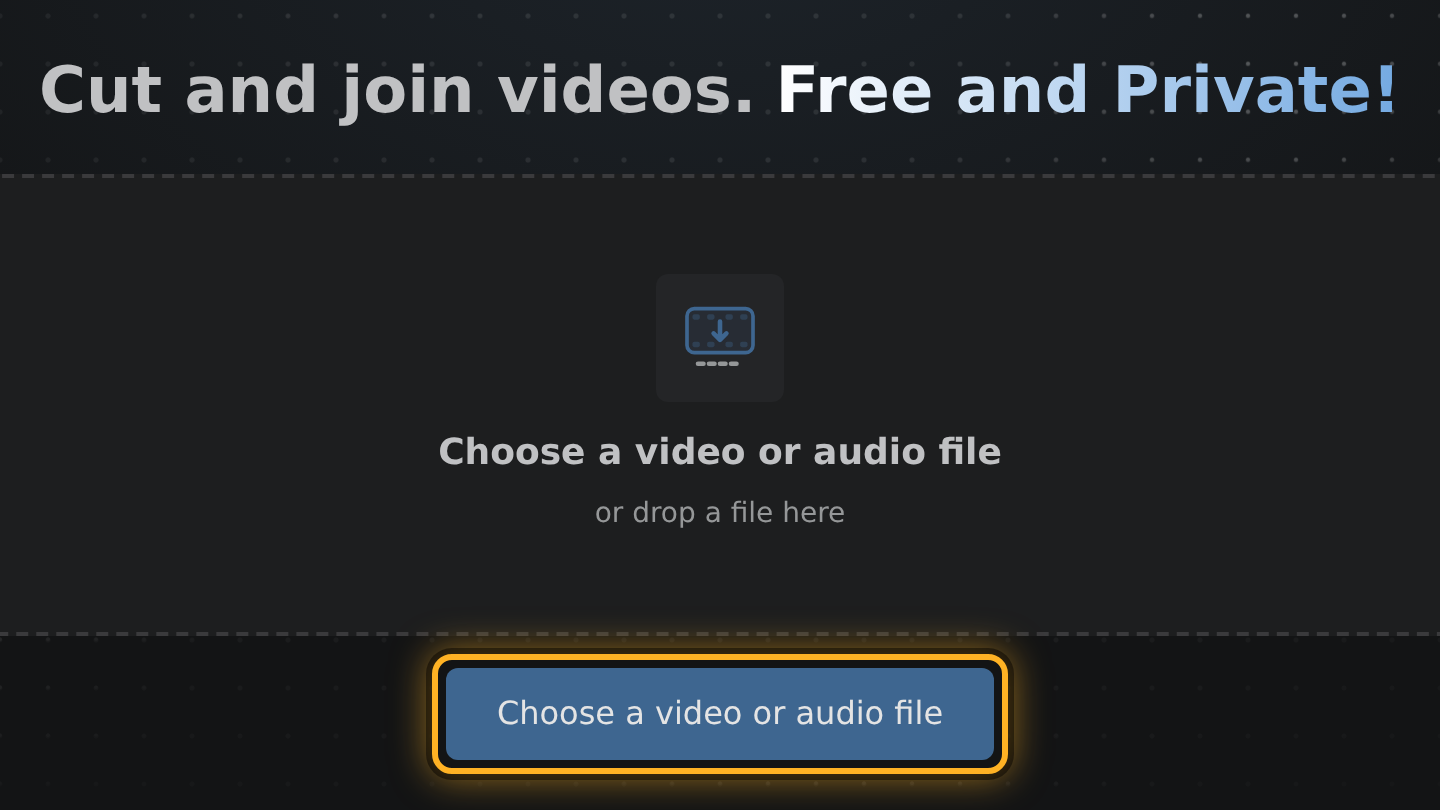
- Open Edit Videos in your browser and drag the video from its folder onto the page, or select Choose a video or audio file and pick it.
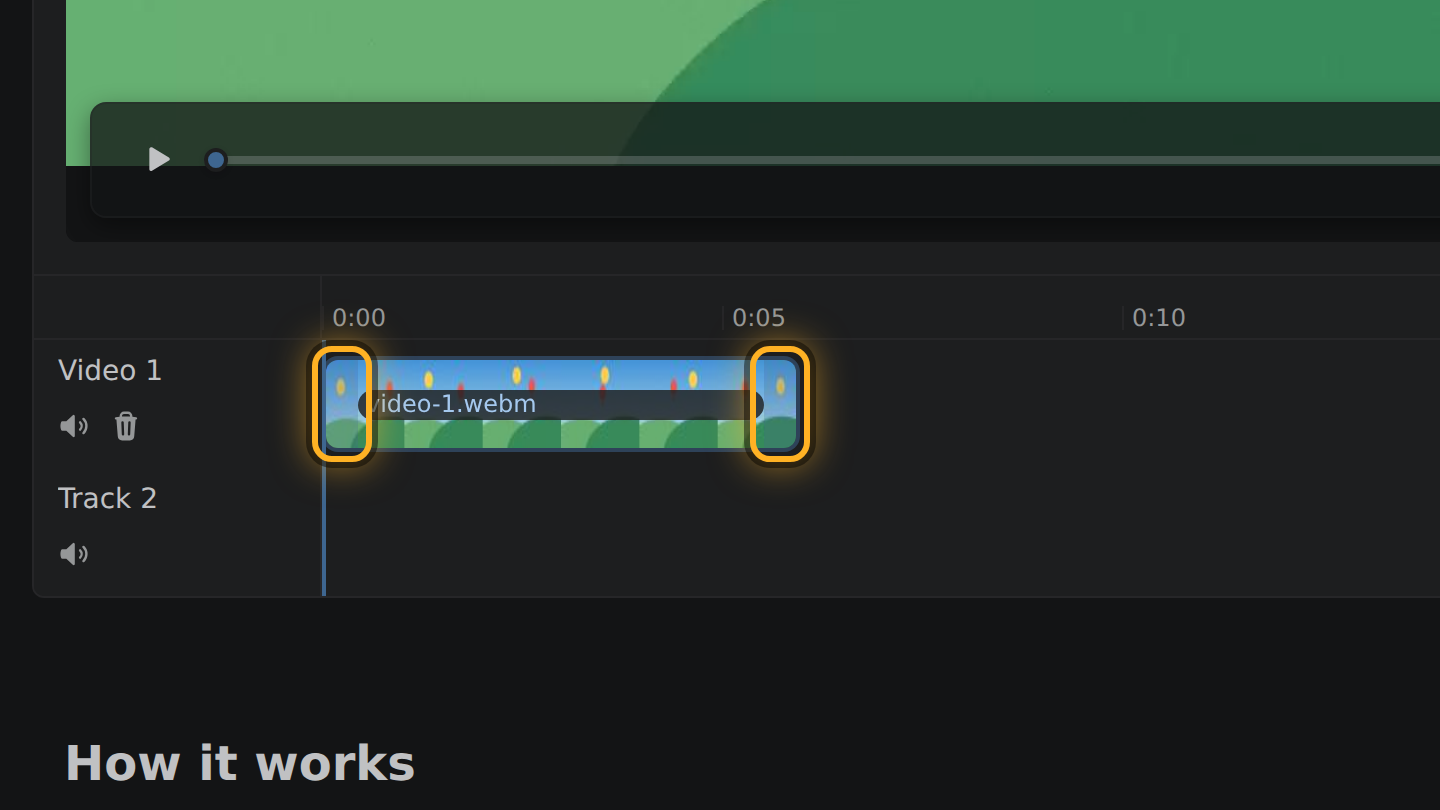
- The video shows as a bar in the timeline, the strip under the video. Drag the bar's left end to the new start and its right end to the new end. Or right-click the bar and select Set start here or Set end here.
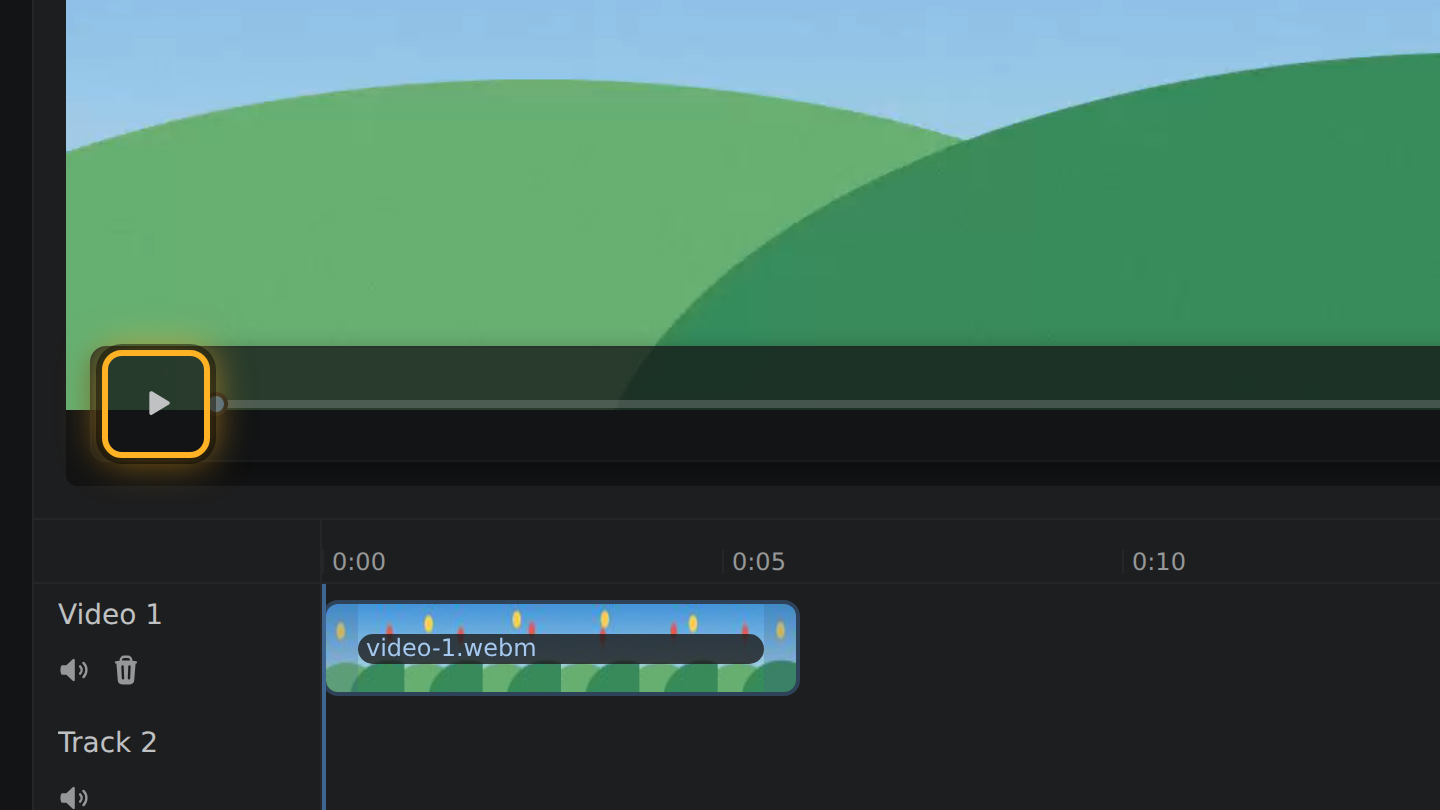
- Press Space to play the cut, or select the Play button under the video. The Left and Right arrow keys move one second at a time.
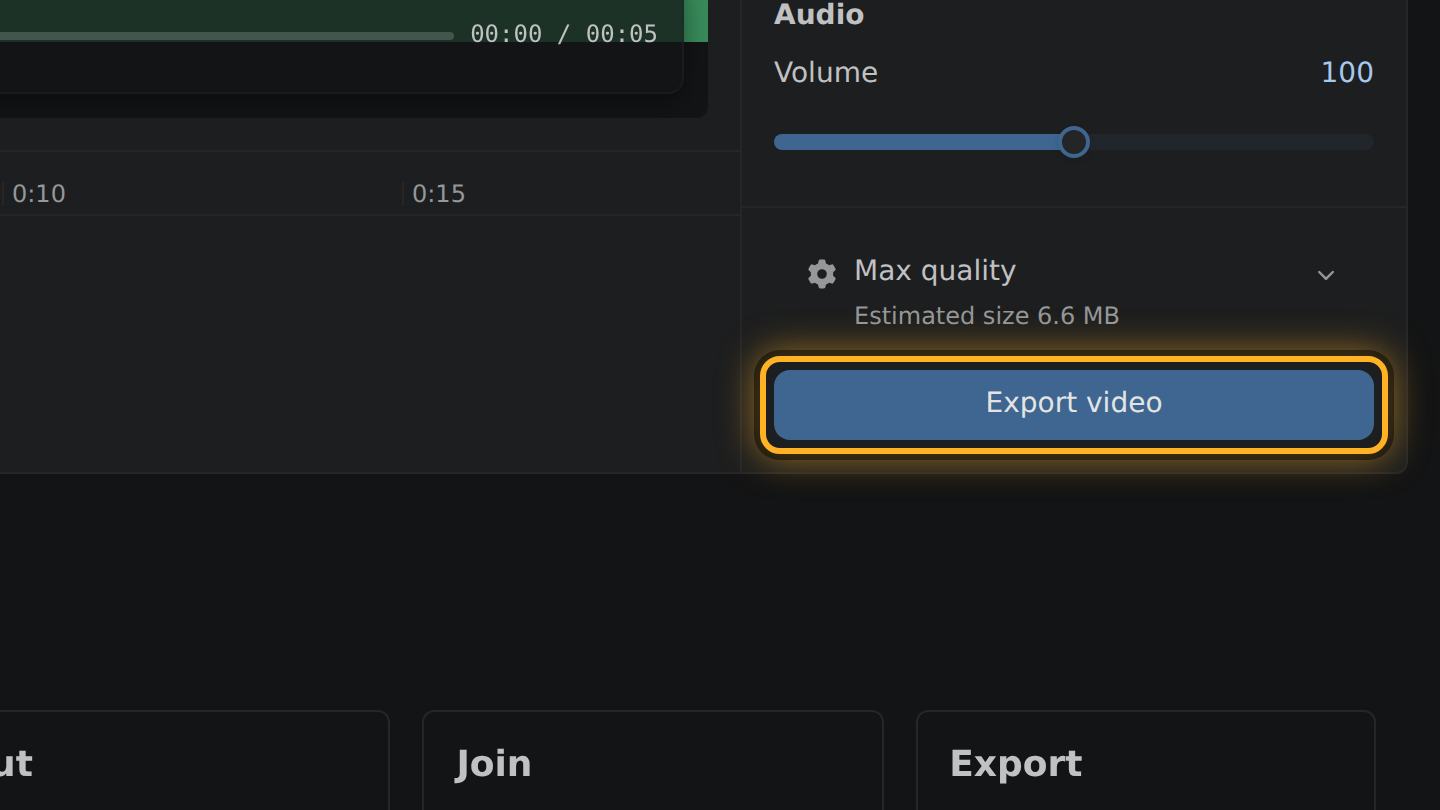
- Select Export video, then Save video.
What to know
- Nothing is installed. Edit Videos is a web page, and your browser does the cutting on your PC.
- Where your browser has a save dialog, Save video opens it and you pick the folder and the file name. Where it has none, the file is downloaded as export.mp4.
- The keyboard works: Space plays and pauses, Left and Right move one second, and Delete removes the clip you picked.
- If you set a maximum size, check the real size on the screen after the export. How close it lands depends on your PC's encoder.
Questions
Which browser do I need on Windows?
One that can decode and encode video by itself. Recent versions of Chrome, Edge and Firefox can. The editor tests yours when it opens and tells you if it cannot.
Can I cut a game capture or a screen recording?
Yes, when it is an MP4, MOV or WebM file your browser can decode. A cut keeps the frame rate the recording had.
How big will the cut file be?
About the share of the video you kept: a quarter of the length, about a quarter of the megabytes. The estimate is shown above the Export button.

Thiago Vitorino leads the Edit Videos Team. His articles draw on 22 years of building for the web, with TypeScript, Rust and front-end performance.
More guides
Trim a video on a Mac without opening iMovie or QuickTime Player.
Trim a video on an Android phone, right in the browser you already have open.
Trim a video on an iPhone without using the Photos app's built-in editor.