Guides Devices
How to cut a video on Mac
Trim a video on a Mac without opening iMovie or QuickTime Player.
Here is how to cut a video on a Mac easily, privately (no uploading!) and for free. Edit Videos is the free online tool our team maintains so you can cut videos on your Mac and much more. Follow the steps below.
Steps
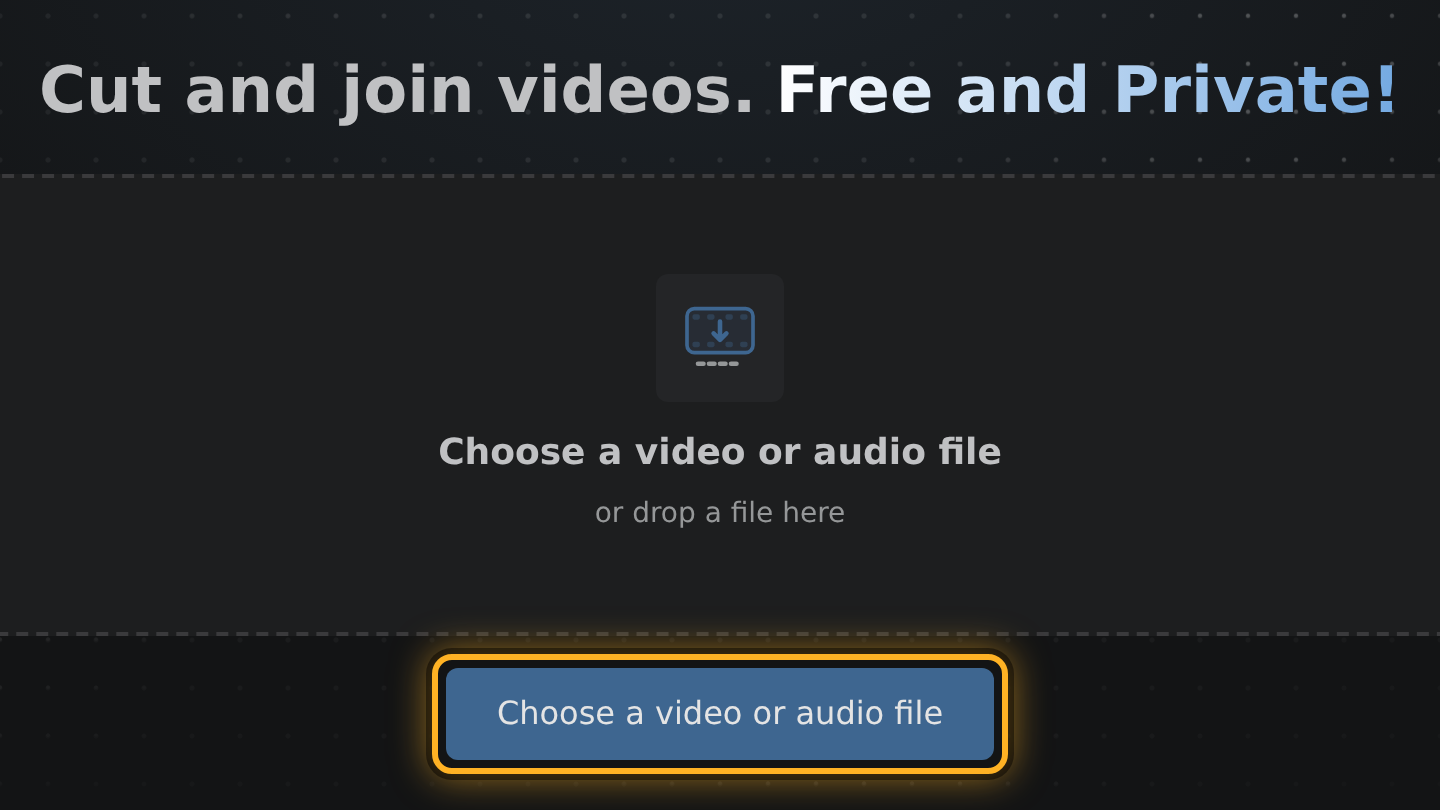
- Open Edit Videos in your browser, select Choose a video or audio file and pick the video, or drag it from its folder onto the page.
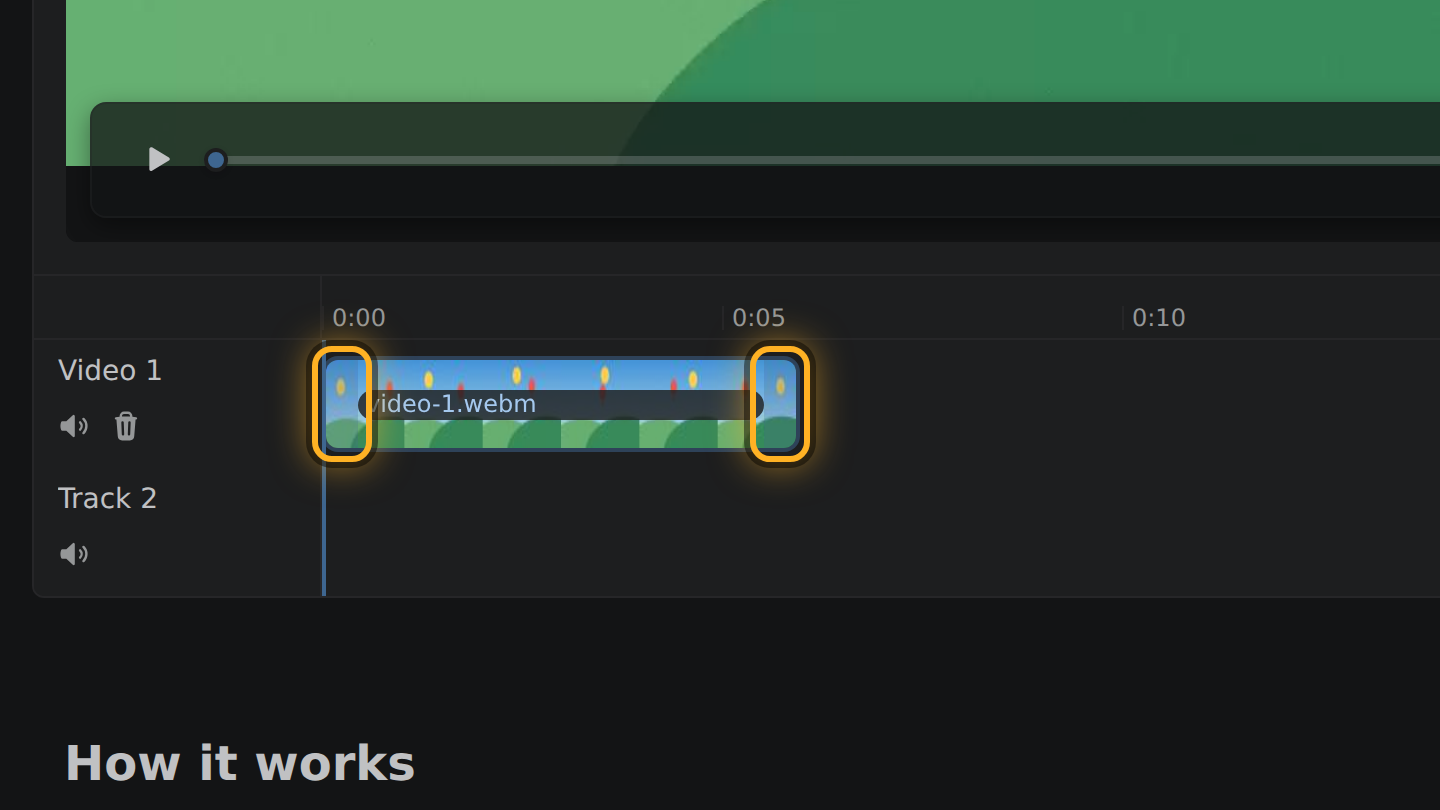
- In the timeline, the strip under the video, your video is a bar. Drag the bar's left end to where the cut should begin and its right end to where it should stop.
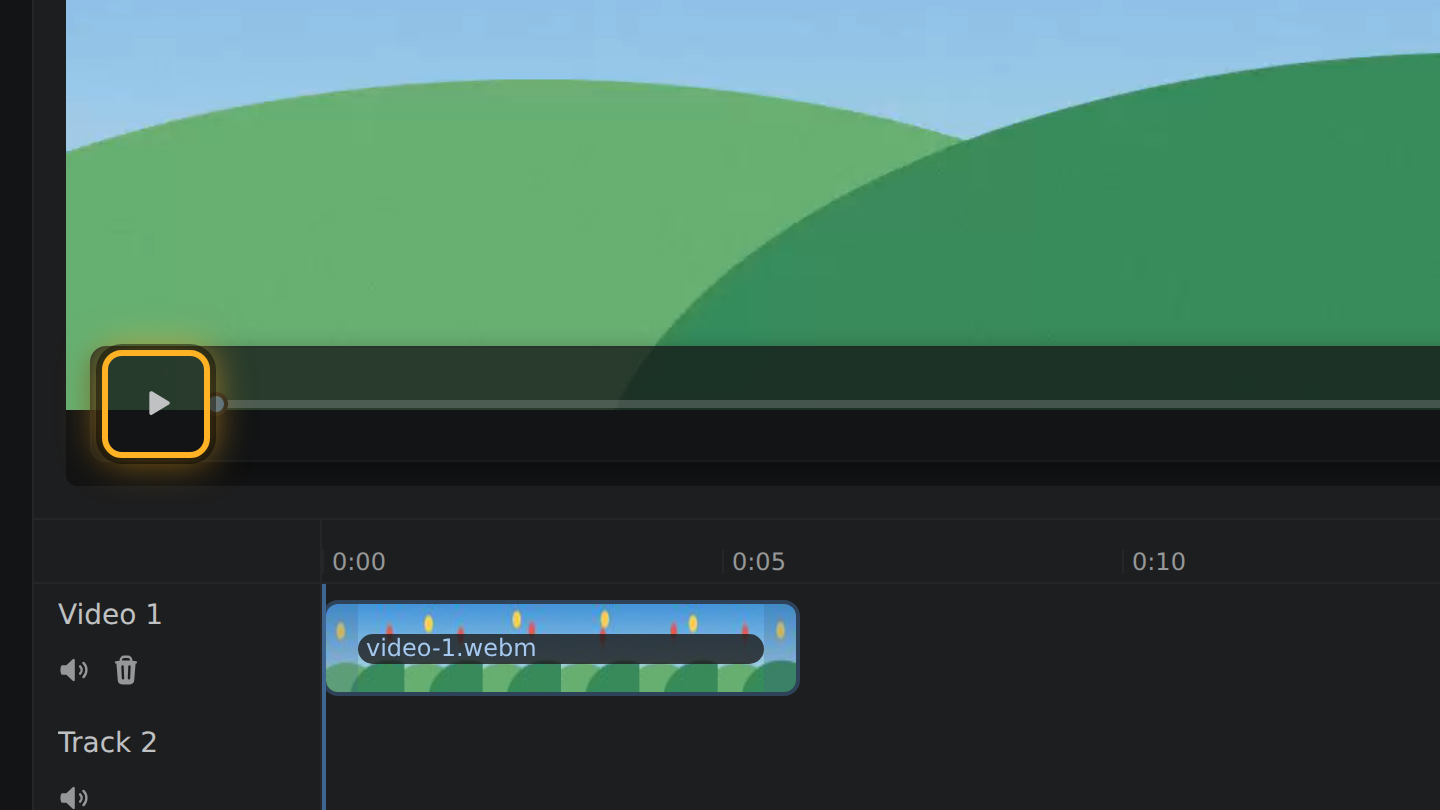
- Press Space to watch it, or select the Play button under the video. To drop a clip you added by mistake, select it and press Delete.
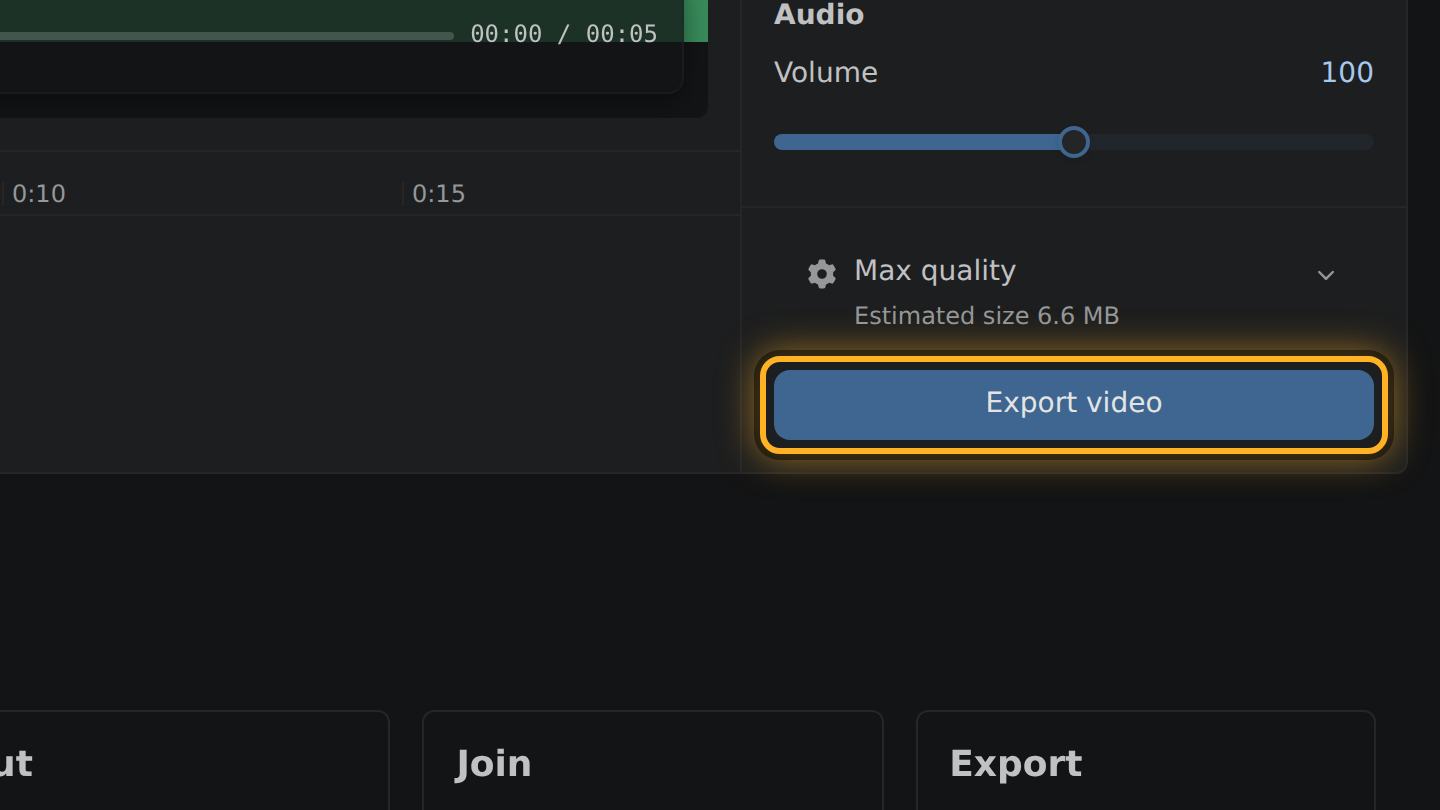
- Select Export video, then Save video.
What to know
- A .mov file opens when your browser can decode the H.264 or HEVC video inside it. What you save is always an MP4, never a MOV.
- Either Delete or Backspace removes the clip you picked, so the key works whichever of the two your keyboard has.
- There is no app to open and nothing to update. The editor is a web page.
- Save video opens your browser's save dialog where it has one. Where it does not, the MP4 goes to your browser's downloads.
Questions
Does it work in Safari?
That depends on your Safari. The editor tests what the browser can do when it opens, never its name, and tells you if something it needs is missing.
Do I need iMovie or QuickTime Player?
No. Nothing but the browser is used.
Can I join a .mov with an MP4?
Yes. Add both. They come out as one MP4, each clip fitted inside the largest picture.

Thiago Vitorino Tech Lead and software engineer
Thiago Vitorino leads the Edit Videos Team. His articles draw on 22 years of building for the web, with TypeScript, Rust and front-end performance.