A VEED alternative with no watermark
Trim and join videos in your browser with nothing added to the result: no watermark, no account and no upload.
If all you need is a trim or a join, Edit Videos gives you the file with no watermark and no paid plan, where VEED's free plan marks every export and caps it at 720p. Pick the video, drag the ends of its bar, export: the result keeps your picture size and has nothing laid over it. For captions, templates or effects, VEED remains the fuller editor.
Steps
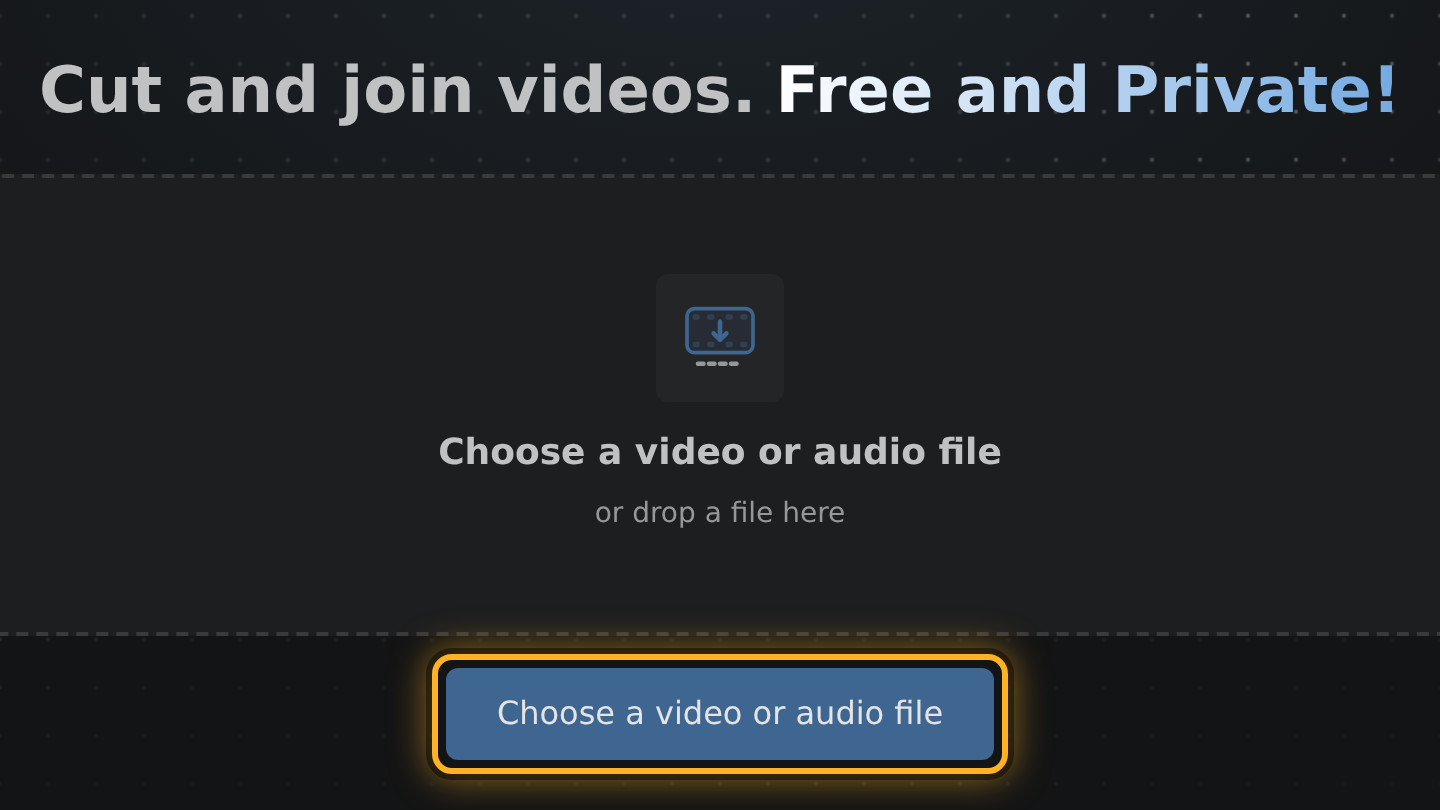
- Open Edit Videos and select Choose a video, audio or picture. Pick the video you want to start with.
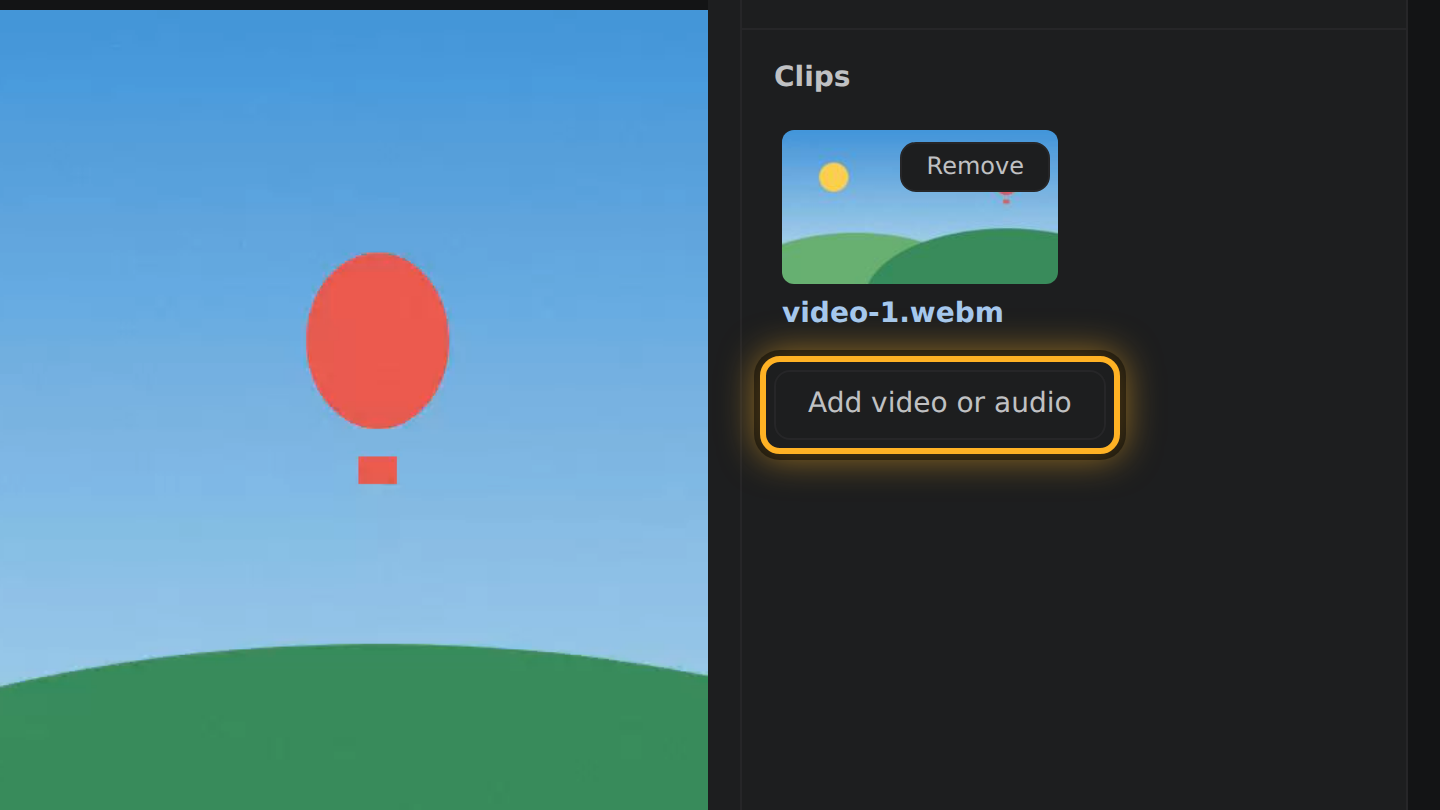
- To join a second one, select Add video, audio or picture under Media and pick it. It lands in the timeline after the first.
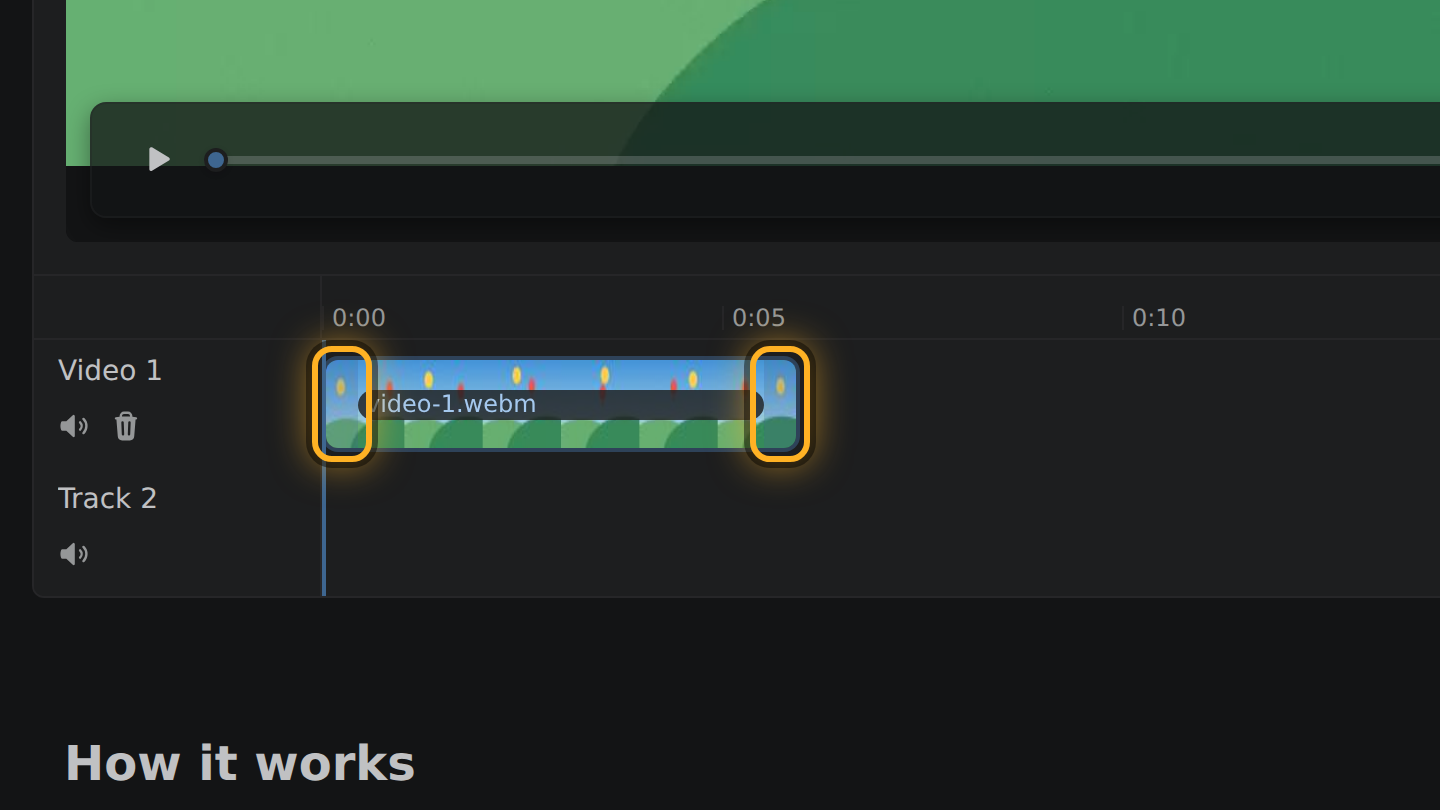
- Each video is a bar in the timeline, the strip under the preview. Drag a bar's ends inward to cut the start or the end.
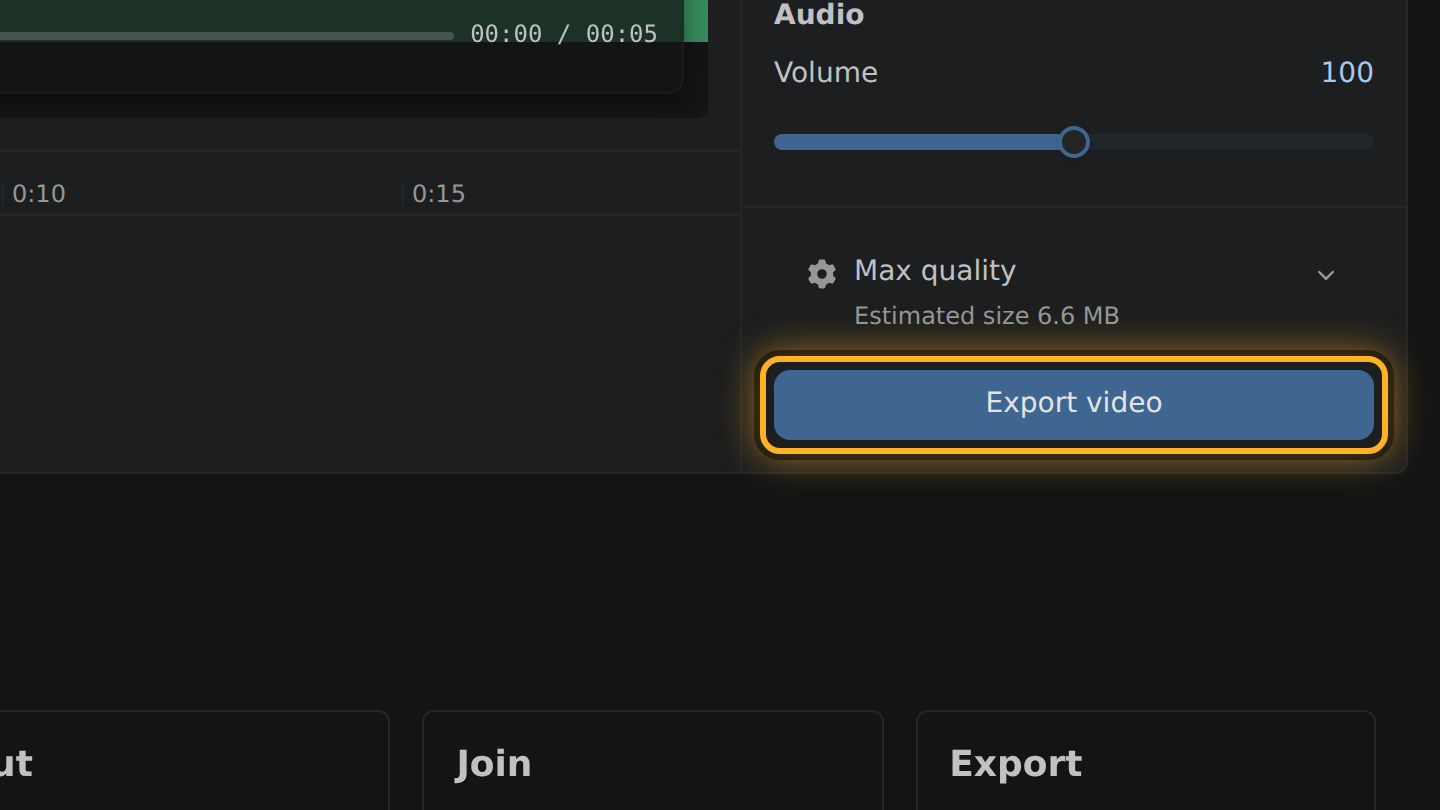
- Select Export video, then Save video.
Why a watermark cannot come off later
A watermark burned into a video is not a layer on top. When the file is made, the mark's pixels replace the picture's pixels in that corner of every frame, and what was under them is no longer in the file. Blurring the corner or cropping it out costs picture and still shows that something was there.
So the only clean copy comes from the project, as the other editor's own help says: after paying, you export the original project again. If that project is gone, so is the clean version. Here there is no marked version in the first place. The first file you save is the final one, and a project you closed costs you nothing but the minute it takes to trim again.
Picture size on a free export
The same help page puts free exports at 720p, with 1080p and 4K on paid plans. A phone shoots 1080p or more, so a free 720p export keeps less than half of its pixels: fine on a phone screen, visibly softer on a laptop or a TV.
With no size target, this editor keeps the picture size your video came with and encodes it at about the bitrate it came with. The picture gets smaller only if you set a size it cannot hold, and then the slider says so before you export, for example About 11 MB · 720p. Drag it back up and the full picture returns.
What you give up
The other editor is built for producing a video, not only shortening one: subtitles, text, templates, a timeline with many layers and a project kept in your account. None of that is here. A clip that needs captions to work without sound, or a brand template, is a job for a fuller editor.
Its cutter also starts from a link: its page offers to trim a video straight from a YouTube address. This editor only opens files on your device, so a video that lives online has to be saved to your device first, and only where you have the right to download it.
What to know
- The result has nothing laid over the picture: no watermark and no ending clip, on every export.
- A size slider sits above the Export video button if you want a smaller file.
- Your videos are not uploaded. Your browser does the cutting on your own device.
- Edit Videos trims, joins and sets the volume. It has no templates, captions or effects.
What VEED says of itself
- VEED's help says the watermark is put on all exported videos while the account has a free subscription. support.veed.io, checked November 1, 2026
- The same help page says the watermark is hardcoded into the video, and that free export is in 720p only. support.veed.io, checked November 1, 2026
- VEED's video cutter page says that to trim a video you upload your file and drag the sliders on the timeline, and that no credit card is required. veed.io, checked November 1, 2026
- The same help page says that after an upgrade you export the original project again to get it without the watermark, and that uploading the watermarked video into a new project does not remove it. support.veed.io, checked November 1, 2026
- VEED's video cutter page says you can paste a YouTube link to trim a video from there. veed.io, checked November 1, 2026
Questions
Is there a catch to the free export?
The page has ads, and Edit Videos does less than a full editor.
Do I need an account?
No. Edit Videos has no accounts and asks for no email.
Can I add subtitles or text?
No. For captions or text you need a fuller editor than Edit Videos.
Can Edit Videos remove a watermark from a video I already exported from VEED?
No. The mark is part of the picture, and nothing here paints over or rebuilds it. Export the original project again from an account that is allowed to, or start over from the original recording here.

Thiago Vitorino leads the Edit Videos Team. His articles draw on 22 years of building for the web, with TypeScript, Rust and front-end performance.
More guides
Cut a video in a web page that never receives it. No upload, no account, no watermark, free.
Trim or join a video in your browser, with no upload, no account and no app to install.
Trim or join a video in your browser without signing in to anything. No upload, no watermark.