How to compress a video
Make a video smaller in your browser, at a size you pick, with no upload and no software to install.
To compress a video, open it in Edit Videos, select the size line above Export video and drag the slider down to the size you want. Before you export, the editor names the quality and the picture size that size gives; after, it shows the real size. The video is made smaller in your browser, on your own device, and is never uploaded.
Steps
- Open Edit Videos, select Choose a video, audio or picture and pick the video to make smaller.
- Look above the Export video button. Select the size line to open a slider, then drag it to the size you want. The line names the picture at each size, such as 720p.
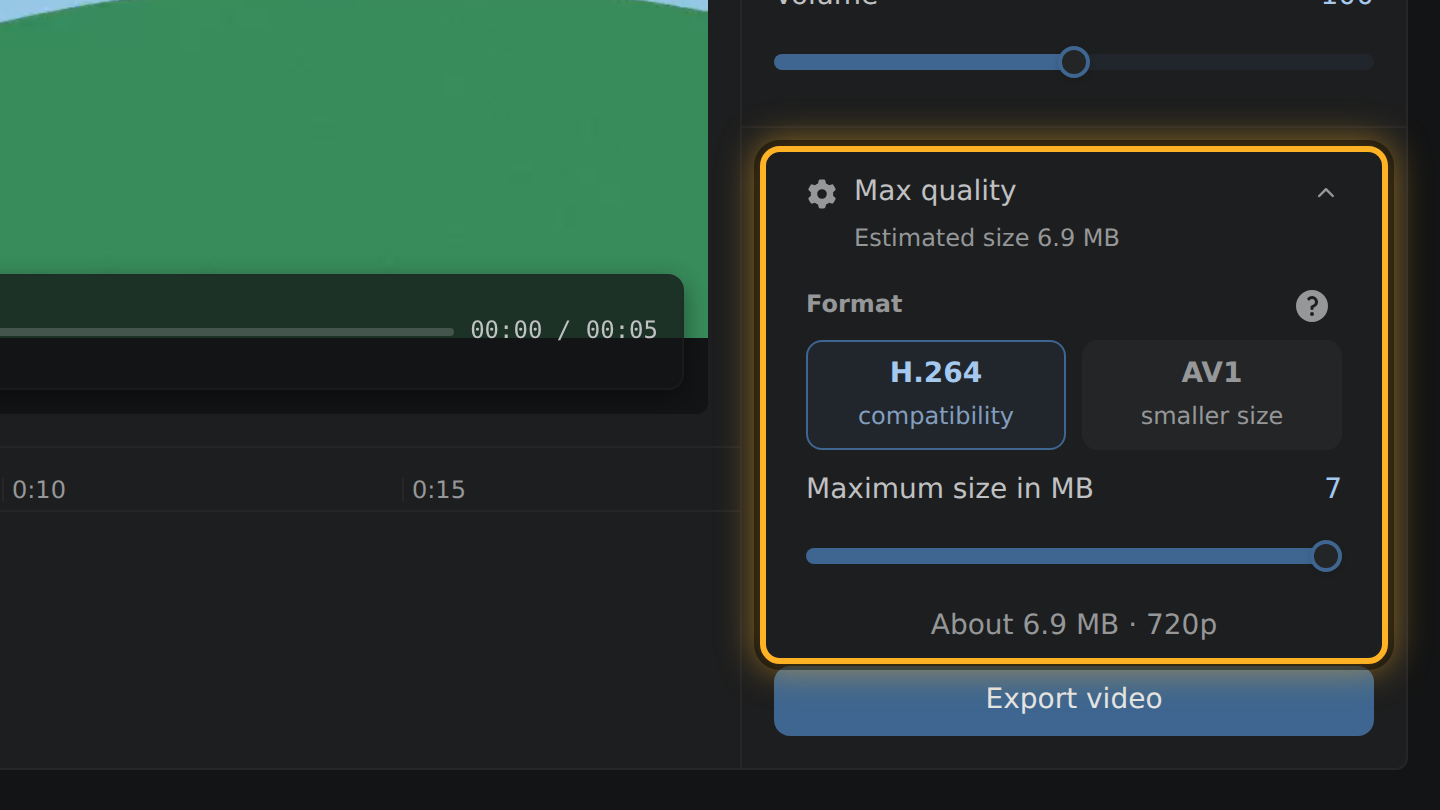
- Read the quality level over the line: Max, High, Medium or Low. A lower level is a smaller file.
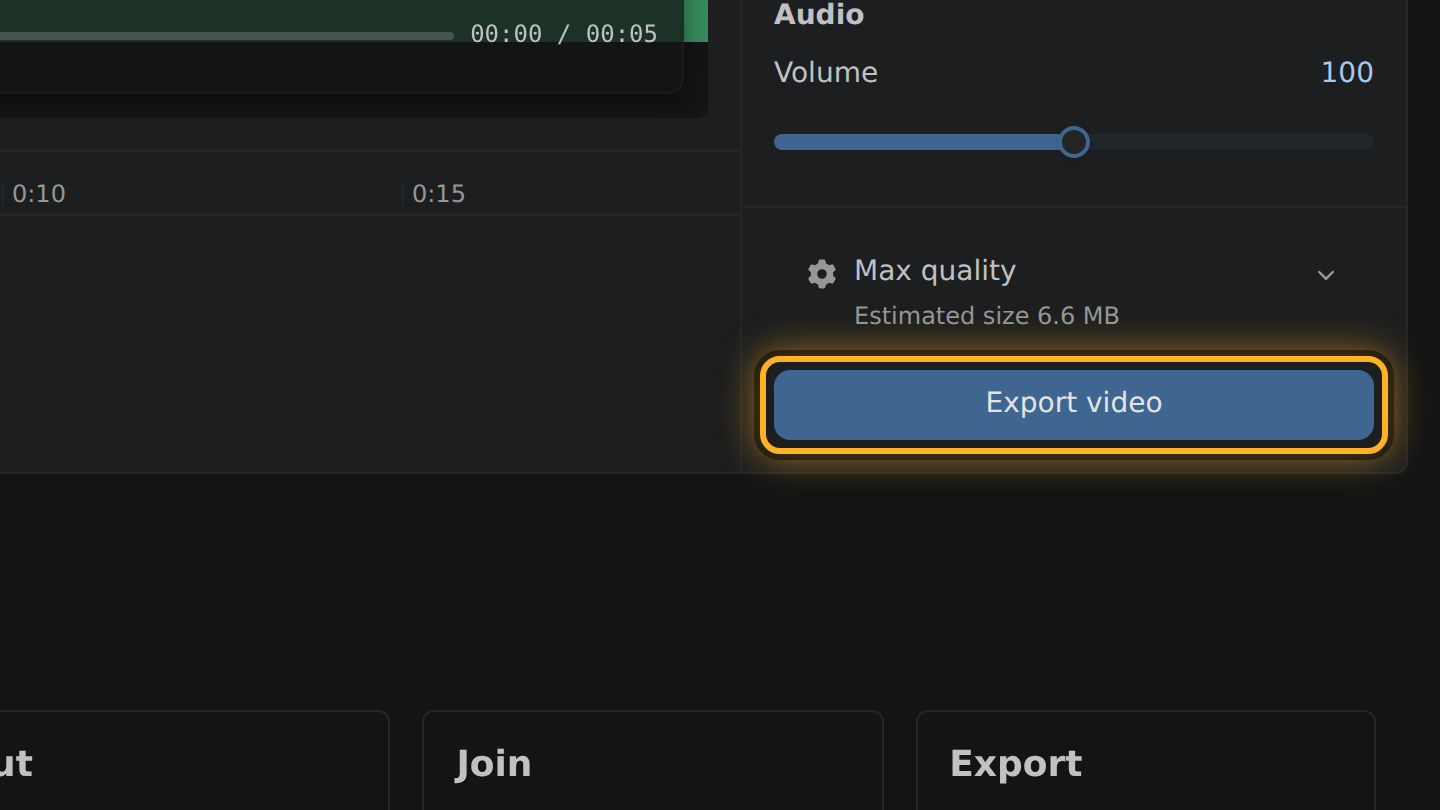
- Select Export video and wait while the editor makes the file.
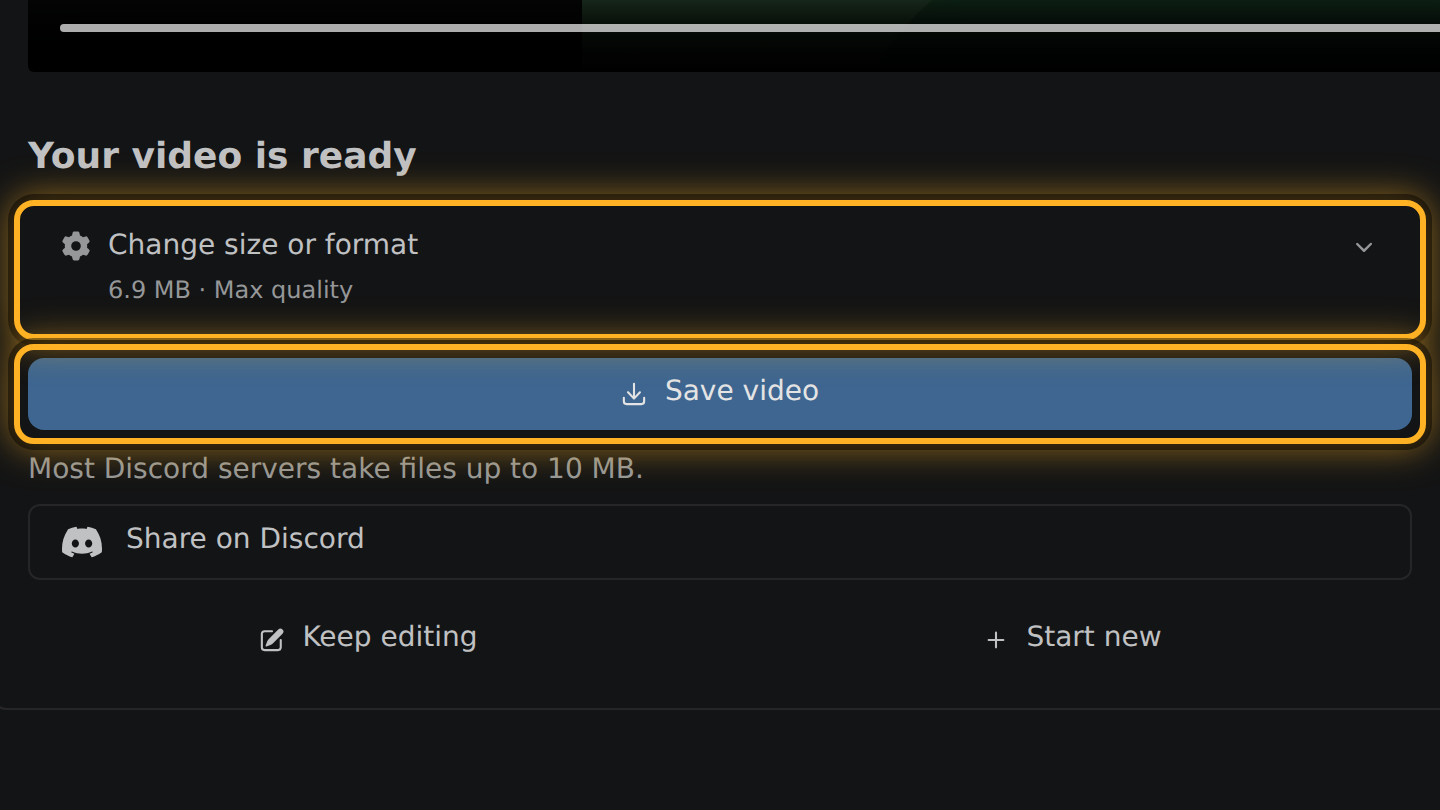
- Check the real size on the next screen, then select Save video.
Size, picture and quality
A video's file size is its bitrate times its length. The bitrate is how many bits each second of picture gets, so for the same length a smaller file means fewer bits for every frame. Below a point the picture breaks into blocks and smears, and the only way to go smaller without that is a smaller picture: fewer pixels sharing the same bits.
The slider makes that trade for you. It works out the bitrate your size leaves and keeps the video's own picture while that bitrate is enough for it. When it is not, it steps down to 1080p, then 720p, then 480p, and the readout under the slider names the step, such as About 11 MB · 720p. It stops at the smallest size it can promise.
The quality level over the size line says where the slider sits. Max quality is no size target: each clip is encoded at about the bitrate it came with. High quality keeps your picture size at a lower bitrate. Medium quality means the picture was stepped down, and Low quality means the smallest picture or the slider at its bottom. You never pick a level; it follows the size.
How close the size lands
We measured the encoder the export uses in Chrome, on camera footage full of fine moving detail and on an animated film. Whenever the size was within reach, the file landed between 1.8% under and 2.8% over what was asked. The editor still aims at 90% of the size you pick, so a 20 MB pick shows an estimated 18 MB. The spare tenth covers the encoders in phones and graphics cards that we could not test.
Under a certain bitrate the encoder stops listening. In our tests that was about 0.03 bits per pixel in each frame: below it, asking for less returns the same file. That is why the slider has a bottom, and why the second try after a file comes out over is a smaller picture, not a lower number. Footage at 60 frames a second needs about twice the bits of 30, so it steps down sooner.
When both tries miss, the size on the next screen reads, for example, 21.4 MB, over the 20 MB you picked. The file is still yours to save. If it has to fit, select Keep editing, trim a little and export again.
AV1 or H.264
Where your browser can encode AV1, the quality row opens on a Format switch: H.264, marked compatibility, and AV1, marked smaller size. We scored both against the original in Chrome. AV1 matched H.264's picture at about half to three quarters of the bitrate, so the same size buys a visibly cleaner picture, or the same picture a smaller file.
H.264 is the default because it plays everywhere. AV1 plays in WhatsApp, Discord, Chrome, Firefox and Edge and on Android, but Apple devices play it only with the hardware for it, from iPhone 15 Pro and M3 Macs on, and some Windows players need a free extension. Pick AV1 when you know where the file is going; keep H.264 when you do not.
The format and the size you pick are kept in this browser, so the next video starts where you left off. Drag the slider back to the top to clear the size.
What to know
- To reach a size, the export encodes once more at a bitrate worked out from it, and at a smaller picture if that still comes out over.
- With no size picked, a trimmed or joined video weighs about the share of its files that you kept: cut a video to half its length and the file is about half as big.
- If an export comes out over the size you picked, the next screen says so. The editor does not try a third time.
- Your video is not uploaded to make it smaller. Your browser re-encodes it on your own device, so trying sizes sends nothing anywhere.
Questions
How small can the file go?
As small as the slider goes for your video. Below that, a picture worth watching does not fit; trim the video to go lower.
Why is a trimmed video smaller than the original?
It keeps only the part you left, at about the bitrate each clip came with, so it weighs about that share of the file.
Can I pick AV1 for a smaller file?
Where your browser can encode AV1, a Format switch at the top of the quality row offers it. The file is smaller at the same quality but plays in fewer places, so H.264 is the default.
Does it make a video that already fits look worse?
No. When the file already fits the size you picked, it is not encoded again. With no size picked and H.264 as the format, a whole clip, or one cut only at its end, is copied rather than encoded again.

Thiago Vitorino leads the Edit Videos Team. His articles draw on 22 years of building for the web, with TypeScript, Rust and front-end performance.
More guides
Cut a video down to the part you want, entirely in your browser. No upload, no install.
Combine two or more video clips into a single file, without uploading anything.
Take the sound out of a video file in your browser. The picture stays as it is.