How to compress a video for email
Make a video small enough to attach to an email, without uploading it or installing software.
To compress a video for email, open Edit Videos from the button on this page: it starts with the size set to 20 MB, under the 25 MB that Gmail and Outlook.com accept. Pick the video, check the picture size the line above Export video names, export, save and attach the file. For a long video a link is often better, and this page says when.
Steps
- Use the button on this page. It opens Edit Videos with the size set to 20 MB.
- Select Choose a video, audio or picture, then pick the video you want to send.
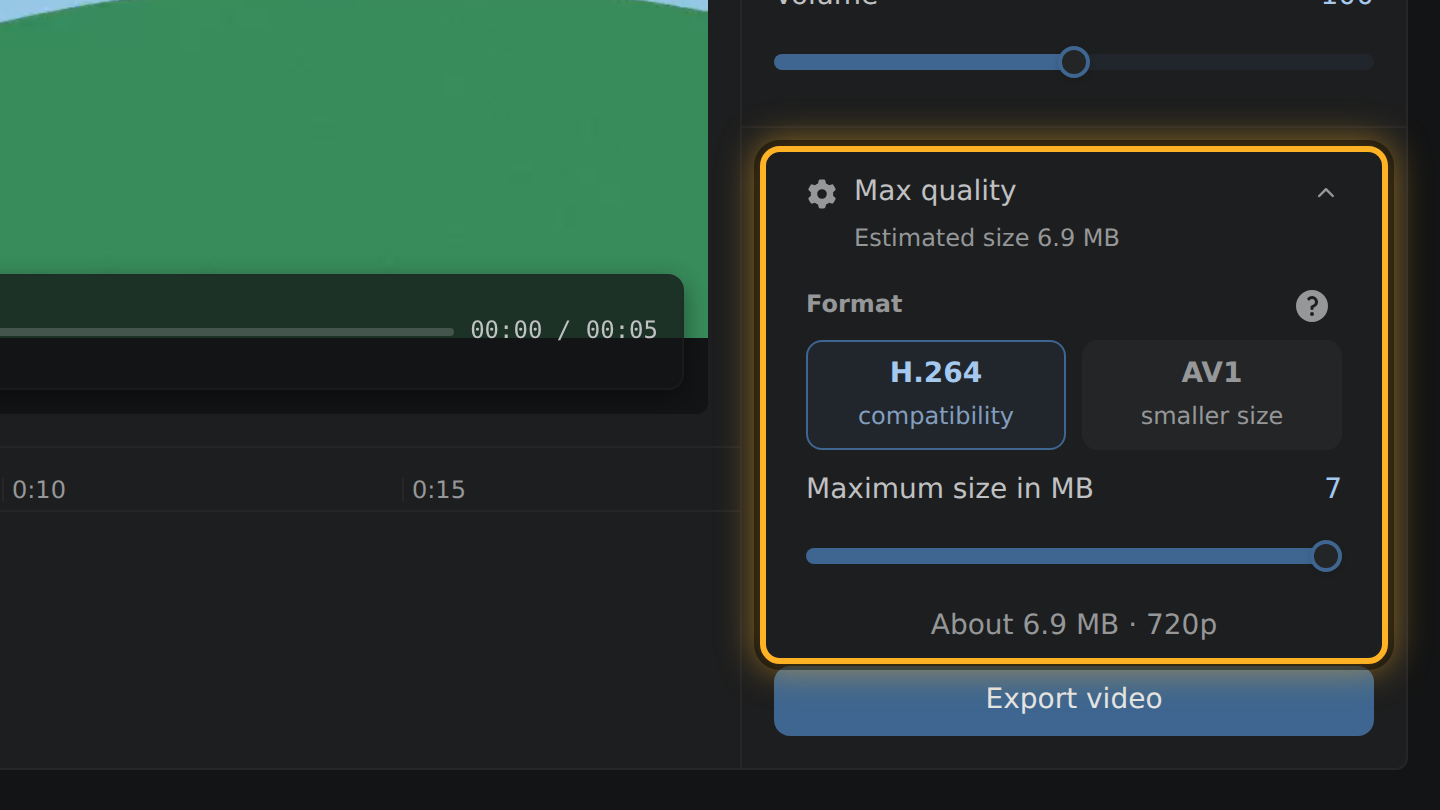
- Look above the Export video button. The size line says about how big the file will be and at what picture size, such as 720p.
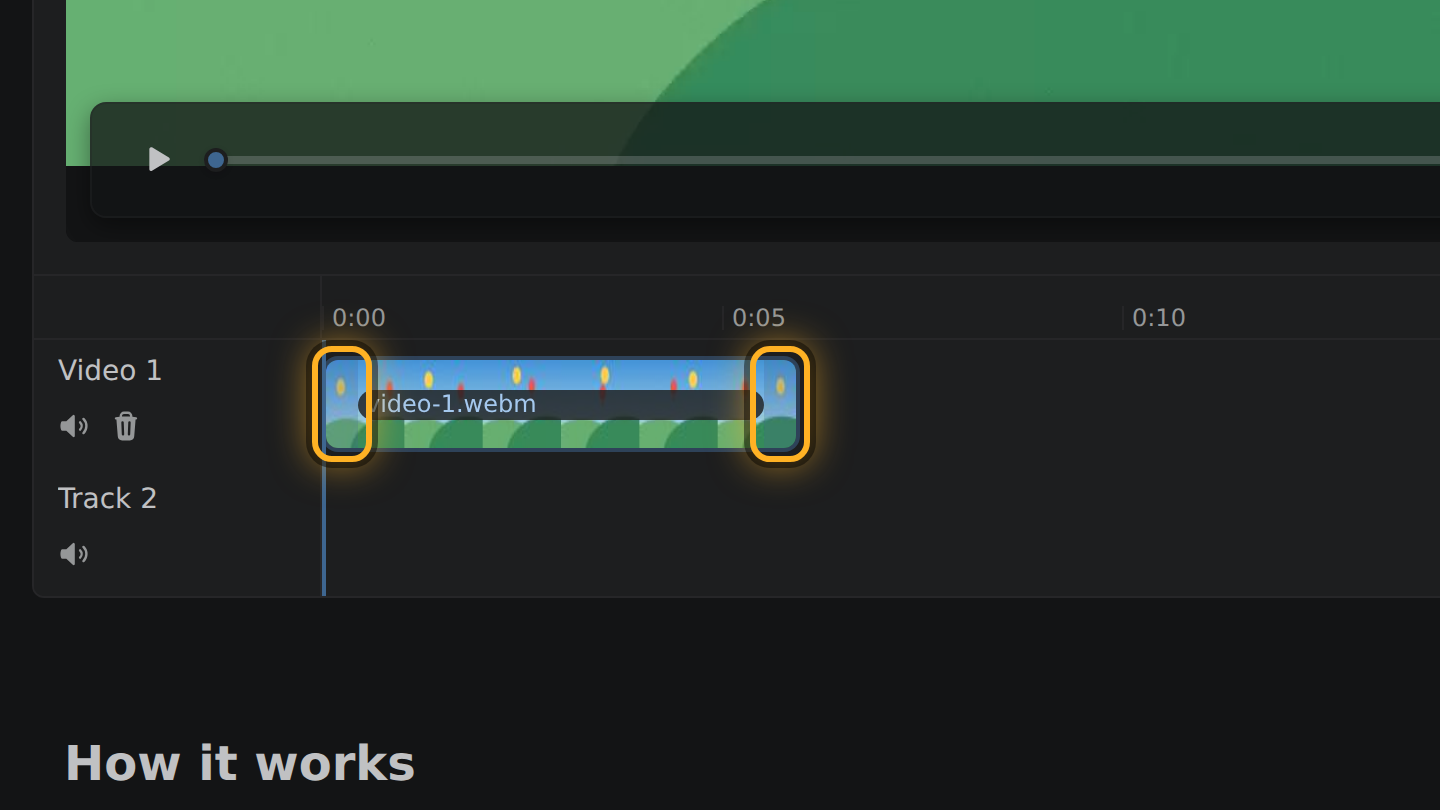
- If the line tells you to trim, drag the ends of the video's bar in the timeline inward until it fits.
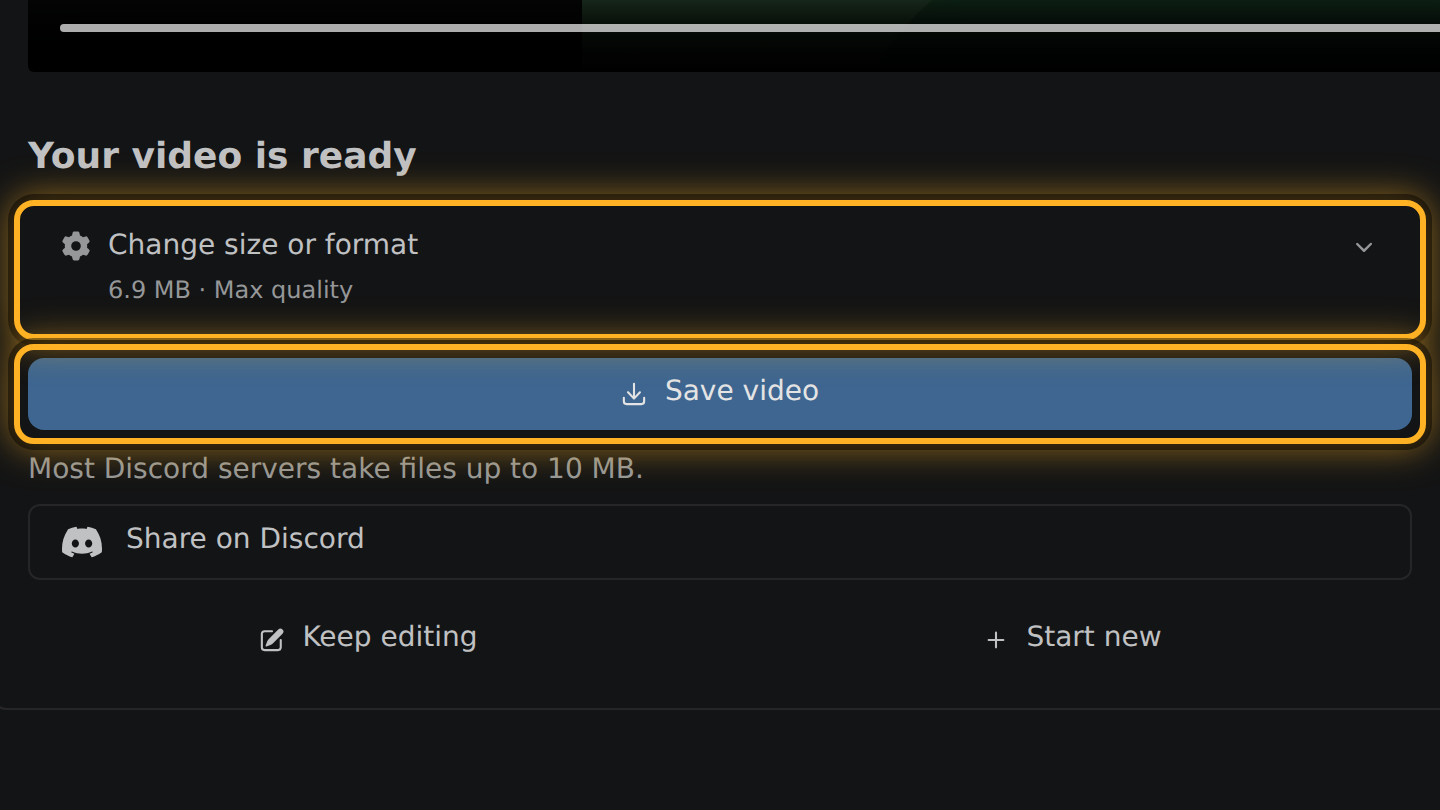
- Select Export video, check the size on the next screen, then select Save video. Attach the saved file to your email.
Why 25 MB is not quite 25 MB
Both big services name 25 MB, as their help pages said when we checked them on 1 November 2026. That is what your side will send. The message also has to get into the recipient's mailbox, and a company or school server can take less than either service, without telling you before you send.
Email also carries an attachment as text, which makes it about a third larger on the way, and some servers count the message after that. So 20 MB is a safe start, not a promise. If it comes back undelivered, export again at 18 MB: with the third added, it arrives at about 24.
When a link is better
Over 25 MB, Gmail stops attaching and puts the file in Google Drive with a link, and Outlook.com offers OneDrive, which shares files up to 2 GB. A link keeps the original picture, and the recipient can watch it in the browser without downloading anything. Pick it for anything long, or for a video they will want at full quality, to edit or to keep.
An attachment wins when the recipient should not need an account or a working link: it stays in the email, opens offline, and does not break when you tidy your cloud storage a year later. For a short clip to a client, a teacher or a relative, that is usually the better trade.
Fitting a longer video
Email has the tightest of the common limits, so length decides more here than anywhere else. A clip of a minute or so keeps its full picture at 20 MB. A longer one drops to 720p, then 480p, and the size line names the step before you export. Past five minutes or so, the editor asks you to trim.
Splitting a long video across two emails also works. Trim to the first half, export and save, then select Keep editing, drag the ends to the second half and export again. Each file gets the whole 20 MB, so each keeps a better picture than one file holding both halves.
What to know
- The button sets 20 MB, under the 25 MB the two services below name, to leave room for what the message adds and for a stricter server at the other end.
- The size line names the picture at that size, so you see what a smaller file costs before you export.
- The file you get is an MP4. Your video is not uploaded to make it: your browser does the work on your own device.
- When a video is too long for 20 MB at a picture worth watching, the editor says how much to trim instead of making a file that does not fit.
What the services say
- Google's help says that for a personal Gmail account the attachment limit is 25 MB, and that over it Gmail removes the attachment and adds it as a Google Drive link. support.google.com, checked November 1, 2026
- Microsoft's help says the attachment size limit for files on Outlook.com is 25 MB, and that files shared from OneDrive can go up to 2 GB. support.microsoft.com, checked November 1, 2026
Questions
What if the video is too long for email?
Send a link instead of a file: put the video in your own cloud storage and share it from there.
Will the video look worse?
A little or a lot, depending on how much has to go. The editor names the quality level and the picture size before you export, and trimming first keeps more.
Why 20 MB and not 25?
To leave room for the encoding and for the recipient's server. You can drag the size slider to another size.
Will the recipient be able to play it?
Almost always. The file is an MP4 with H.264 video, which phones, computers and most mail apps' own previews play. Leave the Format switch on H.264 for email, since you cannot know what the recipient will open it on.

Thiago Vitorino leads the Edit Videos Team. His articles draw on 22 years of building for the web, with TypeScript, Rust and front-end performance.
More guides
Cut the best moment out of a long game recording, in your browser, without uploading the footage.
Trim the start and end of a screen recording, or take a pause out of the middle, before you share it.
Cut a video down, or set its size in megabytes, so it is small enough to send.