How to cut an MP4, MOV or WebM video
Trim an MP4, MOV or WebM file in your browser, with no upload, and save the part you keep as an MP4.
We built this site so everyone can edit MP4, MOV, WebM and many other formats quickly and for free. Edit Videos opens all three in your browser and cuts them on your own device, without sending anything to the internet. The steps are the same for every format. The sections after them say what each one usually holds and what happens to it when you cut.
Steps
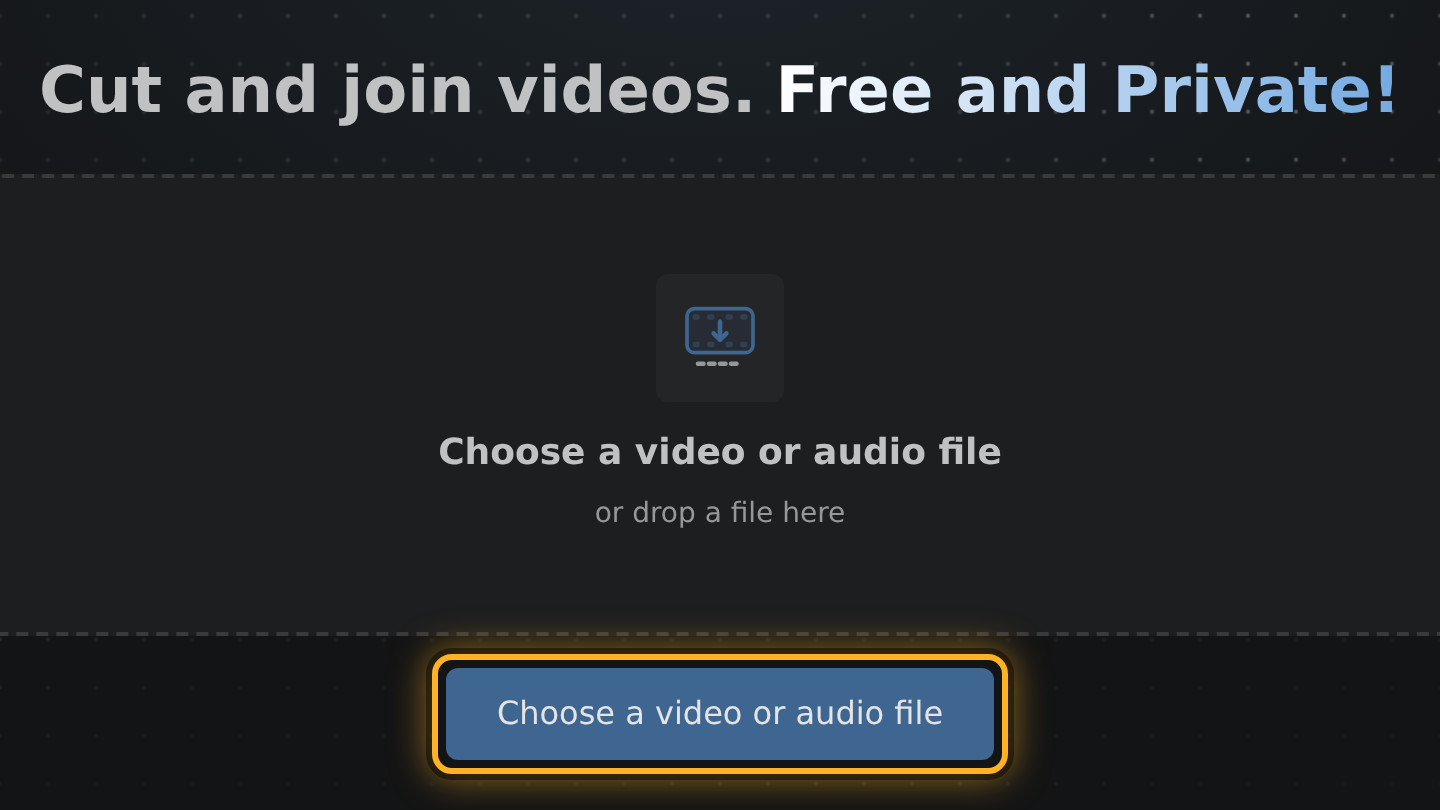
- Open Edit Videos and select Choose a video, audio or picture, then pick the MP4, MOV or WebM file. Dropping it on the page works too.
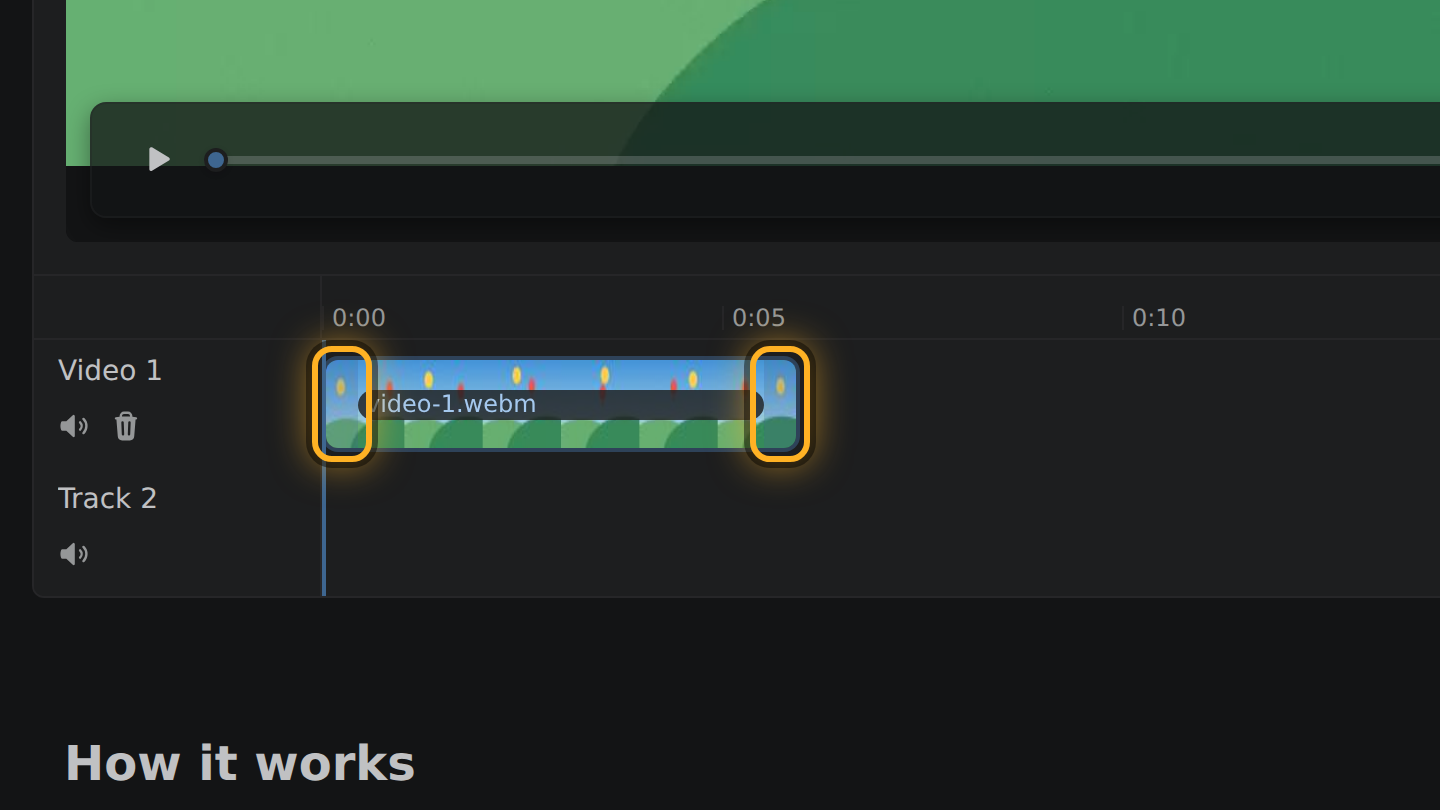
- The file is a bar in the timeline under the preview. Drag the bar's left end to the first moment you keep and its right end to the last.
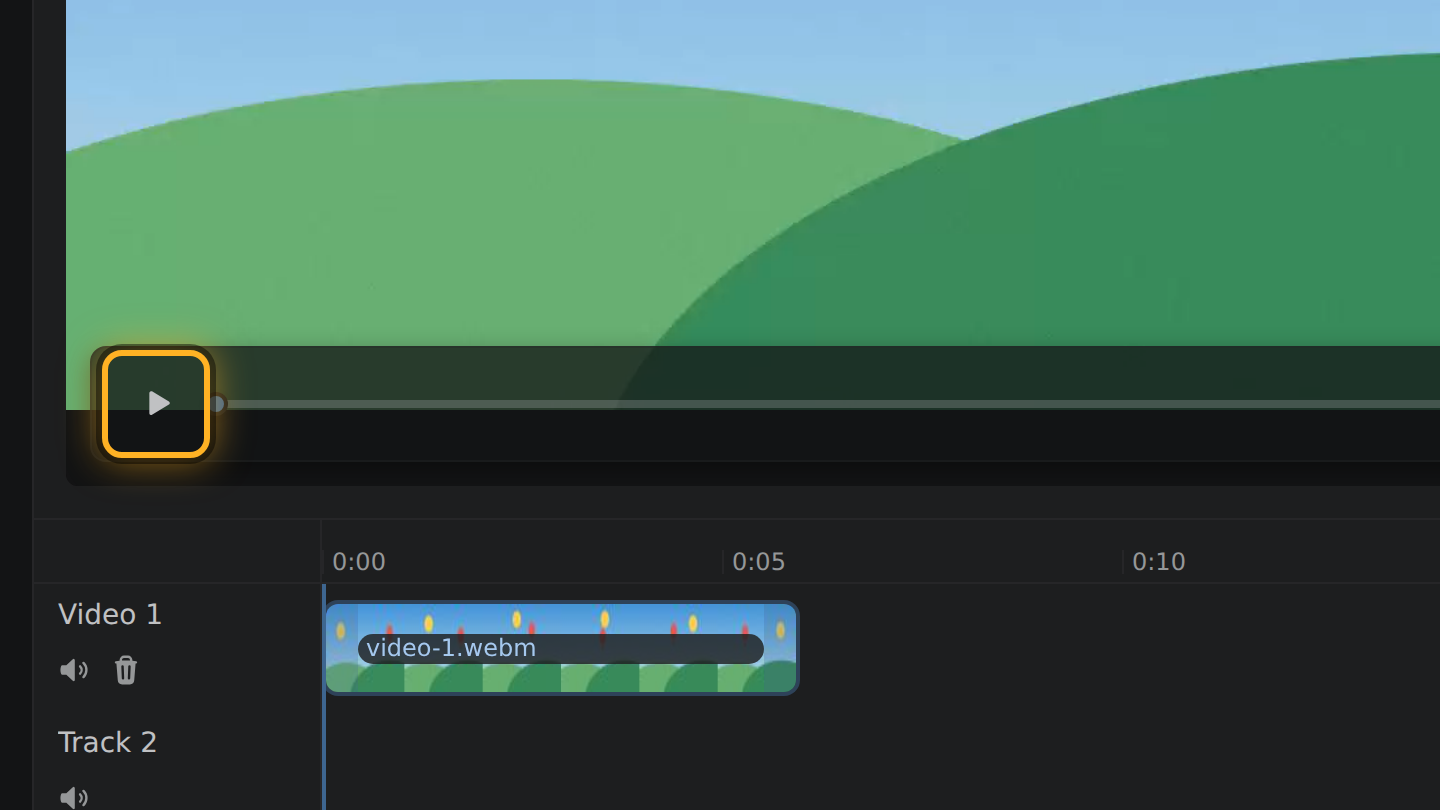
- Select Play under the preview and watch the part you kept once through.
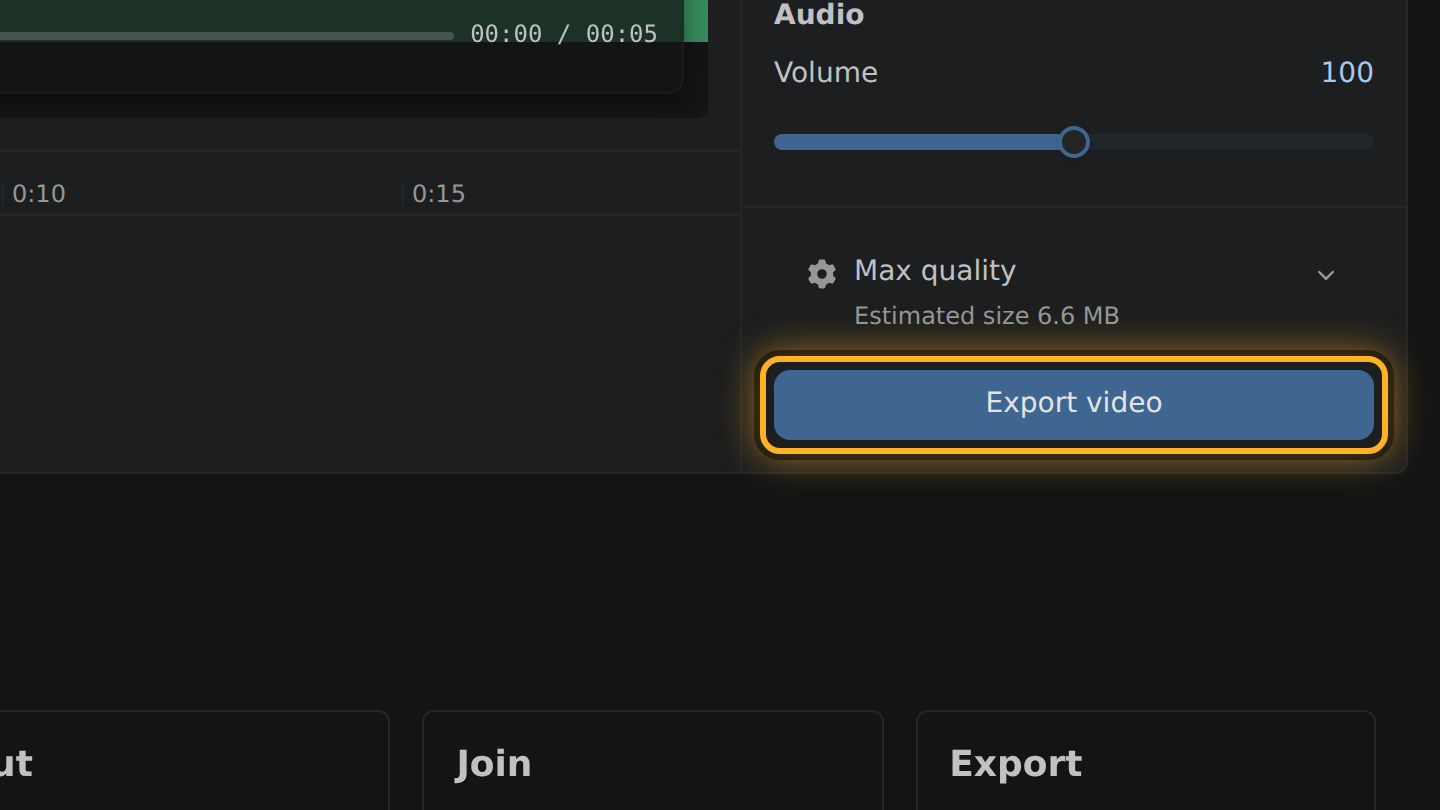
- Select Export video, then Save video.
Cutting an MP4
Most MP4 files hold H.264 video and AAC sound. Phones, cameras, screen recorders and download sites write that pair because nearly every browser decodes it, so an MP4 is the file most likely to open. Newer MP4 files can carry HEVC, VP9 or AV1 instead, and those open only where your browser has a decoder for them.
If you move only the end, the kept picture is copied frame for frame with no new encode, so the cut has every detail the file had. If you move the start, the picture is encoded once more at the bitrate the file came with. Either way the new MP4 weighs about the share you kept: a third of the length, about a third of the megabytes.
Some MP4 files, often ones trimmed by another tool or saved from a live stream, do not begin at time zero: their first frame carries a later time stamp. Edit Videos reads that offset, so the start you set in the timeline is the start the new file has.
Cutting a MOV
MOV is Apple's container. An iPhone records HEVC into it unless Settings › Camera › Formats is set to Most Compatible, which records H.264 instead. A Mac's screen recordings are .mov files too, with H.264 video. Edit Videos opens MOV files that hold either of the two.
HEVC is what decides whether an iPhone video opens. Some browsers on some computers have no HEVC decoder, and then the page says the file couldn't be opened. The same video opens on a device whose browser decodes HEVC, or once it is filmed again with Most Compatible set.
The cut is saved as an MP4, not a MOV, and the original stays as it was. A clip filmed upright stays upright: the rotation the phone wrote into the file is kept, so a portrait video plays the right way up in the MP4 as well.
Cutting a WebM
WebM comes from browsers and screen recorders more than from cameras: a recording made in a web page, a clip saved from a video call, a capture tool's output. It holds VP8, VP9 or AV1 video, usually with Opus sound. Edit Videos opens it when your browser can decode the video inside.
Moving only the end copies the VP8, VP9 or AV1 picture into an MP4 untouched, so the result keeps the codec the WebM had. Moving the start, joining clips or setting a size encodes the picture as H.264, or as AV1 if you pick it.
A WebM and an MP4 can go on one timeline. Add both: they come out as a single MP4 with H.264 video and Opus sound, in the order they sit, each clip fitted inside the larger picture of the two.
What to know
- Whatever the format you open, the cut is an MP4 named after your file with -edited added: beach.mov comes out as beach-edited.mp4.
- The picture is H.264 by default. Where your browser can encode AV1, the Format choice in the quality line above Export video offers it too. In our tests AV1 kept the same picture quality at about half to three quarters of H.264's bitrate.
- AV1 plays in WhatsApp, Discord, Chrome, Firefox and Edge, on Android, and on iPhone 15 Pro, M3 Macs and newer. When you don't know where the video will be watched, keep H.264.
- The file stays on your device while you cut and save it. Edit Videos reads it in the browser and writes the new one there; no part of it is uploaded.
Questions
Can I save the cut as a MOV or a WebM?
No. Every video Edit Videos exports is an MP4, the kind of file the most phones, computers and apps play.
Does cutting lower the quality?
Not when you move only the end: the picture is a copy. A cut that moves the start, joins clips or sets a size encodes the picture once, at the bitrate the file had unless a size asks for less, so the change is small and hard to see.
How do I know how big the cut will be?
The line above Export video shows an estimate before you start, and the done screen shows the real size of the file it made.
Why won't my file open?
The codec inside decides, not the ending of the file's name. When your browser has no decoder for it, the page says the file couldn't be opened. Try a recent version of Chrome, Edge or Firefox, or a copy of the video recorded as H.264.

Thiago Vitorino leads the Edit Videos Team. His articles draw on 22 years of building for the web, with TypeScript, Rust and front-end performance.
More guides
Cut a video down to the part you want, entirely in your browser. No upload, no install.
Combine two or more video clips into a single file, without uploading anything.
Take the sound out of a video file in your browser. The picture stays as it is.