How to cut a video on Windows, Mac, iPhone, Android or Chromebook
Trim a video in the browser on any computer or phone, with nothing installed and nothing uploaded.
Edit Videos is free and was built to make life simpler for anyone who wants to cut and edit videos, without the hassle of downloading a program or dealing with operating system versions. Whether on a Windows PC, a Mac, an iPhone, an Android phone or a Chromebook, Edit Videos just works in your browser, privately and simply. What changes from one device to the next is the browser to open, where your videos are kept and where the finished file goes. The steps below hold everywhere; the section for your device says the rest.
Steps
- Open Edit Videos in the browser on your computer, phone or tablet.
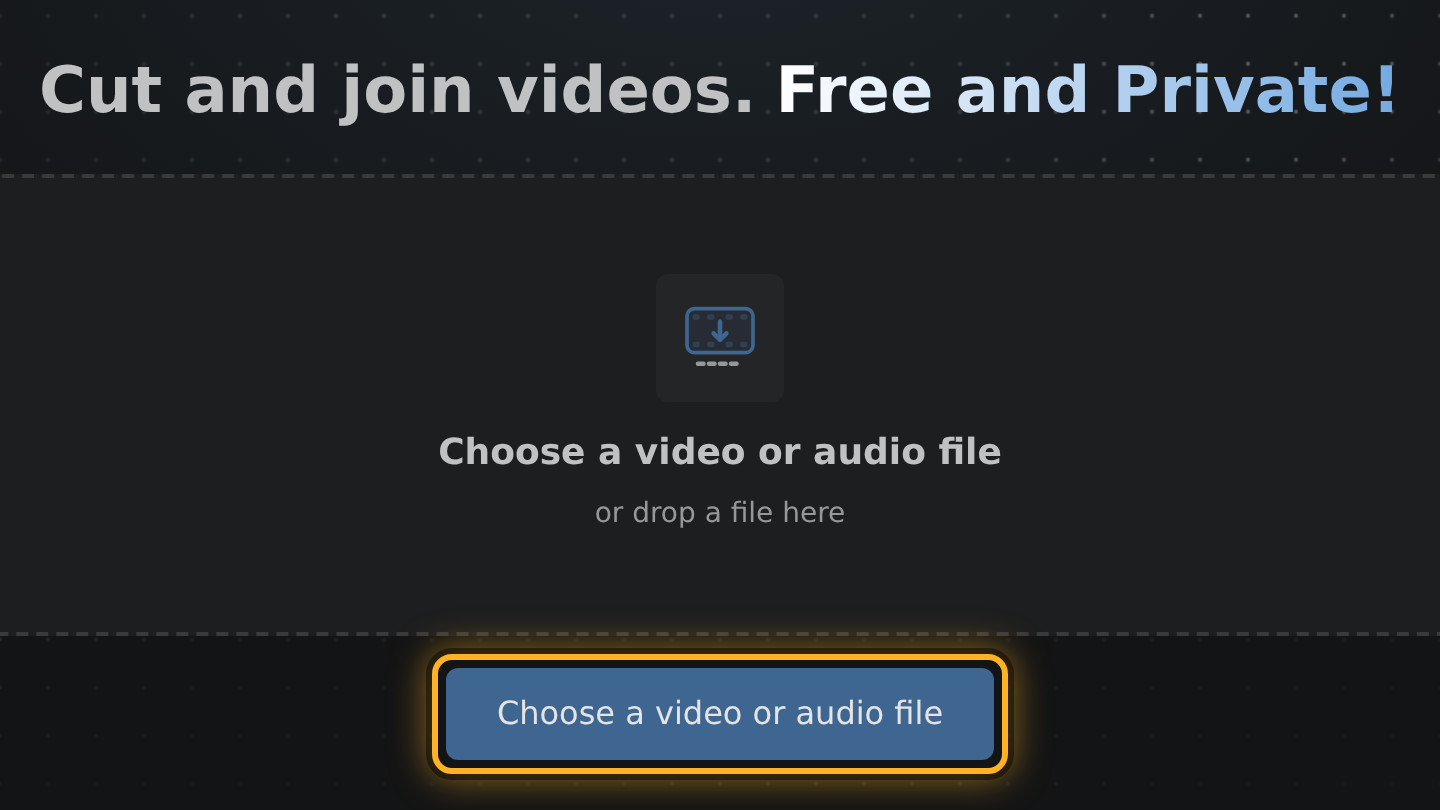
- Select Choose a video, audio or picture and pick the video. The section for your device says where it keeps them.
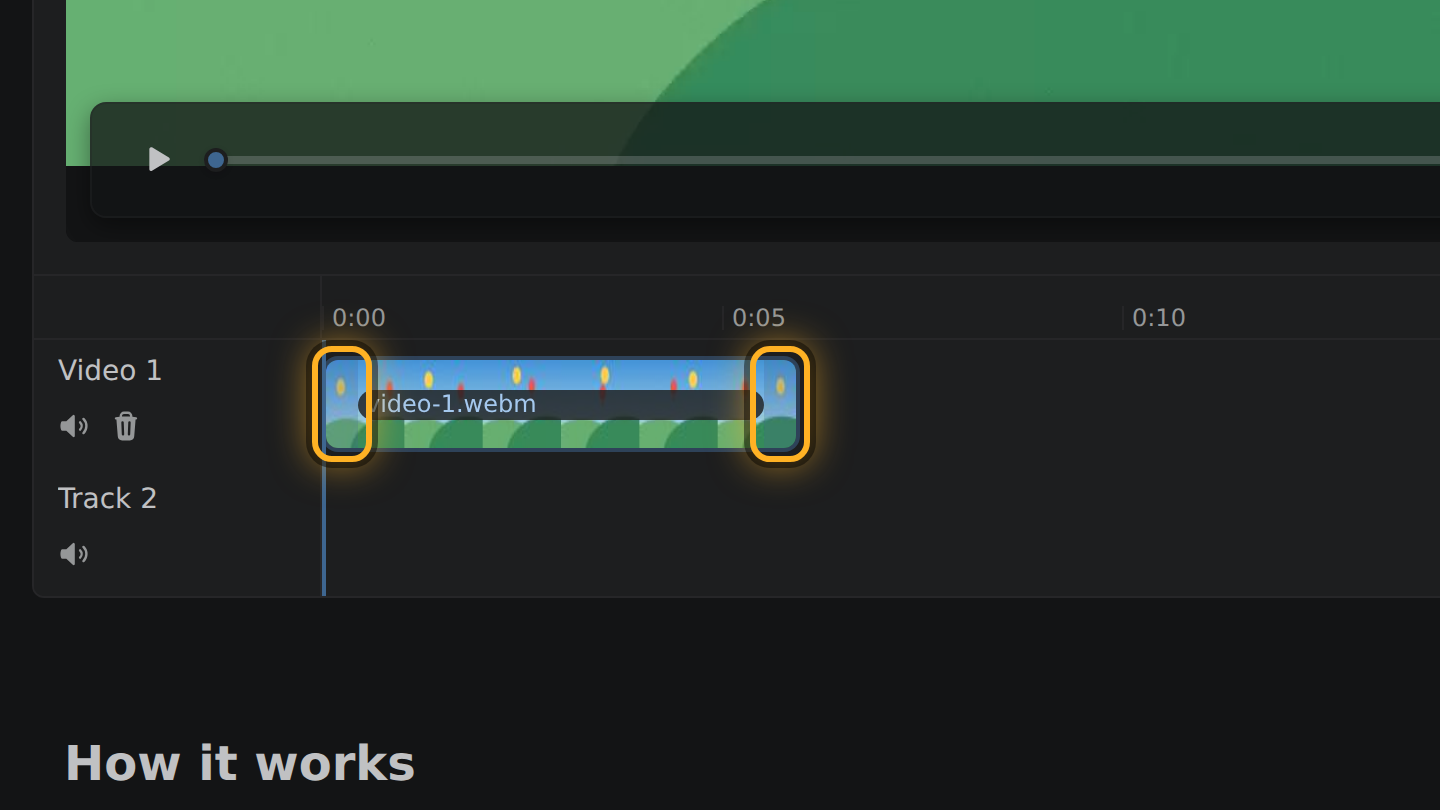
- Drag the ends of the bar in the timeline, with the mouse or a finger, to the first and last moments you keep.
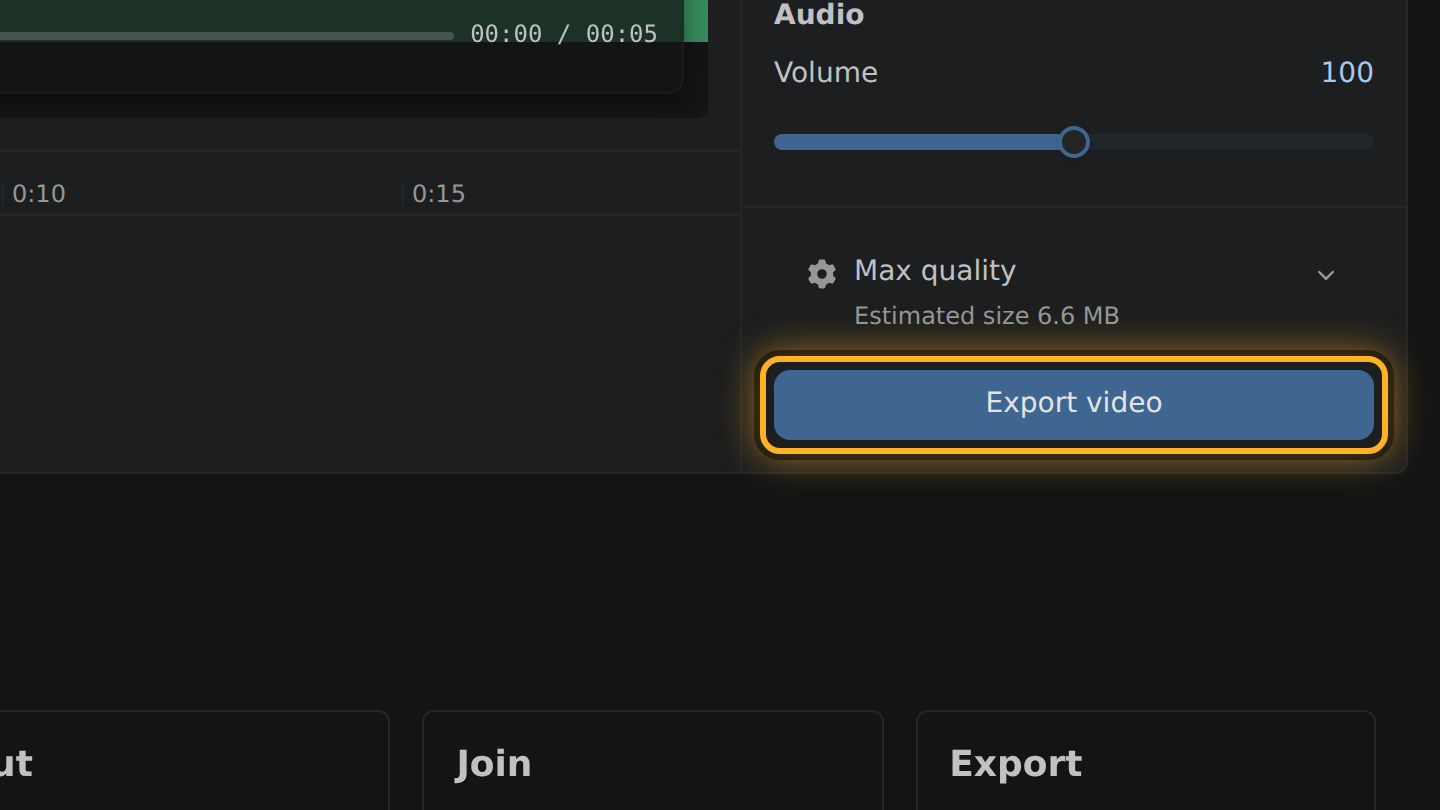
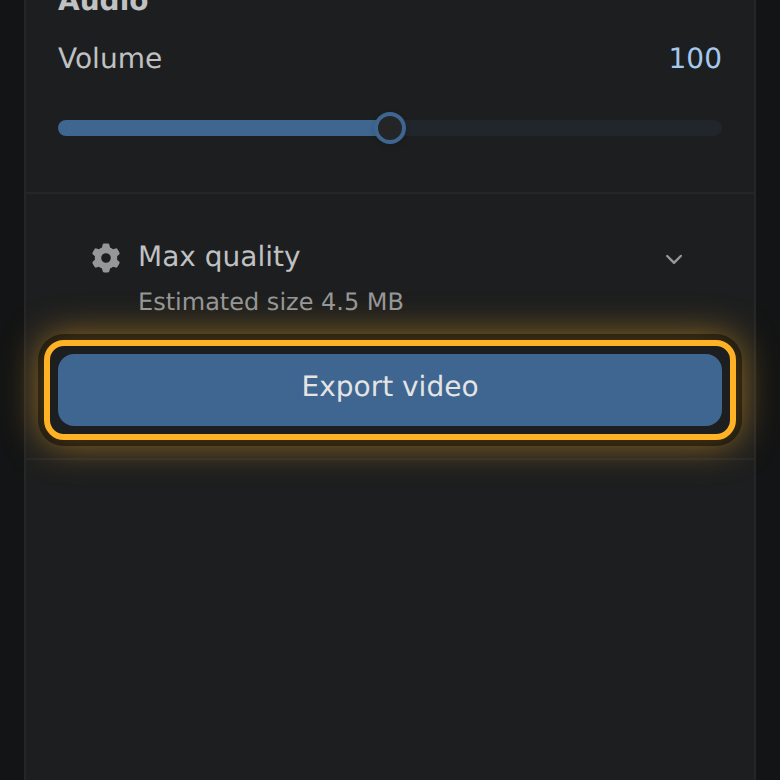
- Select Export video, then Save video.
On Windows
Open Chrome, Edge or Firefox. Videos you film or copy over usually sit in the Videos folder, and clips from the Xbox Game Bar in Videos › Captures. You can also drag one file or several from File Explorer straight onto the page.
In Chrome and Edge, Save video opens a save dialog. The first time it starts in the Videos folder; after that it opens wherever you last saved. Firefox has no save dialog, so the file goes to your Downloads folder. Either way its name is your file's with -edited.mp4 at the end.
Share on Windows hands the file to the Windows share panel. Not every app takes a video from it yet; WhatsApp does. In Chrome you can also drag the finished picture out of the page into a folder or a chat window.
The keyboard does most of the work: Space plays and pauses, Left and Right move the playhead one second, and Delete removes the picked clip. Right-click a clip in the timeline for Set start here and Set end here, which trim it at the playhead.
On a Mac
Open Chrome, Edge or Firefox. Whether Safari works depends on its version; the editor tests it when it opens, as it tests every browser. A video in the Photos app has to become a file first: select it and choose File › Export › Export Unmodified Original, then pick that file.
Screen recordings made with Shift-Command-5 land on the Desktop as .mov files. The key marked delete on a Mac keyboard is Backspace; both Backspace and Delete remove the picked clip, so either works.
In Chrome and Edge, Save video opens a save dialog that remembers the folder you used last. Firefox puts the file in Downloads. Where Share appears beside Save video, it opens the Mac's share menu, with AirDrop, Messages and Mail.
On an iPhone
The editor checks the browser first. When it cannot decode and encode video by itself, the page says: “Your browser does not support the video decoding and encoding Edit Videos needs. Try a recent version of Chrome, Edge, or Firefox.” Nothing is wrong with the video then; that browser cannot run the editor.
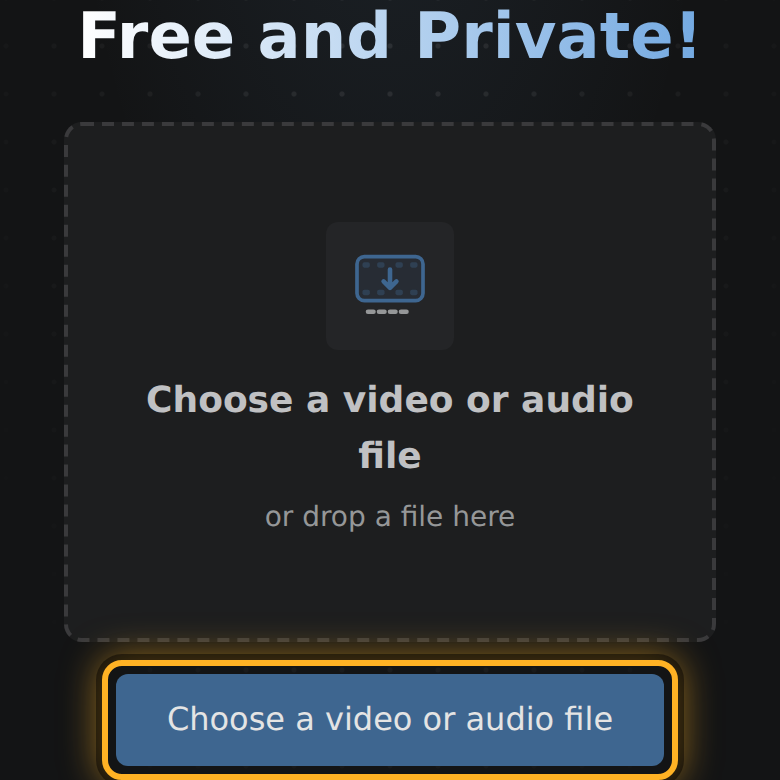
Choose a video, audio or picture offers your photo library, the camera and the Files app. A video in Photos can also be moved to Files first: open it, tap Share and pick Save to Files.
HEVC is the usual reason an iPhone video won't open: the phone records it by default and not every browser decodes it. Setting Settings › Camera › Formats to Most Compatible films H.264 instead, which opens almost anywhere.
Save video downloads the file; open the Files app and look in Downloads. To put the cut in your photo library, select Share instead and pick Save Video.
On Android
Open Chrome, Edge or Firefox for Android. The phone's browser has to decode and encode the video itself, so an older phone may show the browser message instead of the editor. Choose a video, audio or picture opens Android's own picker, where camera videos are under Videos or in DCIM › Camera.
There is no save dialog on Android: Save video downloads the file to the Download folder, where the Files app finds it. Share opens the share sheet, so the cut can go straight to WhatsApp, Gmail or Google Photos.
If your browser offers to install Edit Videos, it then shows up in Android's share menu. Share a video to it from the gallery and it opens in the editor, ready to cut.
On a Chromebook
A Chromebook comes with Chrome, which runs the editor. In the Files app, videos from the Camera app are in My files › Camera and screen recordings in Downloads. The file picker shows Google Drive too, so a video kept there can be picked from it.
Save video opens the Files app's save dialog, where you choose a folder in My files or in Google Drive. The next time, it opens in the same place.
Chromebook keyboards have no Delete key, so Backspace removes the picked clip. The Chromebook does the encoding itself, so a long cut takes longer on a slower one; moving only the end is quickest, since the picture is copied rather than encoded.
What to know
- Nothing is installed. The editor is a web page, and the browser on your device does the cutting.
- The video stays on the device while you edit it. It is not uploaded, so a long video costs no mobile data and no upload time.
- The trim handles work with a mouse, a trackpad or a finger. On a narrow screen the editor's parts sit one under another and the page scrolls.
- You can pick several files at once on any device. They are joined in the order they sit on the timeline.
Questions
Does it work in Safari on a Mac or an iPhone?
That depends on your Safari. The editor tests what the browser can do when it opens, never its name, and tells you if something it needs is missing.
Is there an app to download?
No. Edit Videos is a web page on every device. Where your browser offers to install it, the same page opens in a window of its own, and nothing else is added.
Can I start on my phone and finish on my computer?
No. Nothing is stored online, so the edit lives only in the tab where you made it. Export the cut on the device that has the video.
What if the page says my browser cannot run the editor?
That browser has no video decoding or encoding the editor can use. The message names browsers to try; on a computer, a recent Chrome, Edge or Firefox is the first thing to install.

Thiago Vitorino leads the Edit Videos Team. His articles draw on 22 years of building for the web, with TypeScript, Rust and front-end performance.
More guides
Cut a video down to the part you want, entirely in your browser. No upload, no install.
Combine two or more video clips into a single file, without uploading anything.
Take the sound out of a video file in your browser. The picture stays as it is.