Guides Devices
How to cut a video on a Chromebook
Trim a video on a Chromebook, without installing an app from the Play Store.
Here is how to cut a video on a Chromebook easily, privately (no uploading!) and for free. Edit Videos is the free online tool our team maintains so you can cut videos in a browser tab and much more. Follow the steps below.
Steps
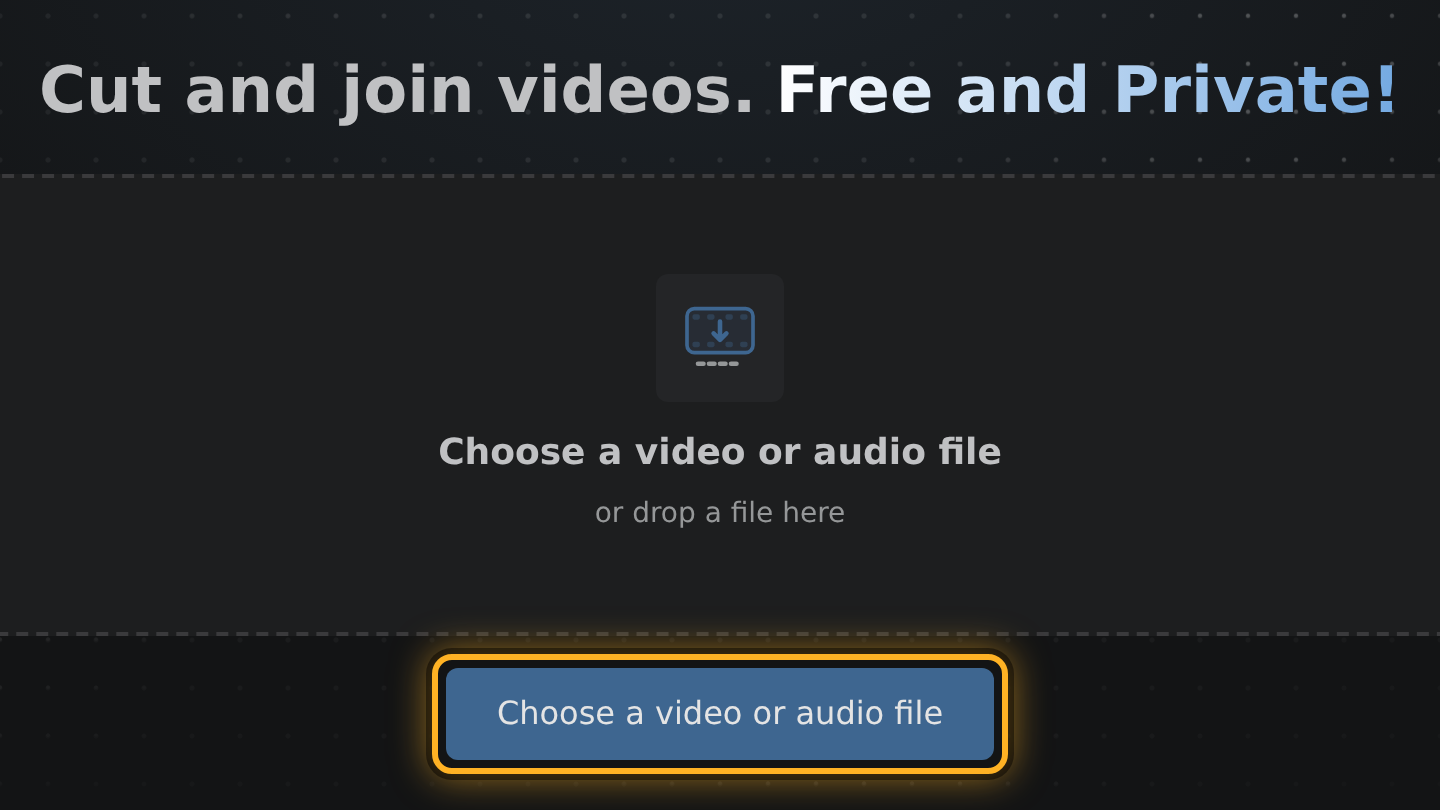
- Open Edit Videos in a new tab, select Choose a video or audio file and pick your video.
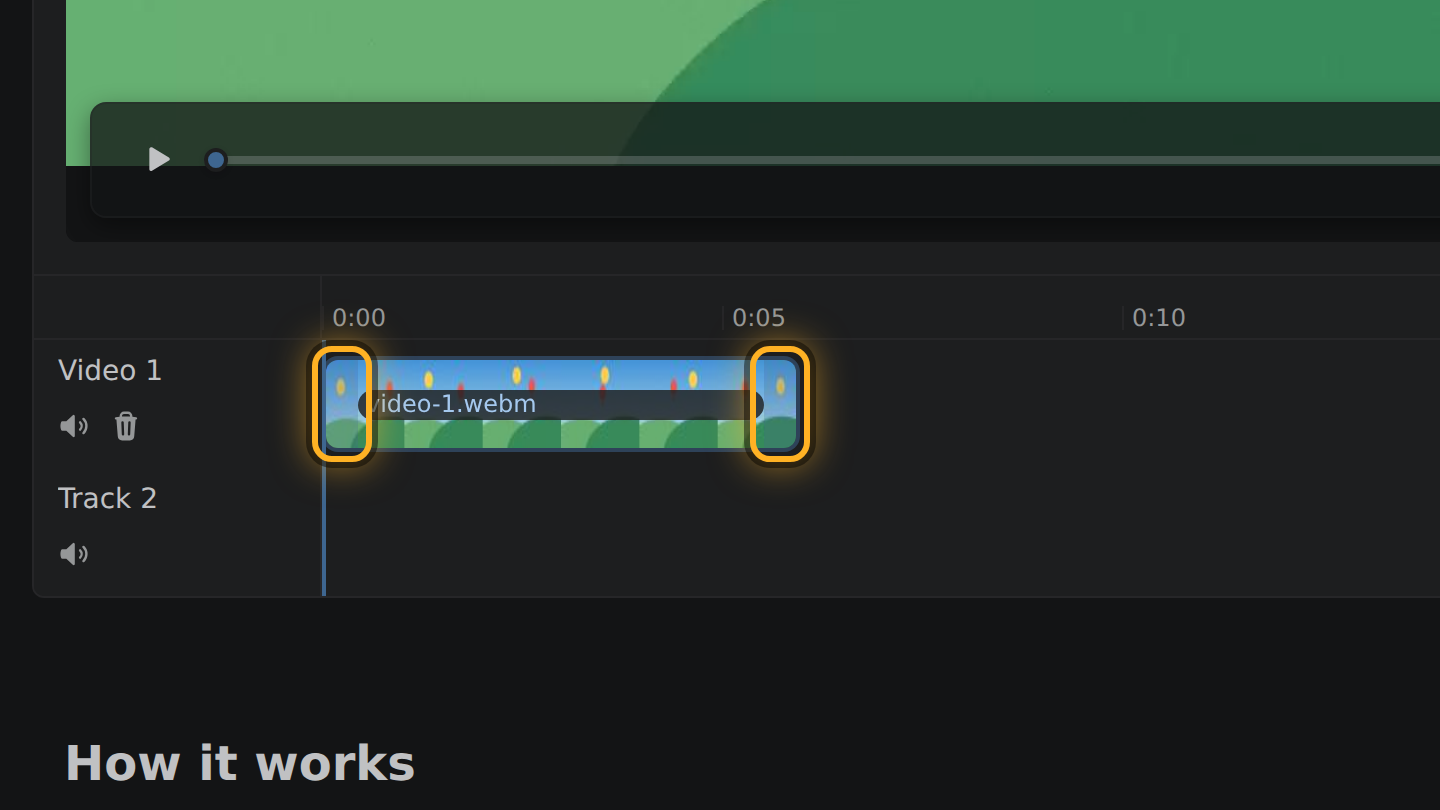
- Find your video's bar in the timeline, the strip under the video. Drag the bar's left end forward to the start you want and its right end back to the end.
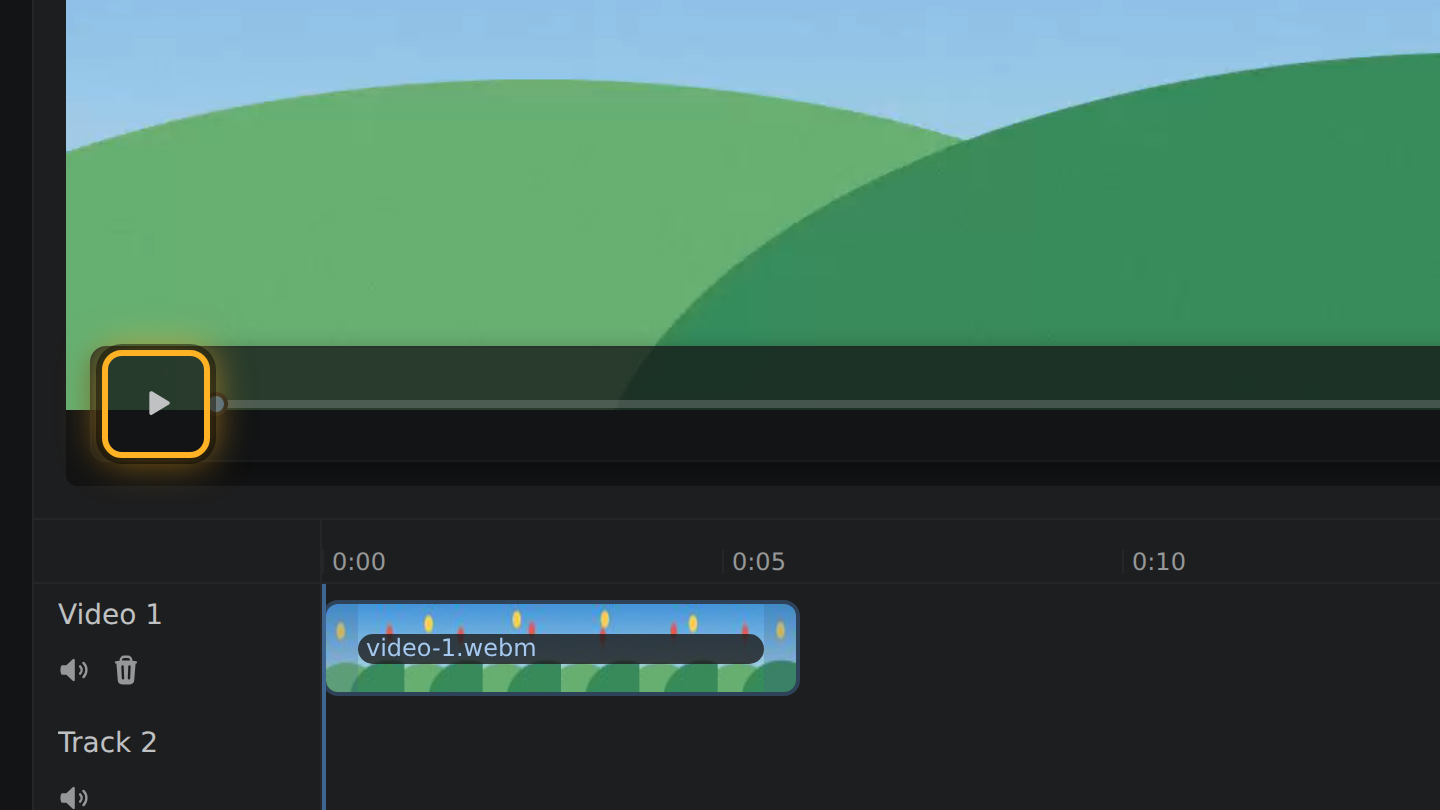
- Play it with Space or the Play button under the video. To take a clip off the timeline, select it and press Backspace.
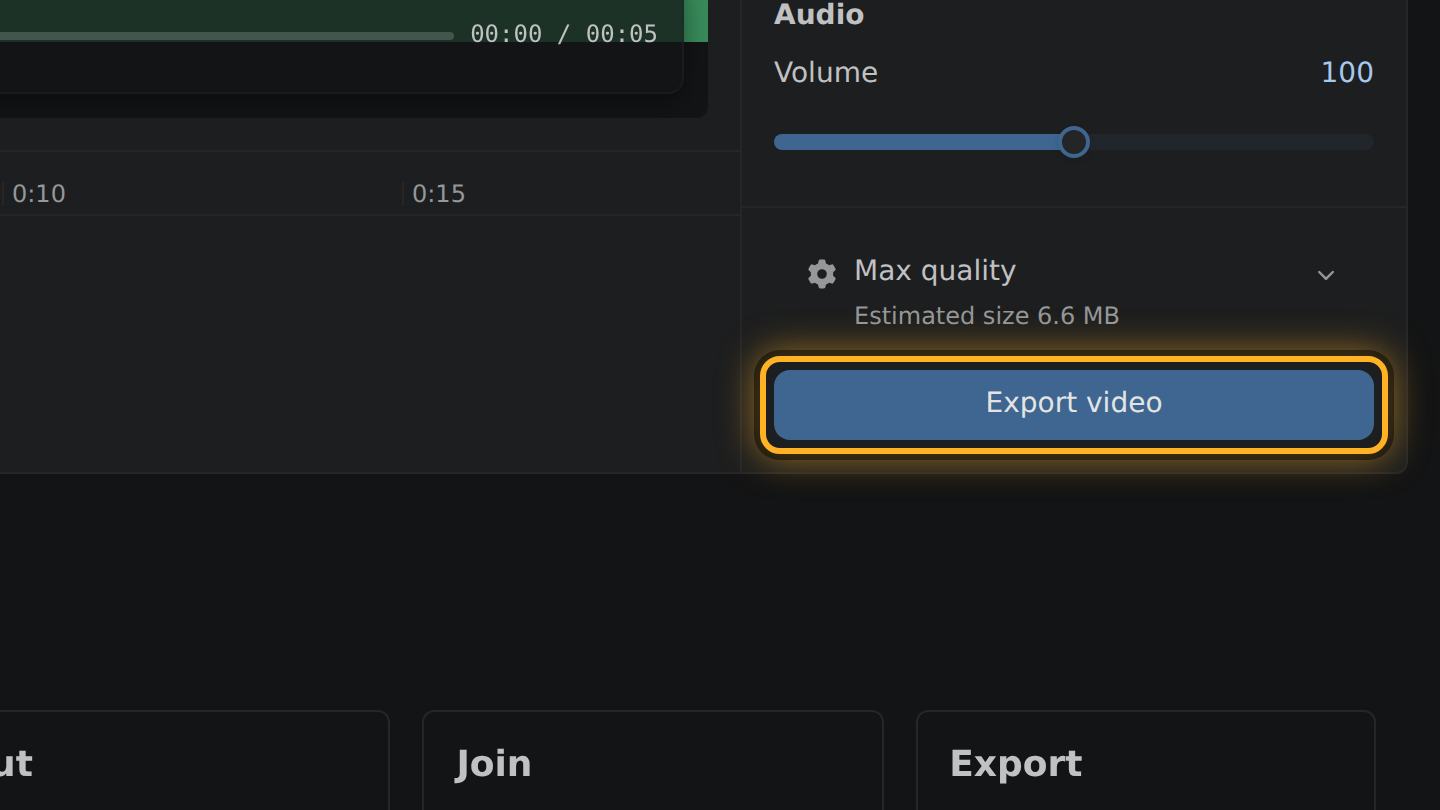
- Select Export video, then Save video.
What to know
- Everything happens in the browser tab. Nothing is added from an app store, and nothing is sent to a server.
- The Chromebook does the encoding itself, so a long video takes longer on a slower one.
- Backspace removes the picked clip, the same as Delete, for a keyboard that has no Delete key.
- Moving only the end of the clip copies the picture without encoding it, which leaves the Chromebook little to compute.
Questions
Do I need a Play Store or Linux app?
No. A browser tab is all it uses.
Where is the file saved?
Save video opens a save dialog when the browser has one, and you choose the folder there. If it has none, export.mp4 is downloaded.
Will it run on my Chromebook?
The editor tests the browser when it opens: it must decode and encode video by itself. If it cannot, the page says which part is missing.

Thiago Vitorino Tech Lead and software engineer
Thiago Vitorino leads the Edit Videos Team. His articles draw on 22 years of building for the web, with TypeScript, Rust and front-end performance.