How to trim a video from cloud storage
Trim a video you keep in Dropbox, Google Drive or OneDrive in your browser, with no upload and no account.
To trim a video kept in cloud storage, first download it to your phone or computer, then open the downloaded file in Edit Videos, trim it and save the result. Edit Videos never connects to your storage account, so the video goes from the storage to your device and stops there.
Steps
- Download the video from your storage to your device. Open the file there and look for its download option.
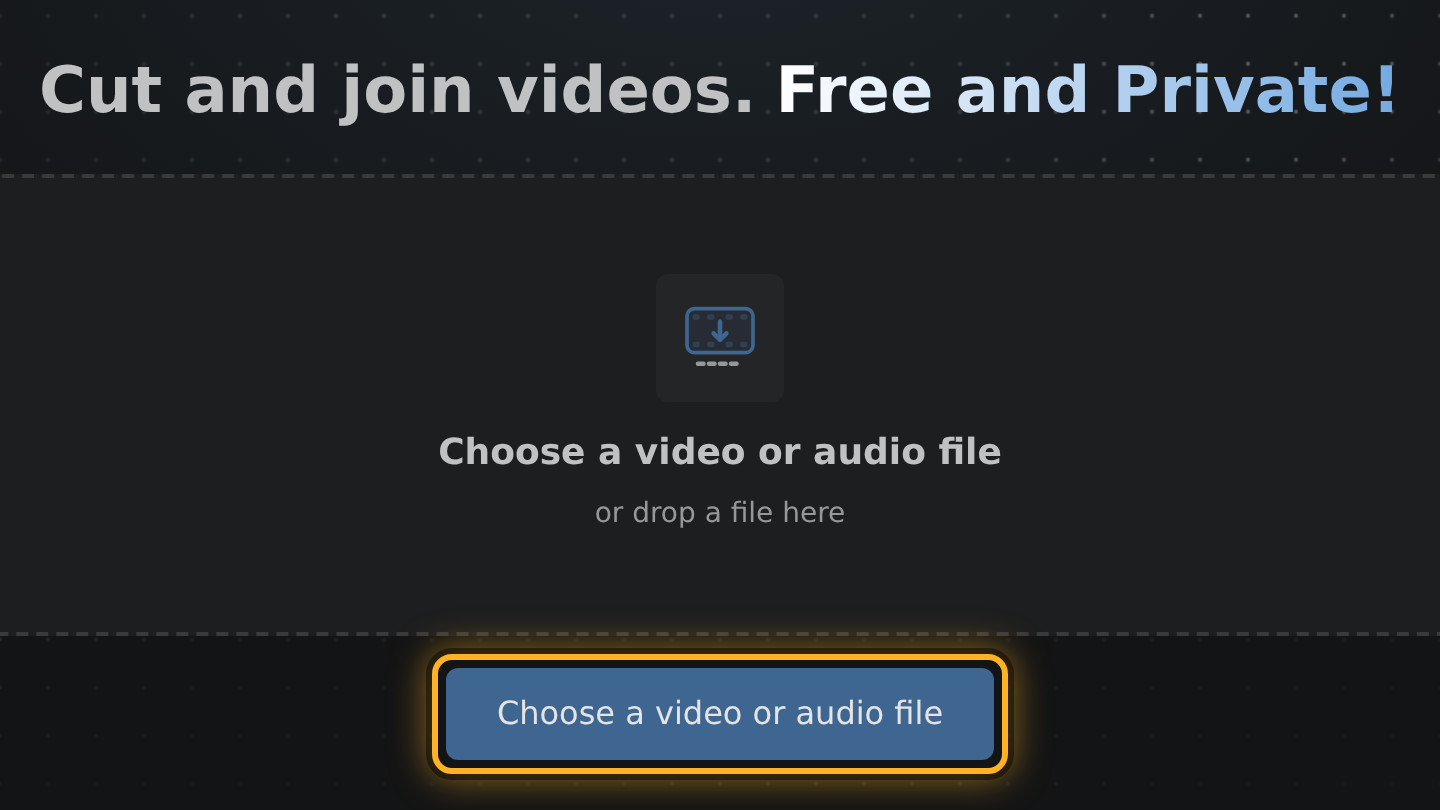
- Open Edit Videos, select Choose a video, audio or picture and pick the downloaded video.
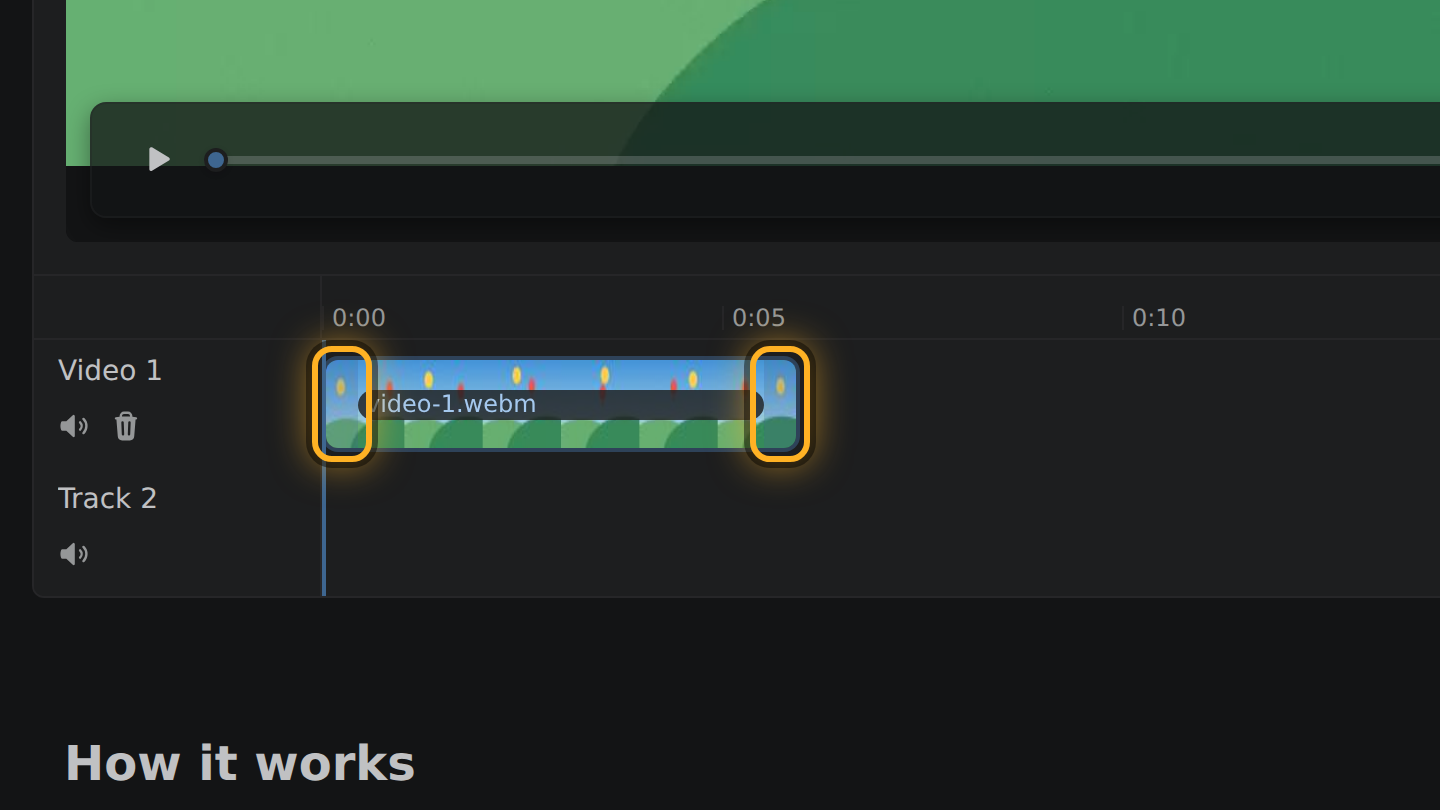
- The video is a bar in the timeline, the strip under it. Drag the bar's left end to the first moment you want and its right end to the last.
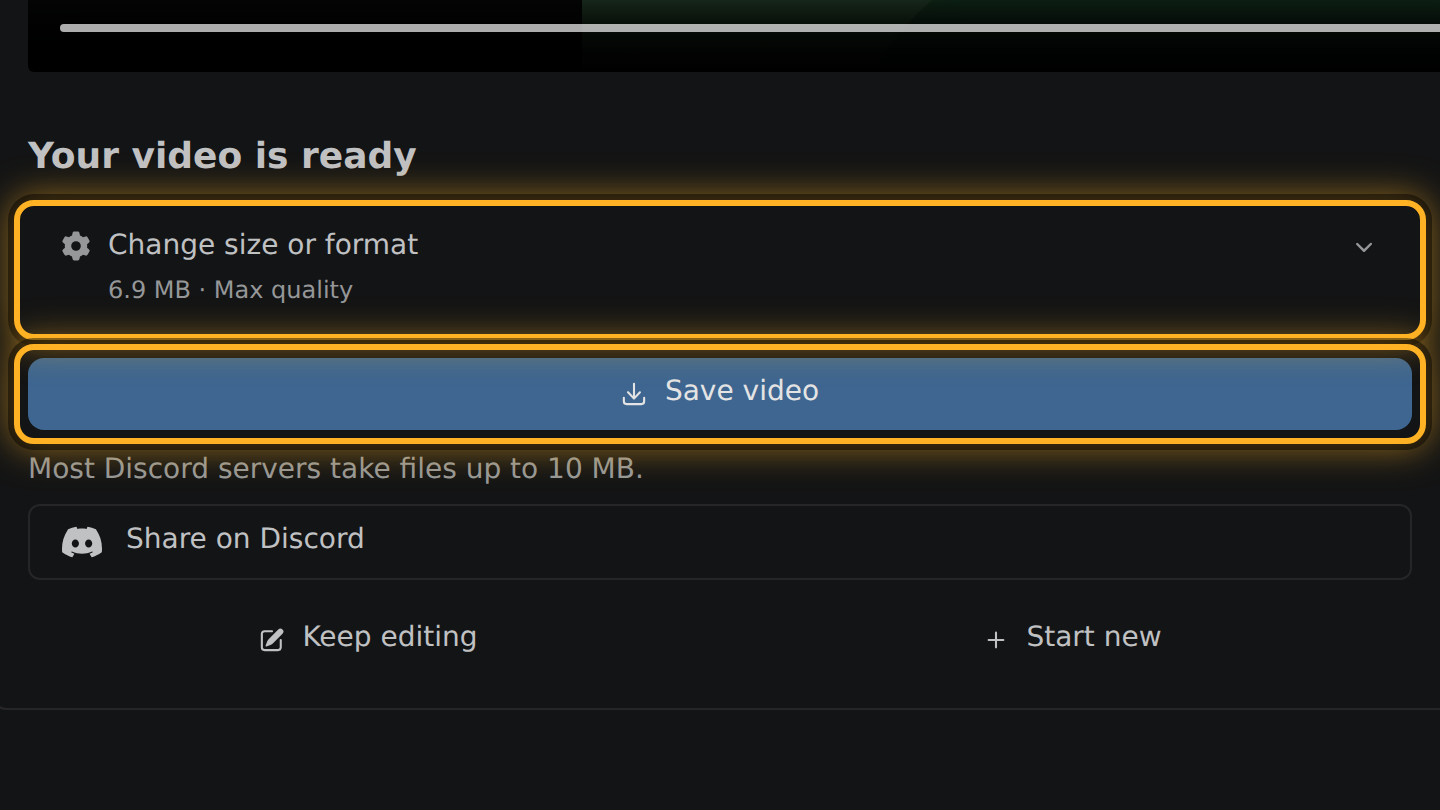
- Select Export video, then Save video. If you want the trimmed file in your storage, upload it there yourself.
Getting the file onto your device
This is the step most people miss. A video you see in Google Drive, Dropbox or iCloud may not be on your device at all; often only a preview is. The trim needs the whole file, so download it first.
On a computer, open the storage in your browser, find the video and use its download option; it lands in your Downloads folder. If the storage's desktop app keeps a synced folder, a video set to stay on this device is already an ordinary file there.
On a phone, open the storage app and save or export the video to the phone. Saved to your photos, it shows up when you pick from photos; saved to your files, it shows up there. A phone that keeps its photos in the cloud may hold only a smaller copy until the full video is fetched.
Room on your device
Check the free space before you download. You need room for the original and for the trimmed copy, which weighs about the share you keep: half the length, about half the megabytes. A long 4K video can take several gigabytes on its own.
Putting the trimmed video back
The trimmed video is saved as a new file next to your downloads, named after the original with -edited at the end. To put it in your storage, upload it from the storage's app or website, the way you add any file. Keep the original until you have checked that the new one plays.
Sending it back is your choice and your action; Edit Videos does not do it for you. That is why the original and the result stay apart until you decide which to keep.
What to know
- Edit Videos opens files on your device. It signs in to none of these services, so it cannot reach files in your storage; you bring the file.
- The trimmed video is a new file. The original in your storage stays as it is until you replace it.
- Your video is not uploaded. It is read on your own device, wherever it came from.
- Edit Videos suits what a service's own trim does not take, such as a video over its limits or one you can download but not edit.
What the services say
- Dropbox's help says its video editing works only on dropbox.com, on videos under 1 GB and ten minutes long, and that you can save a copy or replace the original. help.dropbox.com, checked October 21, 2026
- Google's help says you can trim a video in Drive by opening it in Google Vids and downloading it as an MP4, and that clips are limited to 35 minutes and 4 GB. support.google.com, checked October 21, 2026
- Microsoft's help says trimming in the OneDrive video player hides parts from viewers while the original file stays unchanged, that only 5 parts can be hidden, and that it needs Edit access and an organization that turned it on. support.microsoft.com, checked October 21, 2026
Questions
Can Edit Videos open a file straight from my storage?
No. It opens a file from your device, so download the video first.
Will the trimmed video replace the original?
No. The export is a new file. Upload it yourself, and keep or delete the original.
Should I use my storage's trim or Edit Videos?
If the trim you need is within what the service allows, use it; there is nothing to download. Use Edit Videos when it is not.
Can I do all of this on a phone?
Yes. Save the video from the storage app to the phone, open Edit Videos in the phone's browser and pick it. The trimmed copy is saved on the phone, ready to upload again.

Thiago Vitorino leads the Edit Videos Team. His articles draw on 22 years of building for the web, with TypeScript, Rust and front-end performance.
More guides
Cut the best moment out of a long game recording, in your browser, without uploading the footage.
Trim the start and end of a screen recording, or take a pause out of the middle, before you share it.
Cut a video down, or set its size in megabytes, so it is small enough to send.